Attendance
The Staff Operations Center provides real-time shift cycle monitoring, geolocation tracking, and payroll aggregation.
⏱️ Staff Operations Center
The Staff Operations Center is a centralized attendance command center for shift monitoring, geolocation verification, and payroll forecasting.
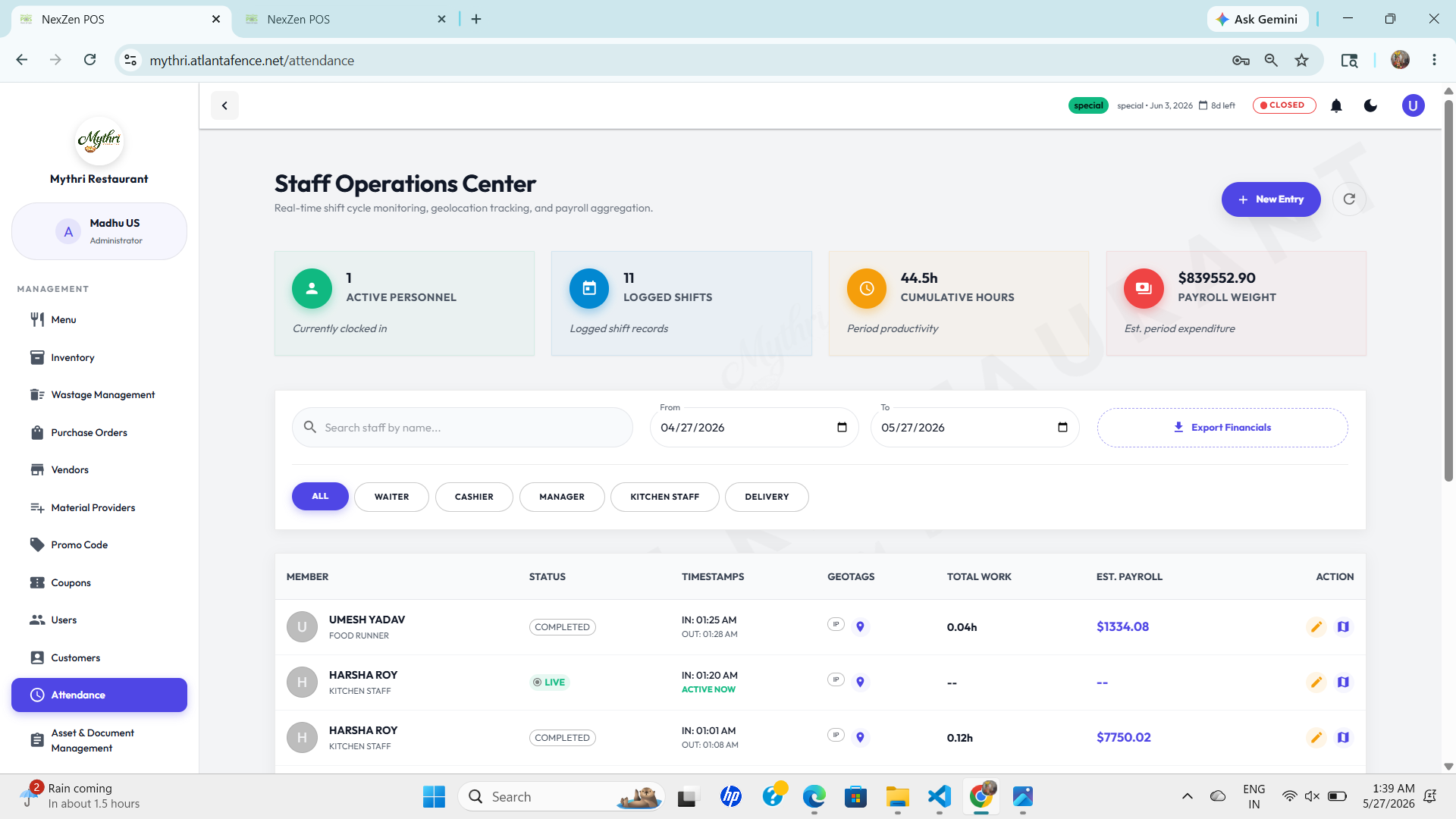
👥 Operational summary
The top summary cards reveal current performance: Active Personnel, Logged Shifts, Cumulative Hours, and estimated Payroll Weight for the reporting period.
🔎 Search & filter
Search staff by name, pick a date range, or use role filters like All, Waiter, Cashier, Manager, Kitchen Staff, and Delivery to narrow the list instantly.
💾 Export data
Use the Export Financials button to download payroll-ready attendance data (CSV/Excel) for the selected date range and role filters.
The attendance table displays comprehensive shift details for each staff member:
- Current Status: Shows whether the staff member is clocked in (Active), clocked out (Inactive), on break, or off-duty.
- Timestamps: Displays clock-in and clock-out times for each shift with precise date and time records.
- Geotags: Records the geographical location coordinates where the staff member clocked in and out for verification and compliance.
- Total Work Duration: Automatically calculates the total hours and minutes worked during the shift.
- Estimated Payroll: Shows the calculated earnings for the shift based on hourly rate and duration worked.
- Quick Action Controls: Provides buttons to edit shift details, view detailed logs, or make corrections without leaving the table.
📝 Creating a New Entry
Click the + New Entry button to log a manual shift or correct attendance records.
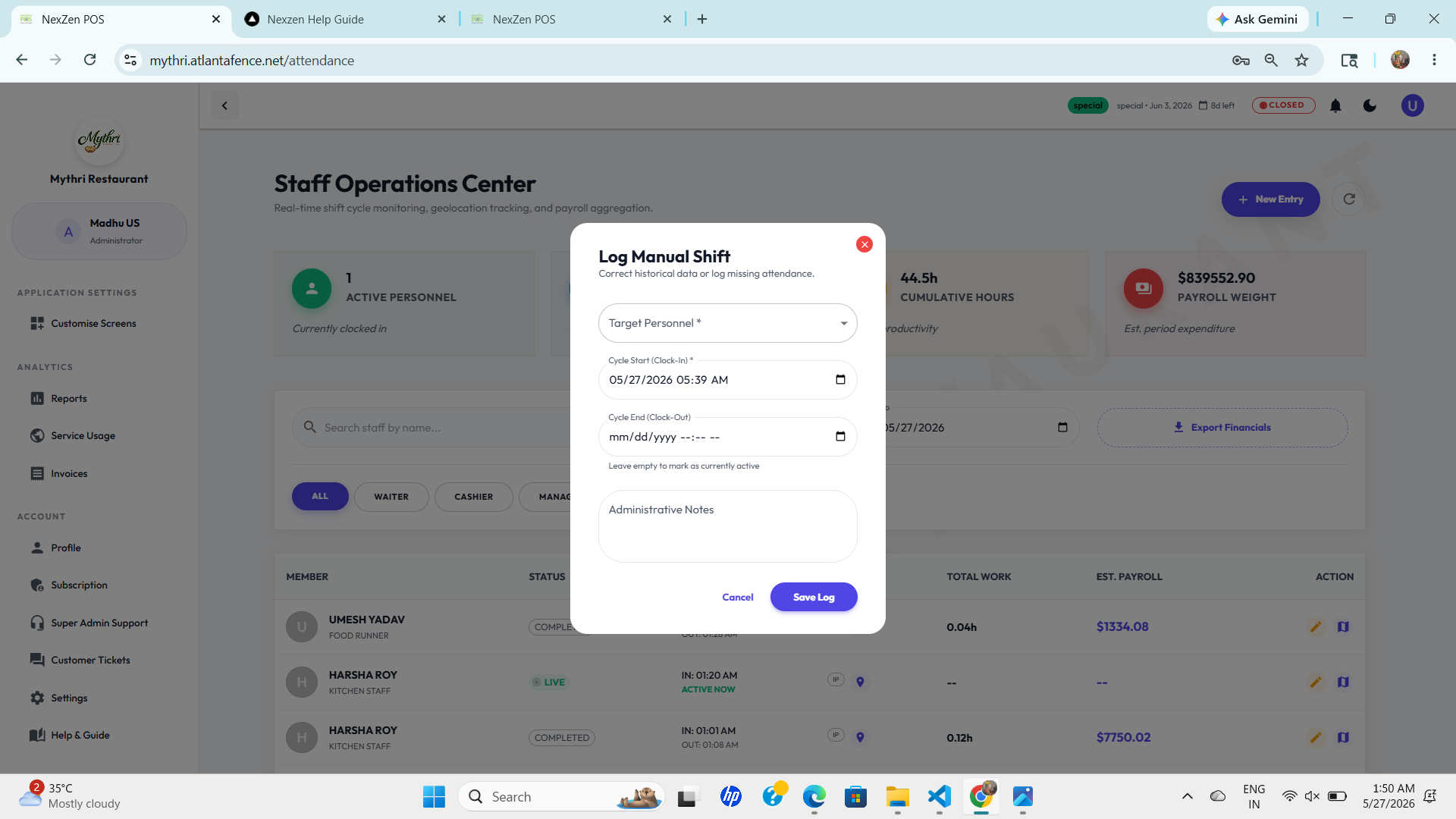
Fill in the details:
- Target Personnel: Choose the staff member who will be credited for the shift.
- Cycle Start (Clock-In): Set the start date and time.
- Cycle End (Clock-Out): (optional) Set the end date and time — leave empty to mark the shift active.
- Administrative Notes: Add any reason or context for the manual entry.
When ready, click Save Log to record the manual shift.
✏️ Edit Attendance Log
click the edit icon next to any attendance record to modify its details.
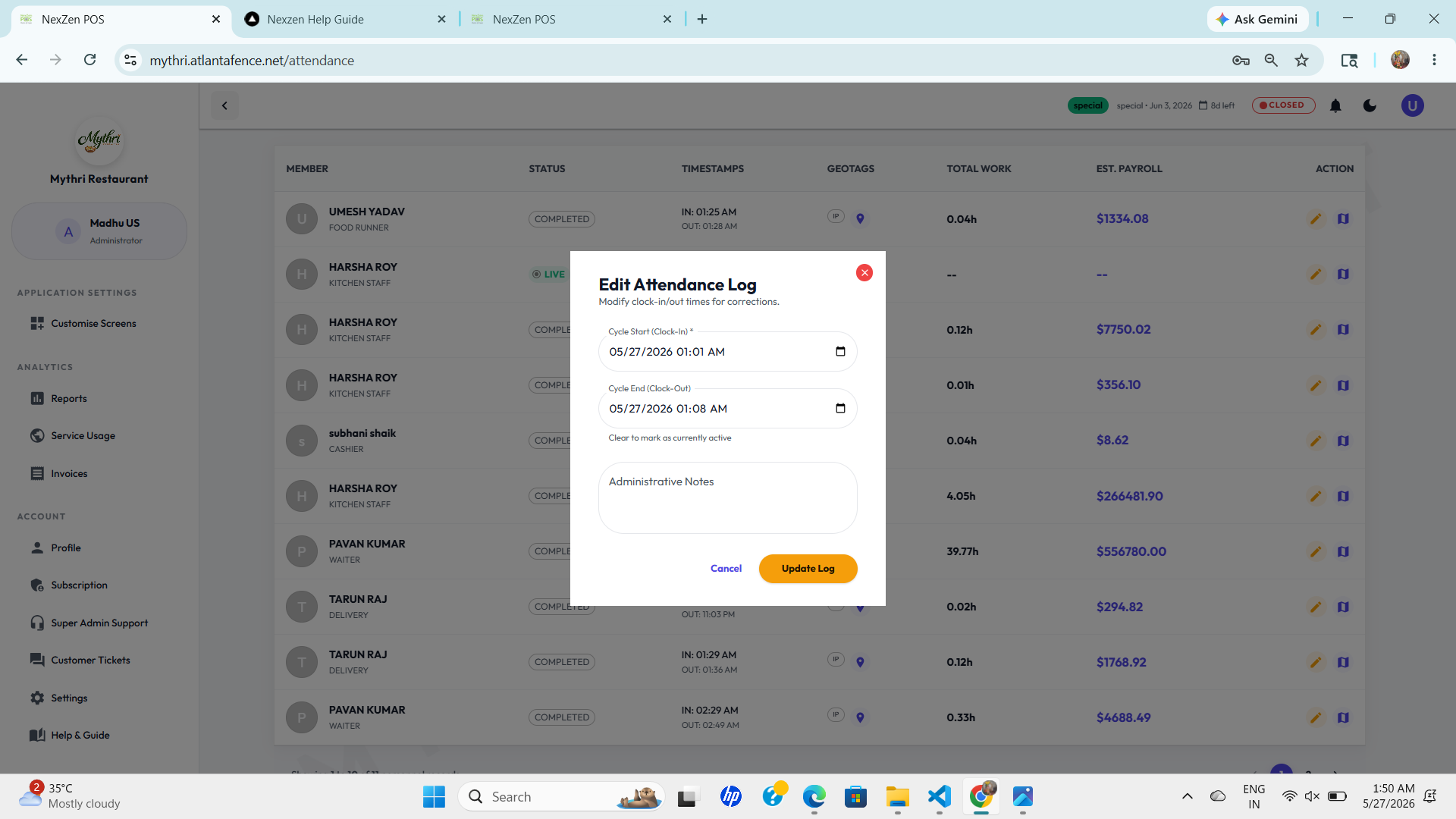
Use the edit form to adjust:
- Cycle Start (Clock-In): Update the original clock-in time.
- Cycle End (Clock-Out): Update or clear to mark as currently active.
- Administrative Notes: Provide a reason or context for the correction.
Click Update Log to save the correction to the attendance record.
🔍 View Detailed Logs
Open the detailed view (map pin icon) to inspect a single shift's full audit: shift overview, timestamps, duration, estimated pay, geotag map, IP & staff identifiers, and system timestamps.
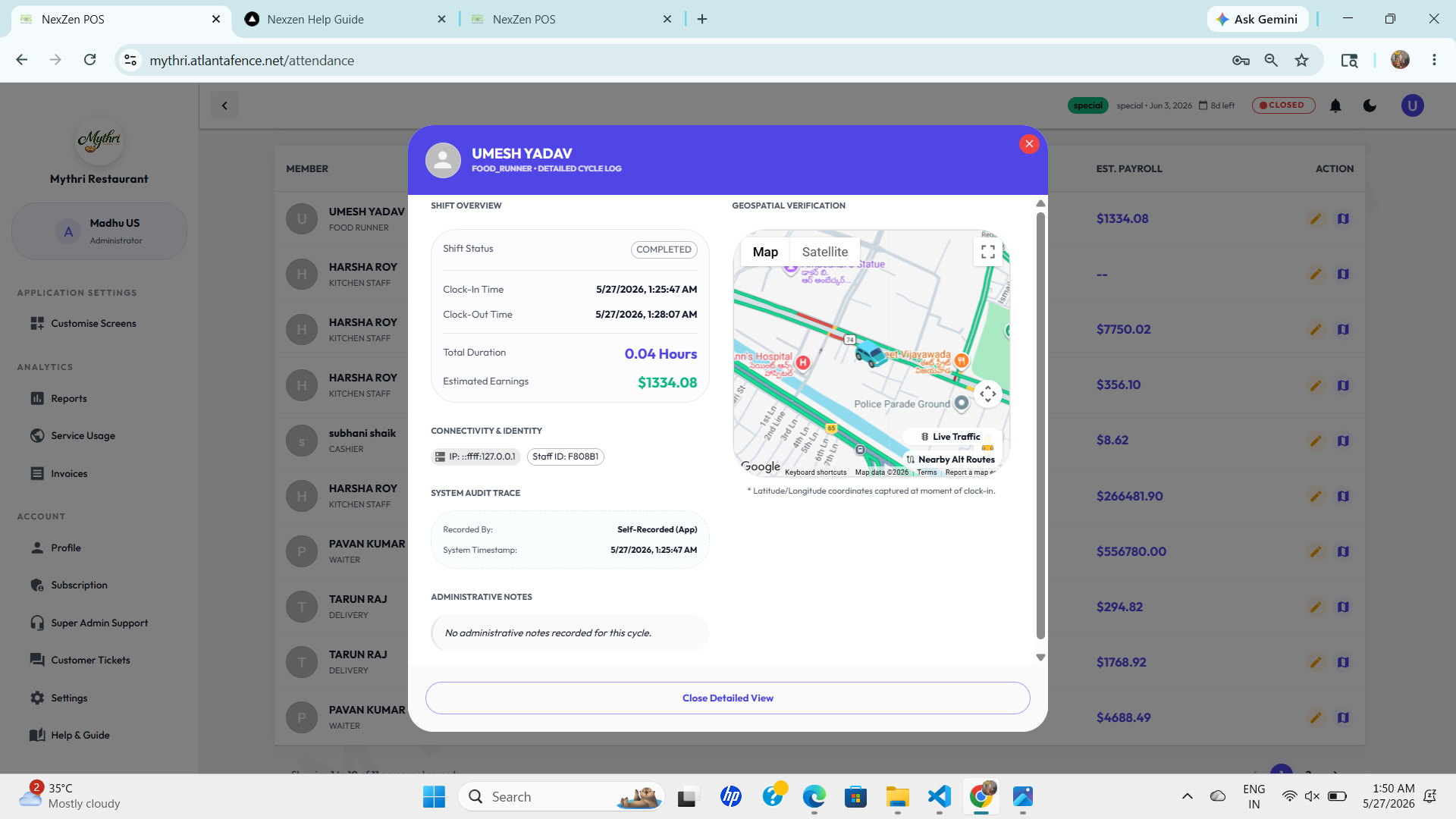
The detailed log shows:
- Shift overview: status, clock-in/out, total duration, and estimated earnings.
- Geospatial verification: a small map showing the clock-in coordinates captured at the time of check-in.
- Connectivity & identity: IP address and staff ID used to record the shift.
- System audit trace: who recorded the entry and the system timestamp.
- Administrative notes: any free-text notes explaining corrections.
Use Close Detailed View to return to the attendance table.