Customise Screens
Manage and personalise your public website screens with easy section editing for the homepage, gallery, about page, menu, and QR code pages.
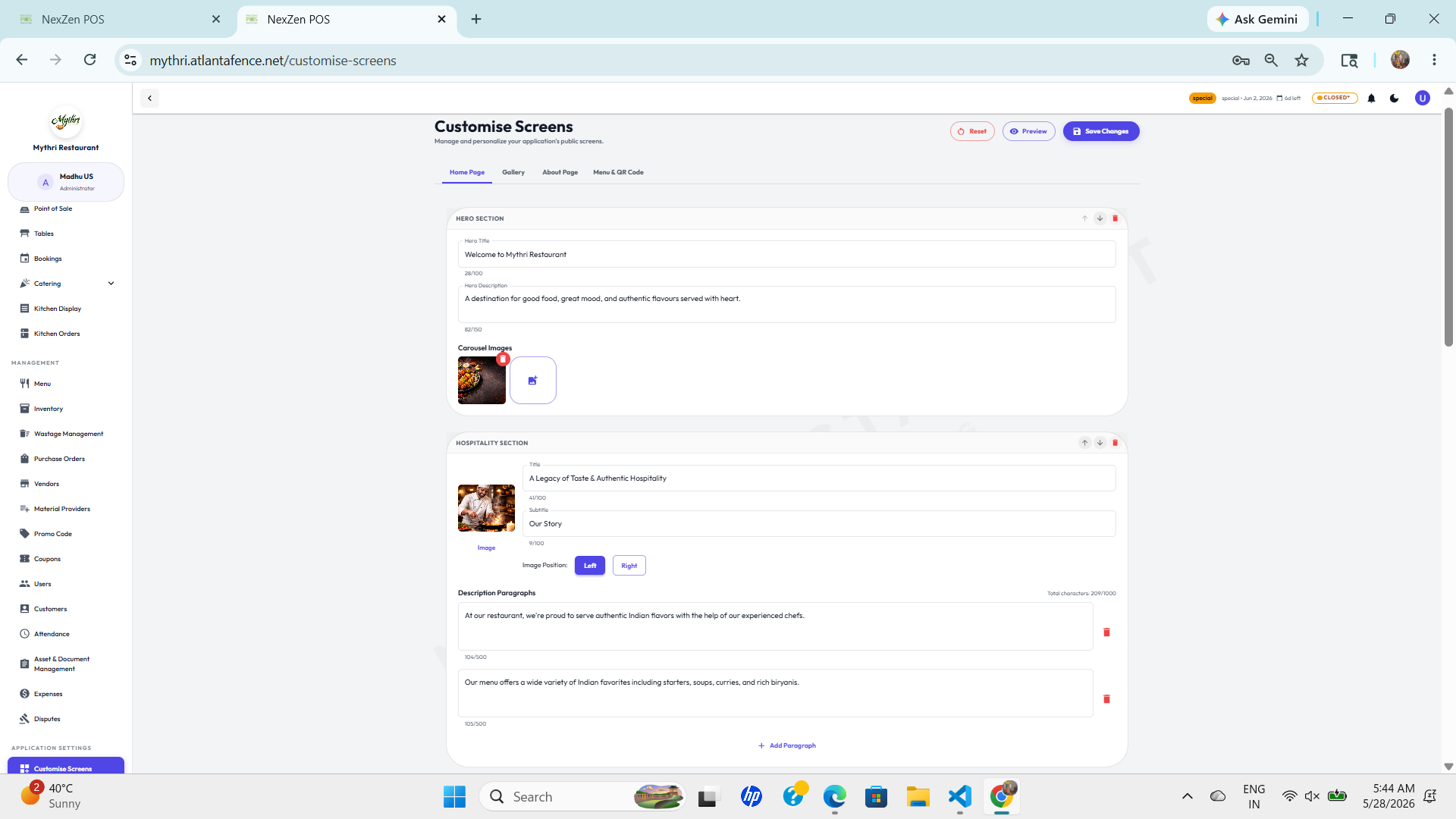
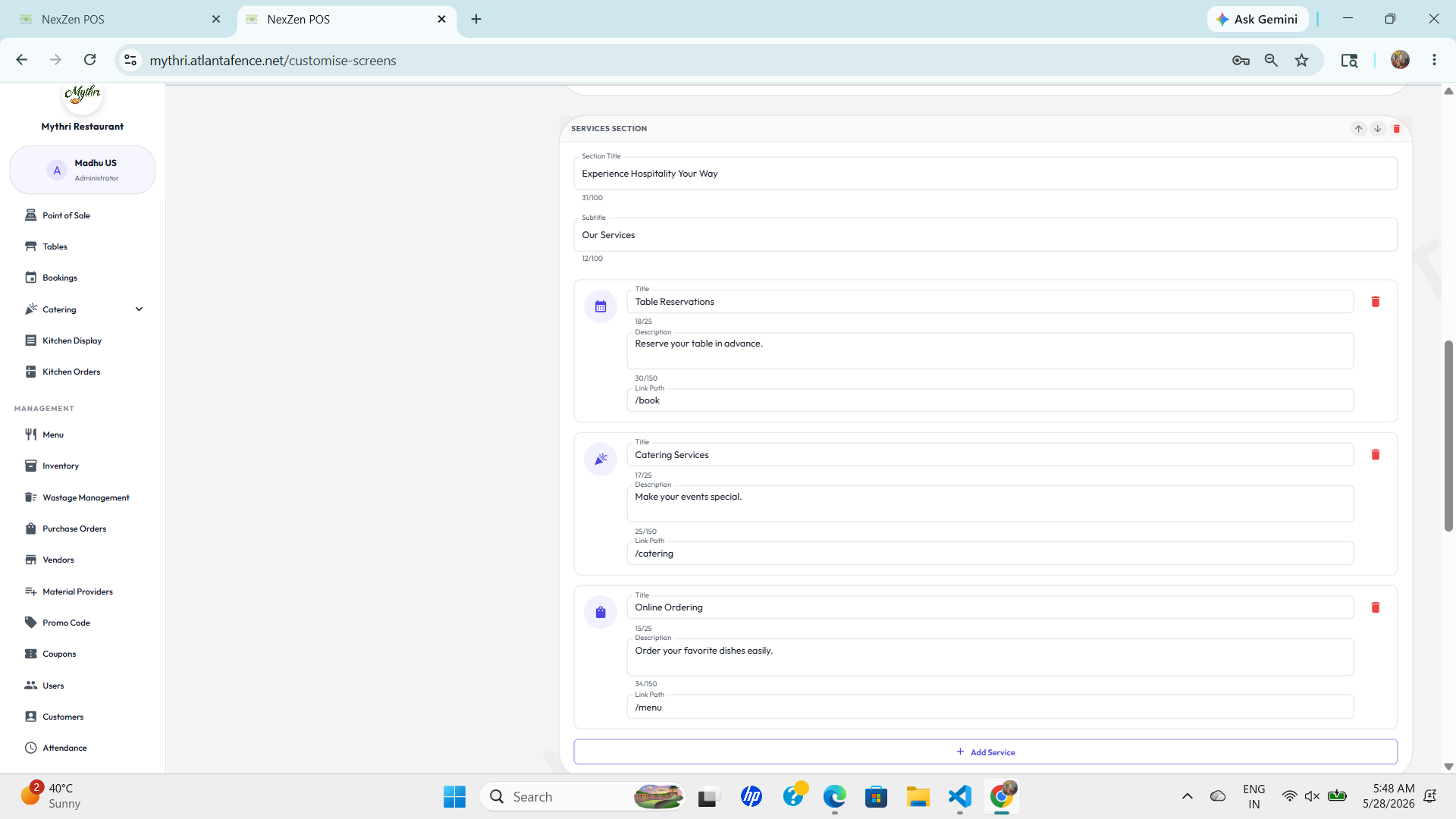
customize your screens with different layouts and content.
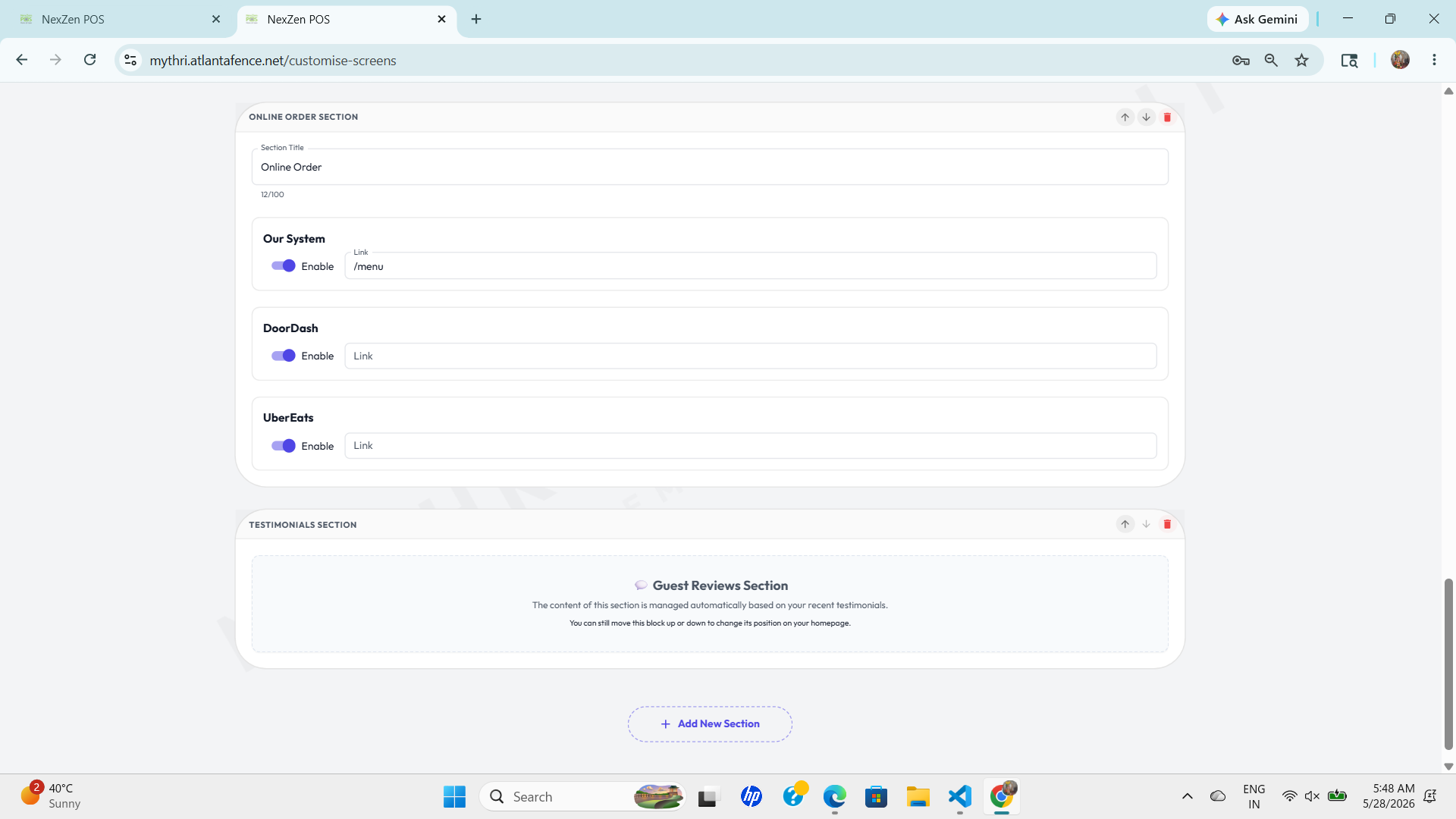
Review the timeline of screen changes, including create and update events with date, user, and action details.
🎛️ Hero Section
The Hero Section controls the headline and description shown on your public home page.
- Hero Title: Main heading text (max length shown).
- Hero Description: Short subtext for the hero banner.
- Carousel Images: Add, reorder, or remove images used in the homepage carousel.
🏨 Hospitality Section
Use this section to highlight your restaurant's hospitality message and visuals.
- Title & Subtitle: Short statements that reinforce your brand.
- Image: Upload an illustrative photo for the hospitality panel.
📷 Gallery Section
Use the Gallery tab to display curated images in the customer-facing app.
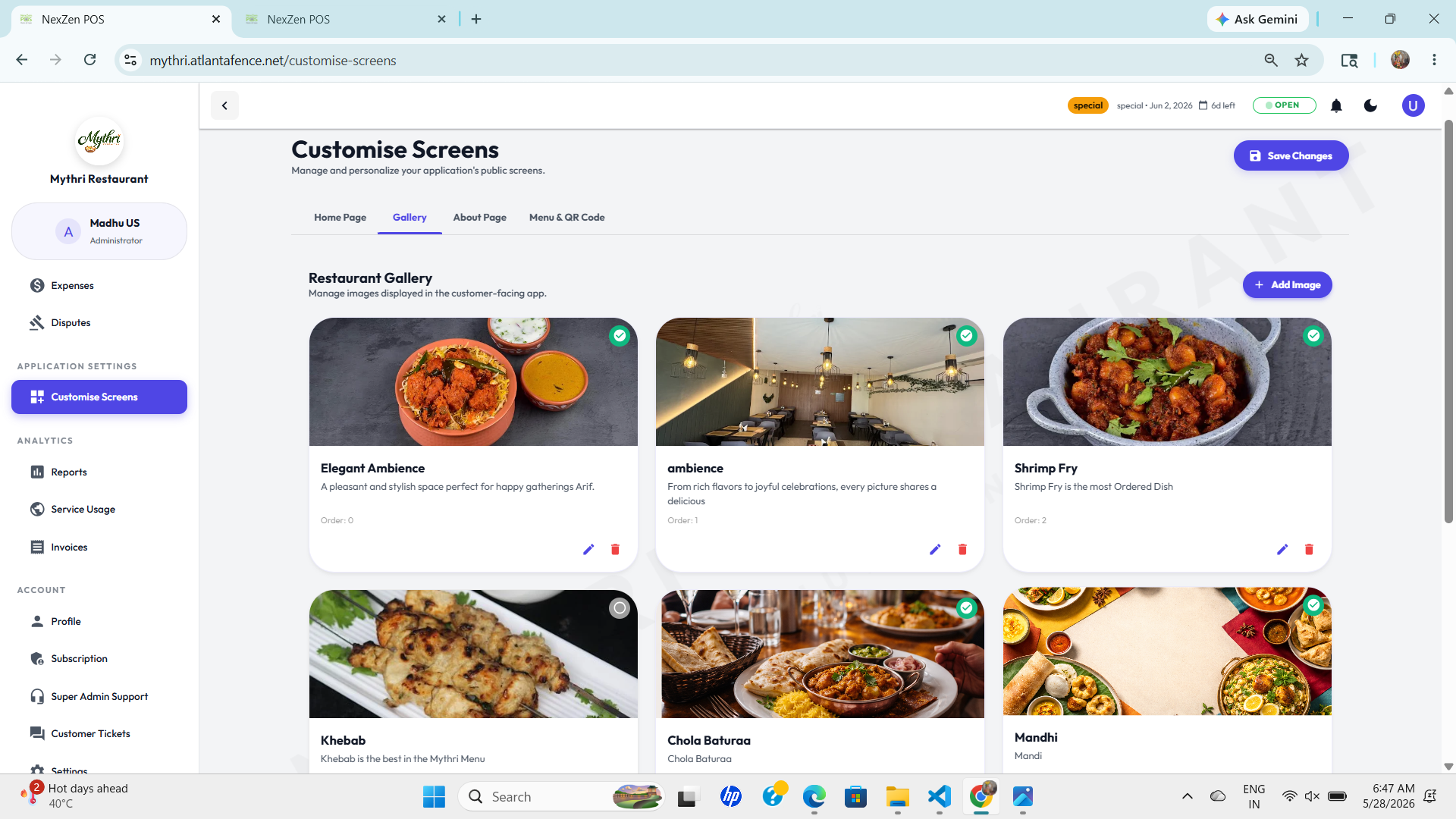
- Add Image: Upload new gallery photos using the + Add Image button.
- Image Title: Provide a short label for each gallery item.
- Description: Add a caption that describes the image or featured dish.
- Ordering: Arrange image position and visibility to control the display sequence.
ℹ️ About Section
The About tab lets you manage the restaurant story, introductory message, and featured content blocks.
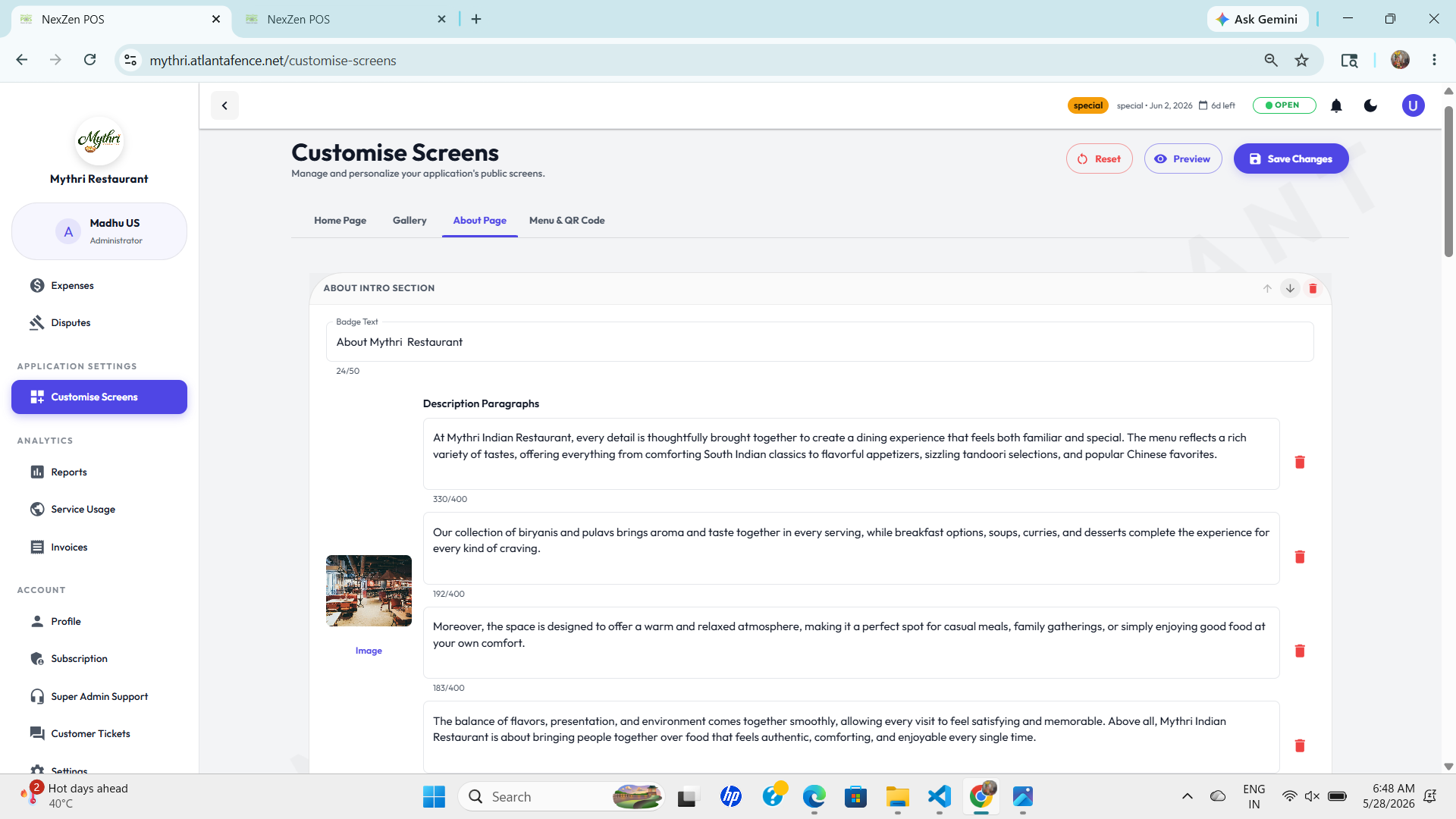
- Badge Text: Add a short label such as "About Mythri Restaurant" to introduce the section.
- Description Paragraphs: Add or edit multiple paragraphs to tell your restaurant’s story, highlight specialties, and describe the ambiance.
- Image: Upload an image that supports the About content and makes the section visually appealing.
- Section Order: Reorder the About block if needed to control its placement on the page.
📄 Menu & QR Code
Manage the menu document and QR code used for table ordering and marketing materials.
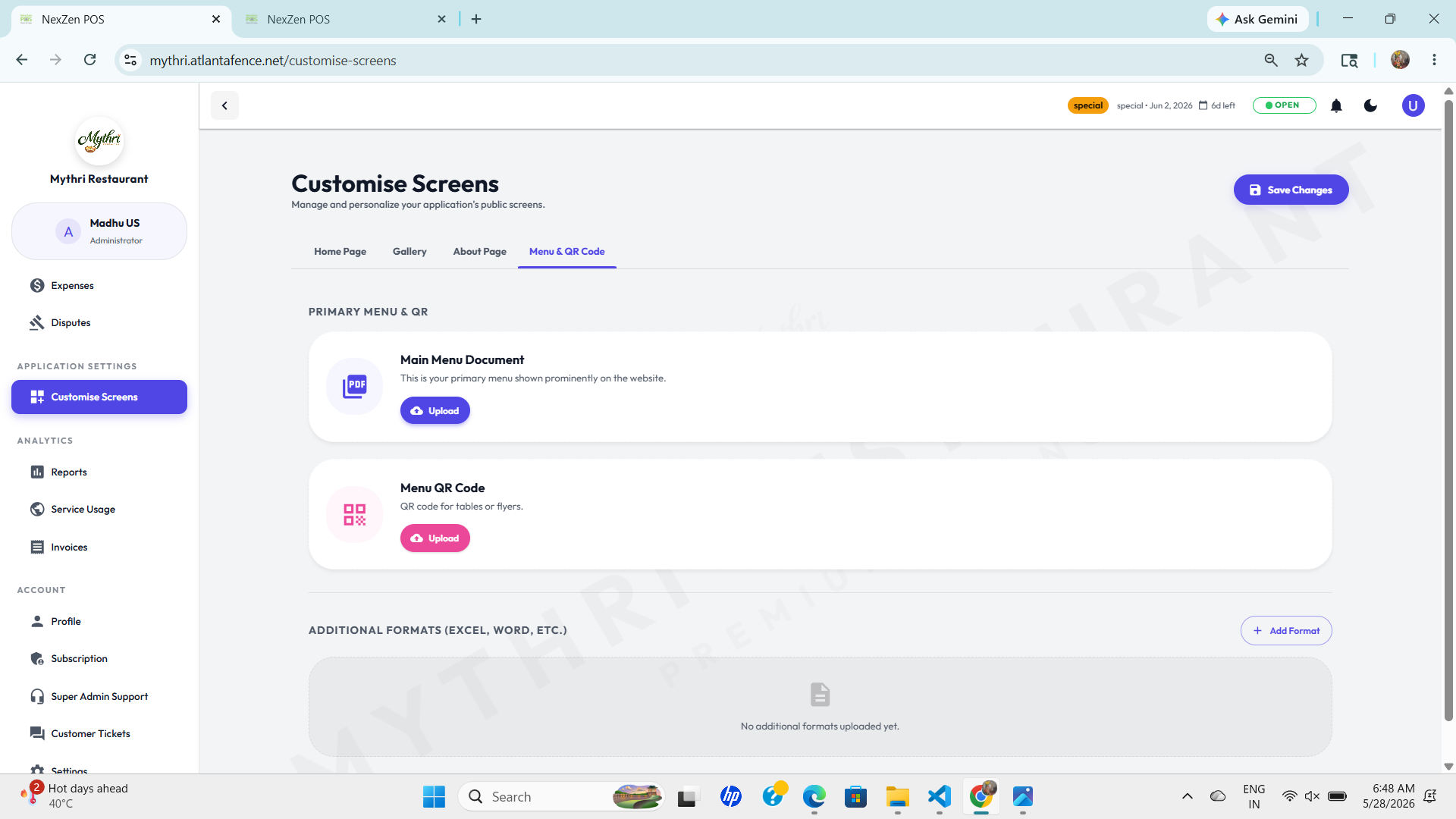
- Main Menu Document: Upload the primary menu file shown prominently on the website.
- Menu QR Code: Upload the QR code image for tables, flyers, and digital menus.
- Additional Formats: Add Excel, Word, or other menu formats under the Additional Formats section.
- Section Visibility: Verify the menu and QR code display settings so the public pages show the correct files.
💾 Save & Preview
Use the Preview button to check changes before publishing, and Save Changes to apply them to your public site.