Loading...
Coupons & Discounts
Drive sales and customer loyalty with flexible discount strategies.
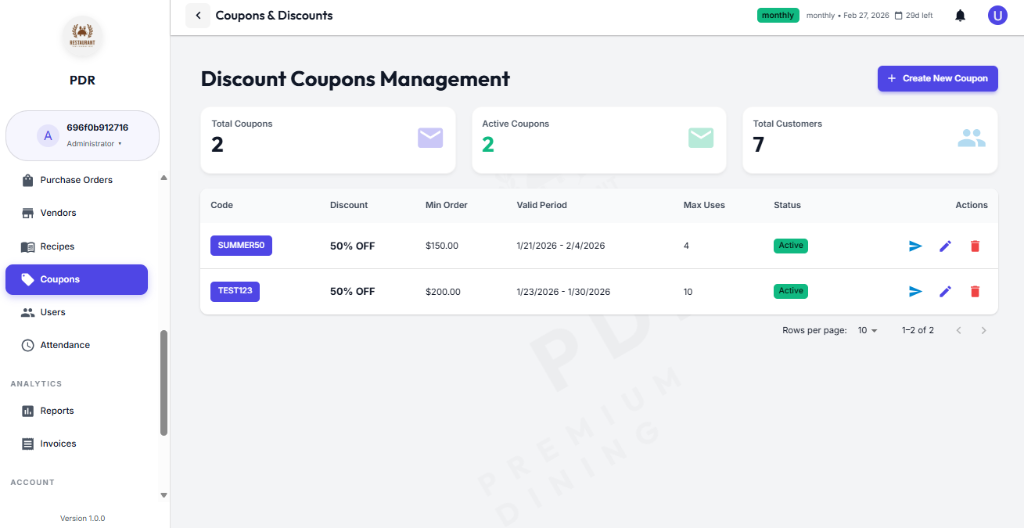
🎟️ Discount Coupons Overview
The Coupons dashboard gives you a quick snapshot of campaign health and redemption activity.
Total Customers
Registered customers eligible for offers. Example: 156
Registered customers eligible for offers. Example: 156
Active Codes
Coupons currently available for redemption. Example: 1
Coupons currently available for redemption. Example: 1
Total Issued
Total coupons created so far. Example: 9
Total coupons created so far. Example: 9
📋 Coupon Details
The table shows all your codes with the key fields needed to review validity, thresholds, and usage status. A search input at the top lets you quickly filter by coupon code.
- Code: The coupon text customers enter at checkout (e.g., AK25).
- Discount: The amount or percentage off, such as 13% OFF or $50 OFF.
- Min Order: The minimum purchase value required before the coupon applies (e.g., $25.00).
- Valid Period: The start and end date range for redemption (e.g., 5/11/2026 - 5/21/2026).
- Max Uses: The total allowed redemptions for the coupon, or Unlimited when no cap is set.
- Status: A badge showing whether the coupon is currently Active or Expired.
- Actions: Use the icons to send, view details, or edit each coupon directly from the row.
⚡ Management Actions
Control coupons from the row actions on the right-hand side of the table.
➕ Add New Coupon
Click the purple button at the top-right to open the coupon creation form and define discount type, validity, and usage limits.
📤 Send Code
Use the Paper Plane icon to send the selected coupon to customers via email or SMS.
💬 View Details
Click the Chat/Details icon to open the coupon summary and usage history for that code.
✏️ Edit Coupon
Use the Pencil icon to update discount values, dates, or limits without creating a new coupon.
📝 Creating a New Coupon
Clicking + Create New Coupon opens a modal that captures the exact rules for the promotion. The form is organized into identity, discount logic, and validity sections.
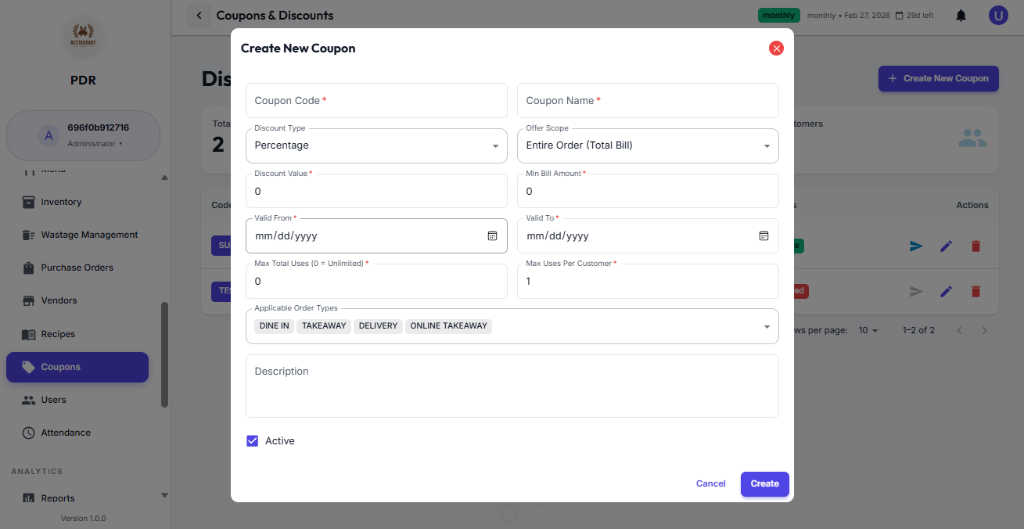
- Coupon Identity:
- Coupon Code: Enter the code customers will use at checkout (e.g., SUMMER50).
- Coupon Name: Provide an internal name for the campaign so it's easy to identify later.
- Discount Logic:
- Discount Type: Choose the discount format, such as Percentage (%).
- Offer Scope: Select what the discount applies to, such as Entire Order.
- Discount Percentage: Enter the numeric discount value, for example 10 for 10% off.
- Min Bill: Set the minimum order value required before the coupon can be used.
- Validity & Constraints:
- Starts: Set the coupon start date.
- Ends: Set the coupon expiry date.
- Max Uses: Enter the total number of times this coupon can be redeemed (0 can be used for unlimited usage in the UI).
- Per User: Limit how many times each customer can use this code.
- Order Types:
- Select which service types are eligible, such as Dine In, Takeaway, Delivery, or Online Takeaway.
- Finish:
- Click Create Coupon to save and activate the promotion when ready, or Cancel to close without saving.
📤 Sharing Coupons with Customers
Use the send action to broadcast the coupon to selected customers via SMS or email. The broadcast modal helps you preview the code, view discount, and pick recipients.
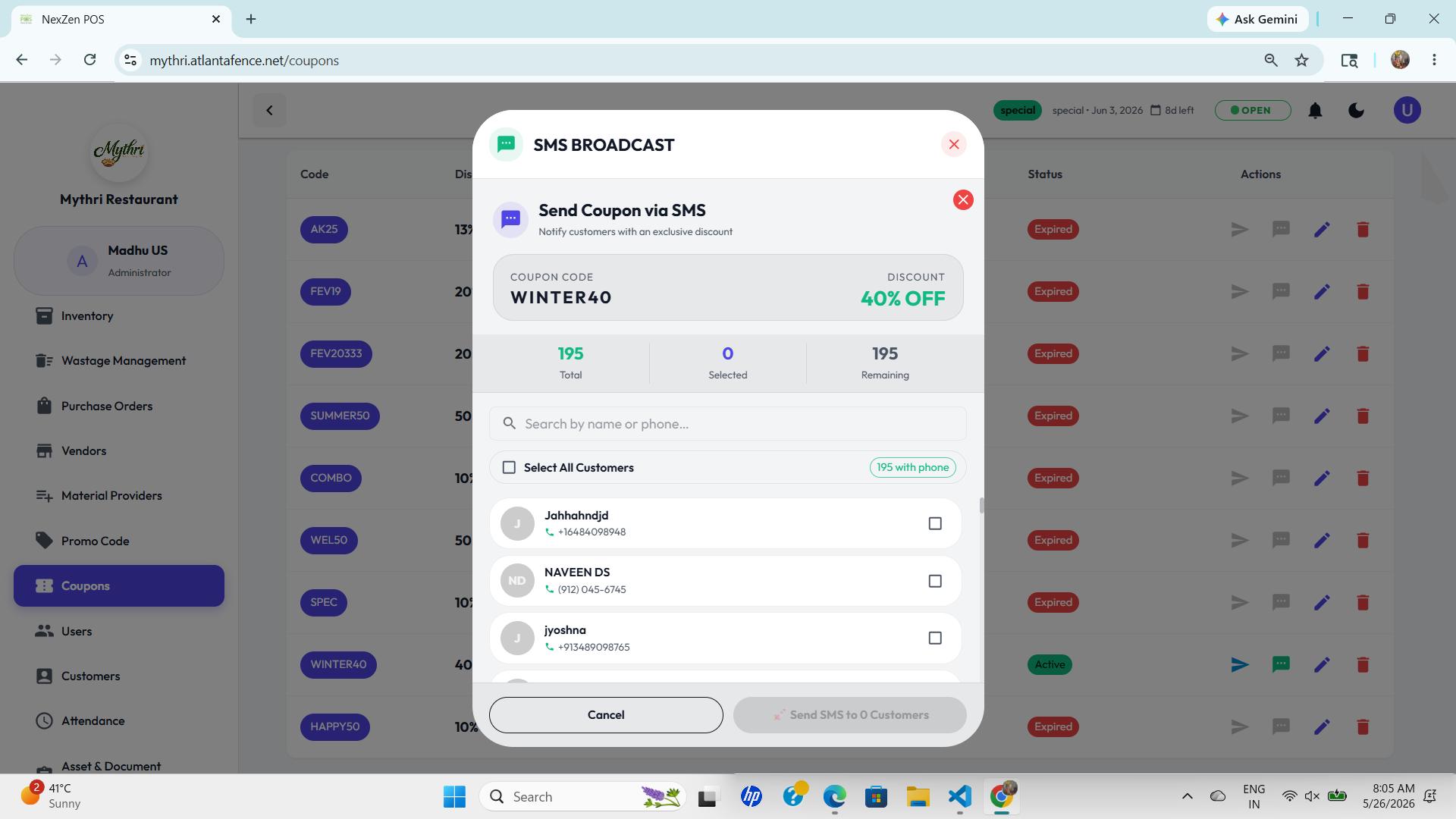
Send SMS Coupon
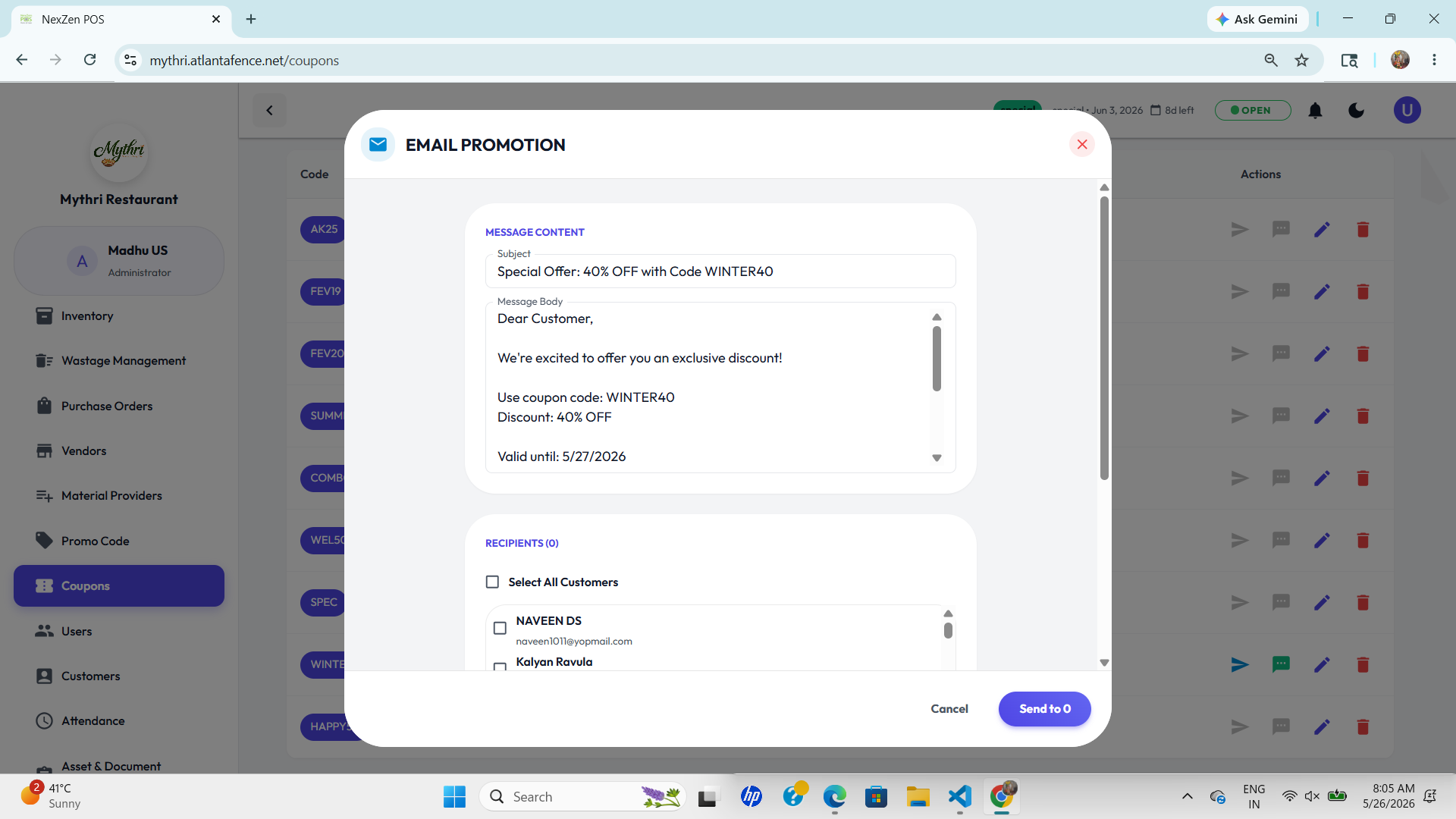
Send Email Coupon
- Modal Header:
- Shows the broadcast type (e.g., SMS BROADCAST) and action title (e.g., Send Coupon via SMS).
- Displays the selected Coupon Code and its Discount prominently for confirmation.
- Recipient Summary:
- Top counters show Total customers, Selected count, and Remaining (Total - Selected).
- The search box filters customers by name or phone to quickly find recipients.
- Selection Controls:
- Select All Customers toggles the master checkbox; the UI indicates how many customers have phone numbers (e.g., "195 with phone").
- Each row displays the customer name, phone, and a checkbox — selected rows are highlighted and counted in the Selected total.
- Email Content:
- Subject: Pre-filled subject such as Special Offer: 40% OFF with Code WINTER40, editable before sending.
- Message Body: An editable template is provided. Example:Dear Customer,
We're excited to offer you an exclusive discount!
Use coupon code: WINTER40
Discount: 40% OFF
Valid until: 5/27/2026 - Recipients: The recipient list shows names and email addresses; use the search box to filter by name or email. Select All Customers toggles email selection and the Send button updates the recipient count.
- Actions:
- Cancel closes the modal without sending.
- Send SMS to X Customers (button label updates to show the selected count) sends the coupon via SMS to the chosen recipients.
- Send to X (email) — when sending via email the primary button reflects the recipient count, for example Send to 0 or Send to 12.
✏️ Editing an Existing Coupon
Click the Pencil Icon on a row to open the edit modal. The form is pre-filled with the coupon's current settings so you can make targeted updates.
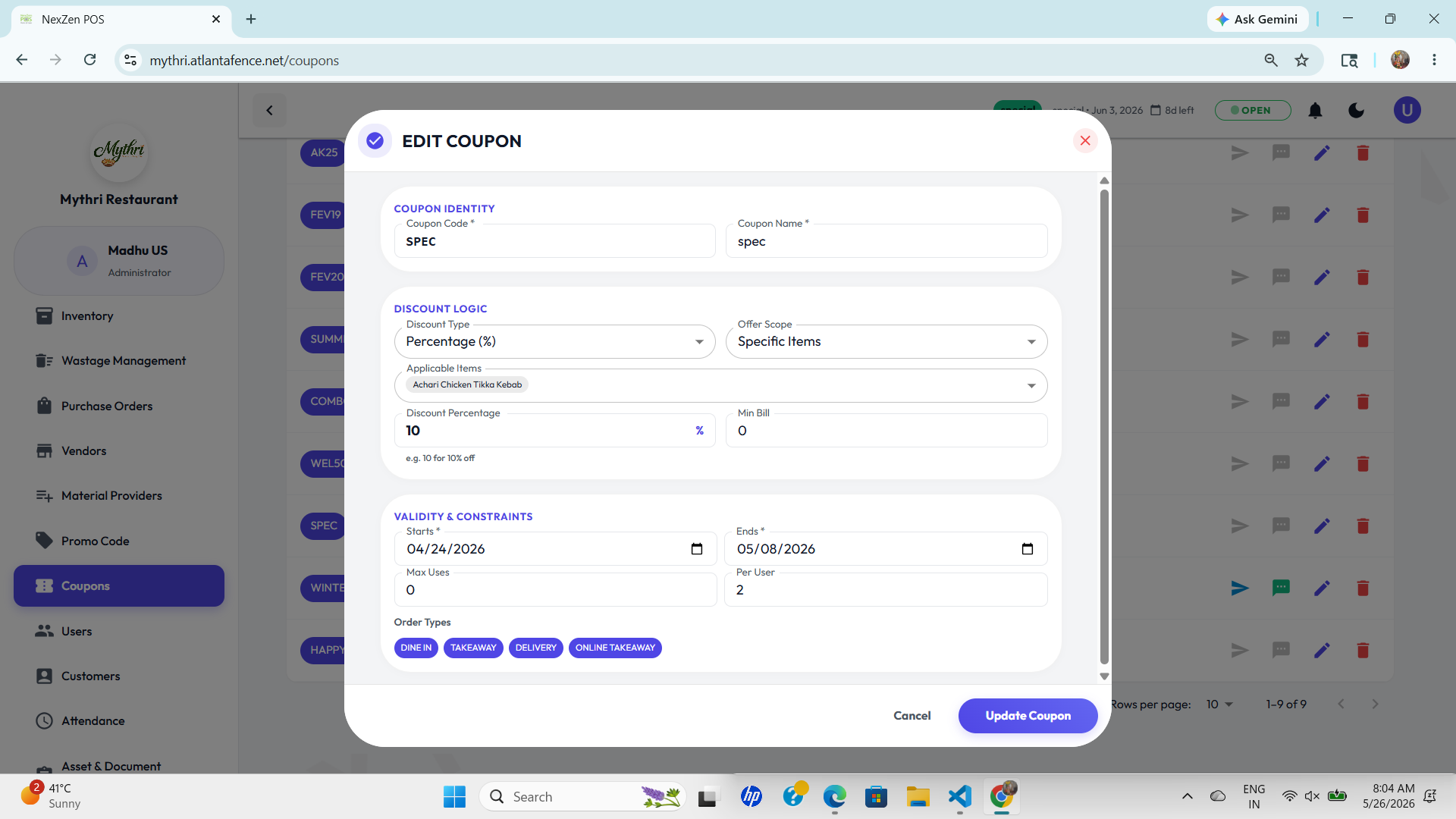
- Coupon Identity:
- Coupon Code * — The code customers enter at checkout. This field is required and is shown in uppercase in the modal.
- Coupon Name * — Internal label for the campaign (required).
- Discount Logic:
- Discount Type — Select from options such as Percentage (%) or fixed amount.
- Offer Scope — Choose whether the discount applies to the Entire Order or specific items.
- Discount Percentage / Value — Numeric input for the discount amount (example in screenshot: 10 for 10%).
- Min Bill — Minimum order value required for the coupon to be valid (example: 150).
- Validity & Constraints:
- Starts * — Start date picker (required).
- Ends * — End date picker (required).
- Max Uses — Total global redemptions allowed (use 0 in the admin to indicate unlimited if supported by UI).
- Per User — How many times a single customer may redeem this code (example: 10).
- Order Types:
- Enable or disable which service types the coupon applies to (chips in the modal: DINE IN, TAKEAWAY, DELIVERY, ONLINE TAKEAWAY).
- Behavior Notes:
- Required fields are marked with an asterisk (*) and must be filled before saving.
- The modal validates numeric fields (e.g., percentage, min bill) and date ranges to prevent invalid promotions.
- Footer Actions:
- Cancel — Close the modal without saving changes.
- Update Coupon — Primary purple button that saves changes and applies the new rules immediately.
🗑️ Deleting a Coupon
If you need to remove a coupon, click the red Trash Icon. A simple confirmation modal appears before deletion.
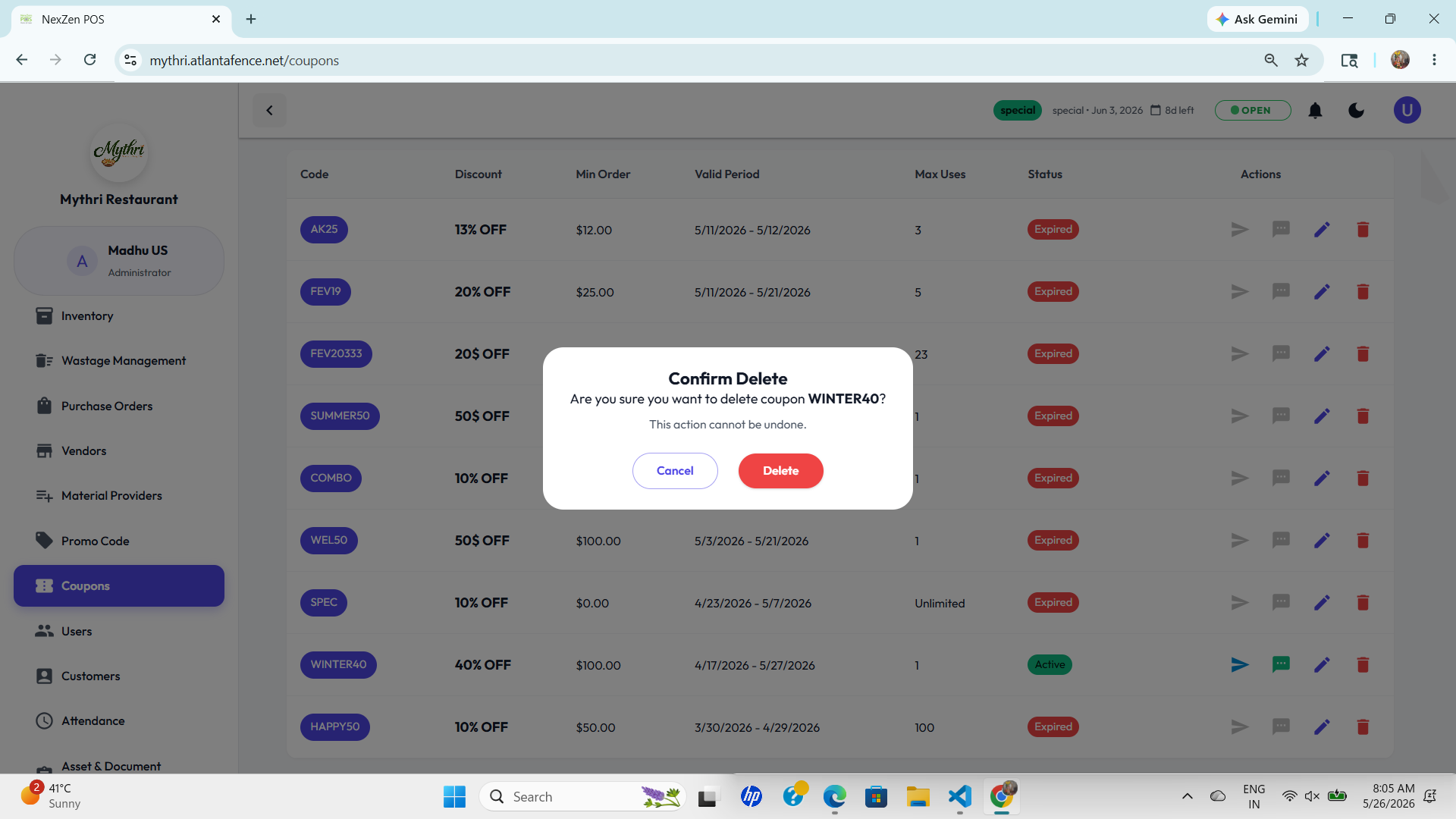
- Confirm Delete: The modal asks "Are you sure you want to delete coupon FEV19?" and reminds you that this action cannot be undone.
- Buttons: Choose Cancel to keep the coupon, or Delete to remove it permanently.