Expense Management
Track and manage your restaurant’s operational expenditures with approval workflows, status tracking, and category analysis.
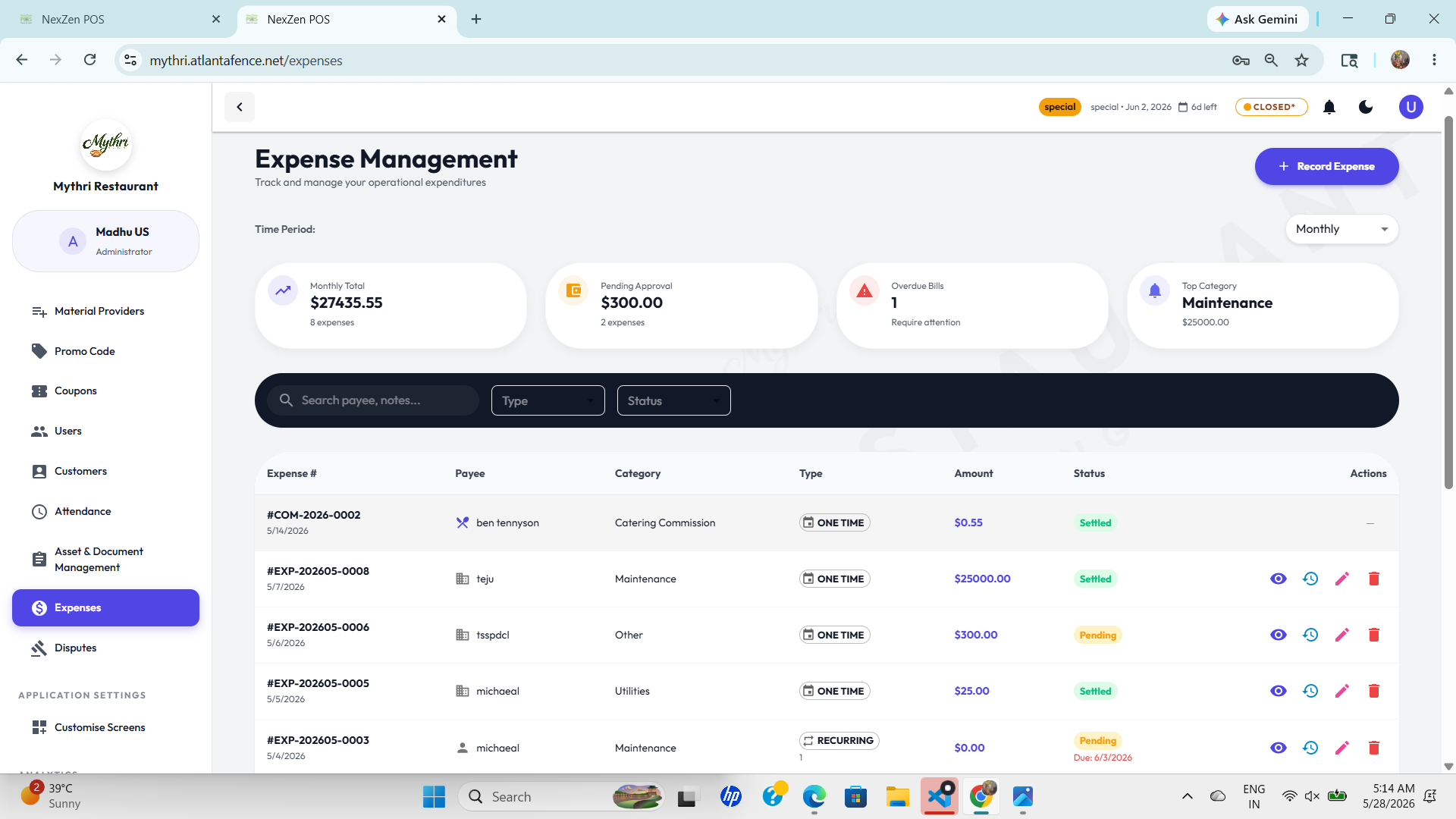
💰 Expense Summary Cards
At a glance, the expense dashboard shows the most important financial metrics for the selected time period:
- Monthly Total: Total expense value for the period.
- Pending Approval: Number and amount of expenses waiting for authorization.
- Overdue Bills: Expenses that require immediate attention.
- Top Category: The largest expense category by value.
🔎 Search and Filters
Use the search field and filter controls to quickly find the right expense record:
- Search by payee, notes, or expense reference.
- Filter by type such as one-time or recurring expenses.
- Filter by status including settled, pending, or overdue expenses.
🧾 Expense List
The expense table displays transaction details including expense ID, payee, category, type, amount, and status.
🏷️ Category Management
Organize expenses into categories like maintenance, catering commission, utilities, and other operational costs.
✅ Status Workflow
Visual expense status badges show whether a payment is settled, pending, or overdue.
➕ Quick Expense Entry
Add a new expense with a single click using the record expense button in the top-right corner.
🧑💼 Expense Actions
Each row comes with action buttons to:
- View details for the full expense record.
- Approve or reject pending expense requests.
- Edit the expense data if information changes.
- Delete expenses that were entered incorrectly.
➕ Record New Expense
Click the Record Expense button to add a new operational expenditure. The form is organized into three main sections:
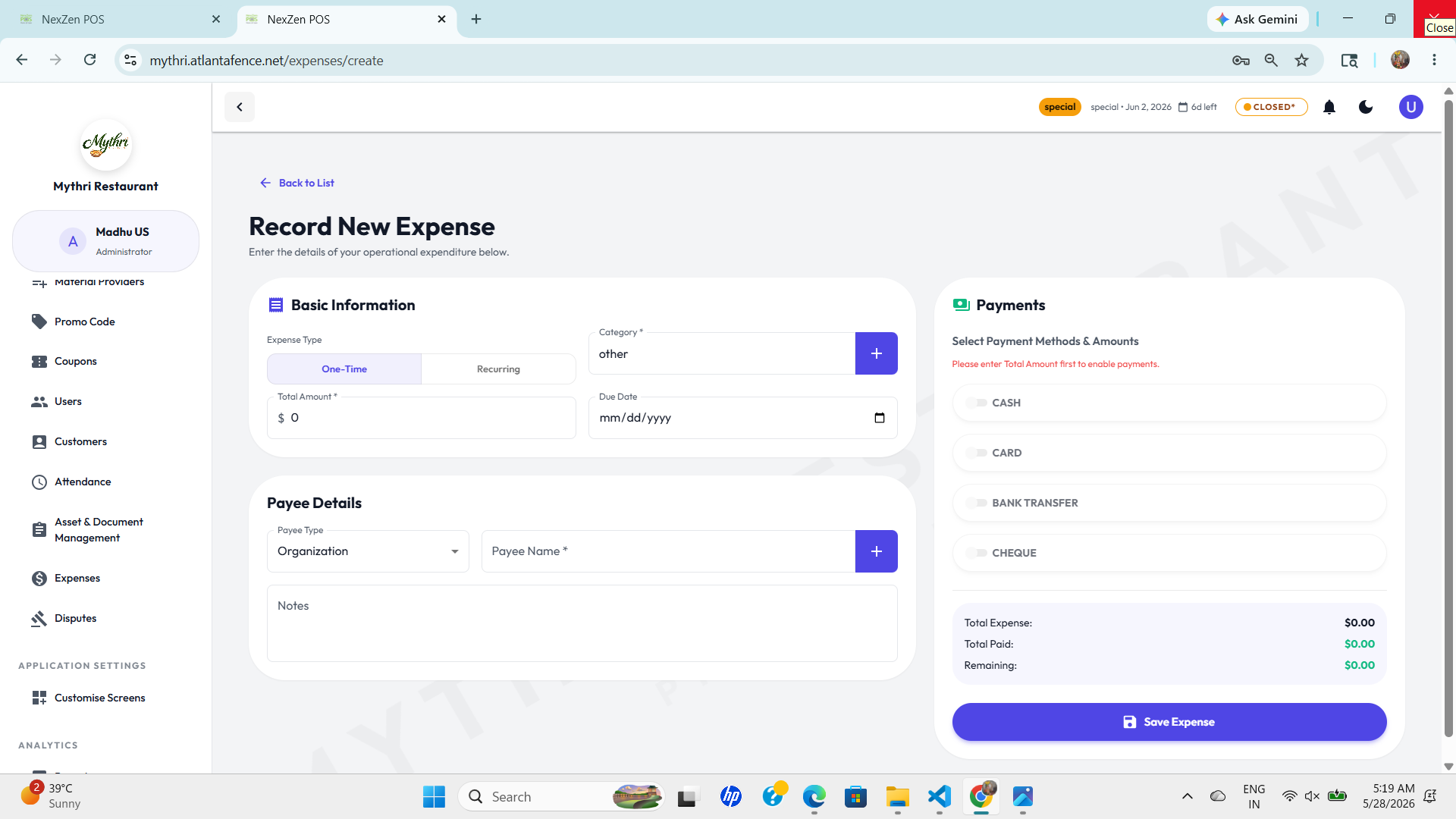
📋 Basic Information
Enter the core expense details:
- Expense Type: Choose between One-Time (single payment) or Recurring (repeating payment).
- Total Amount: Enter the expense amount (e.g., $0.00).
- Category: Select a category such as Maintenance, Catering Commission, Utilities, or Other.
- Due Date: Set the payment deadline using the date picker (mm/dd/yyyy format).
💳 Payments
Define how the expense will be paid:
- Payment Methods: Select from CASH, CARD, BANK TRANSFER, or CHEQUE.
- Allocate Amounts: Distribute the total amount across selected payment methods.
- Summary: View Total Expense, Total Paid, and Remaining balance at a glance.
Note: Enter the total amount first to enable payment allocation.
👤 Payee Details
Identify who the expense is being paid to:
- Payee Type: Select the type of payee (e.g., Organization, Individual, Vendor).
- Payee Name: Enter the name of the person or organization receiving payment.
- Notes: Add optional notes or reference information about the expense.
💾 Save Expense: Click the blue "Save Expense" button at the bottom to record the entry. The system will validate all required fields before saving.
📊 Operational Insights
Use the expense report section to analyze spending patterns and control costs over time.
- Compare one-time vs recurring expenses.
- Spot overdue bills before they impact cash flow.
- Identify the highest spending categories and adjust budgets.