Promo Code Management
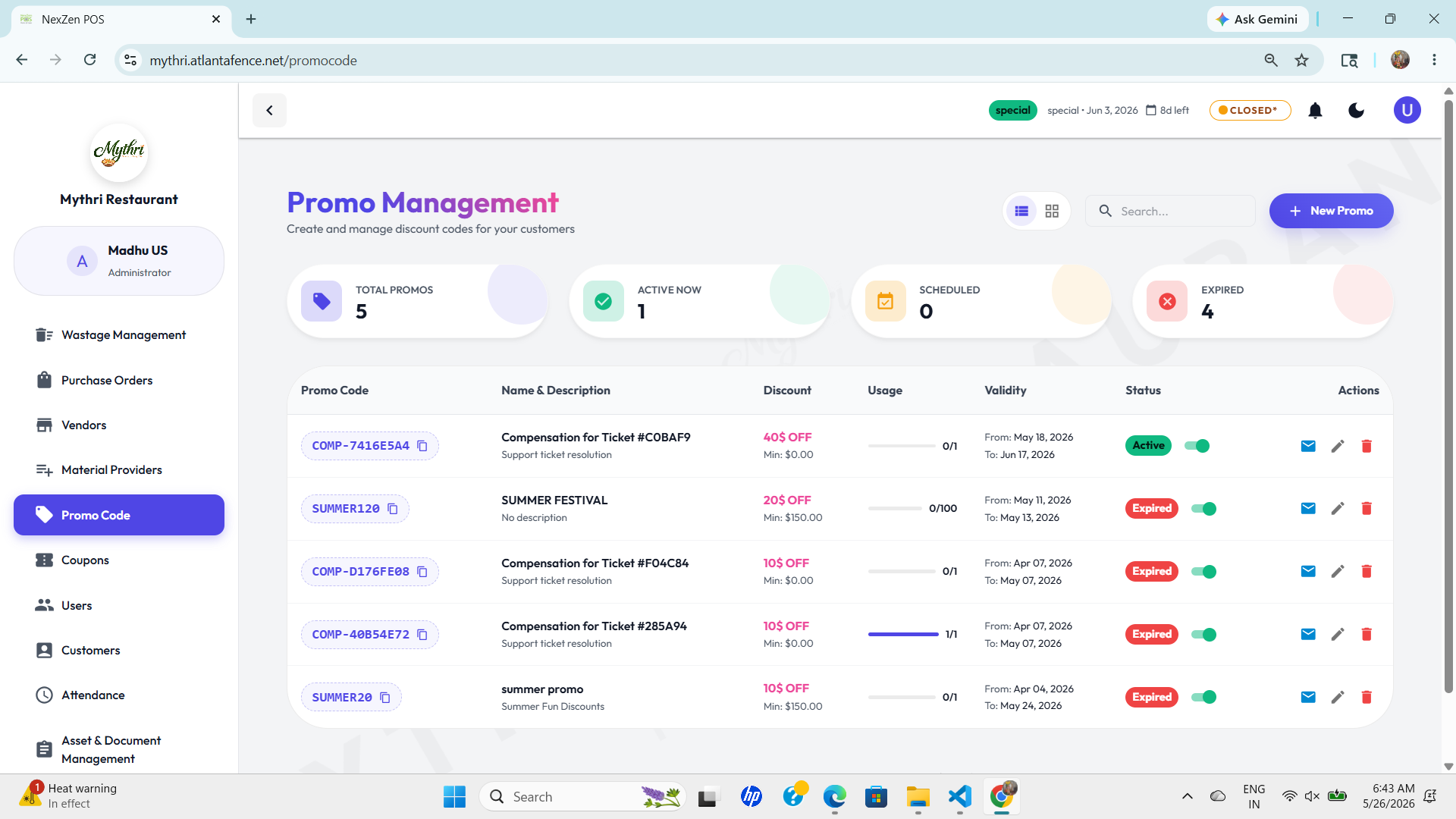
Create and manage discount codes for your customers. Track active promotions, schedule future offers, and monitor code usage.
🎟️ Promo Management Dashboard
The Promo Code section provides a complete overview of all promotional codes. Use this interface to create, schedule, and monitor discount offers for your customers.
Dashboard Statistics
- Total Promos: Shows the complete count of all promotional codes in the system.
- Active Now: Number of promo codes currently active and available for customers.
- Scheduled: Count of future promotions waiting to go live on their start date.
- Expired: Number of promotional codes that have passed their end date.
Promo Code Table Columns
- Promo Code: Unique code identifier (e.g., "COMP-7416E5A4"). Click to copy the code.
- Name & Description: Display name and brief description of the promotion (e.g., "Compensation for Ticket #C0BAF9").
- Discount: Amount or percentage off (e.g., "40$ OFF"). Shows minimum purchase requirement if applicable.
- Usage: Current usage count (e.g., "0/1") showing redeemed/total uses allowed.
- Validity: Date range for when the promo is active (e.g., "From May 18, 2026 To Jun 17, 2026").
- Status: Badge showing state (Active, Expired, or Scheduled) with color coding.
- Actions: Icons for managing the promo code (copy, edit, delete).
Management Features
- + New Promo: Button in the top-right to create a new promotional code.
- Search: Top search bar to filter promo codes by name or code.
- View Toggle: Switch between list view and grid view for different display preferences.
- Row Actions: Use icons to copy code, edit details, or delete the promotion.
➕ Creating a New Promo Code
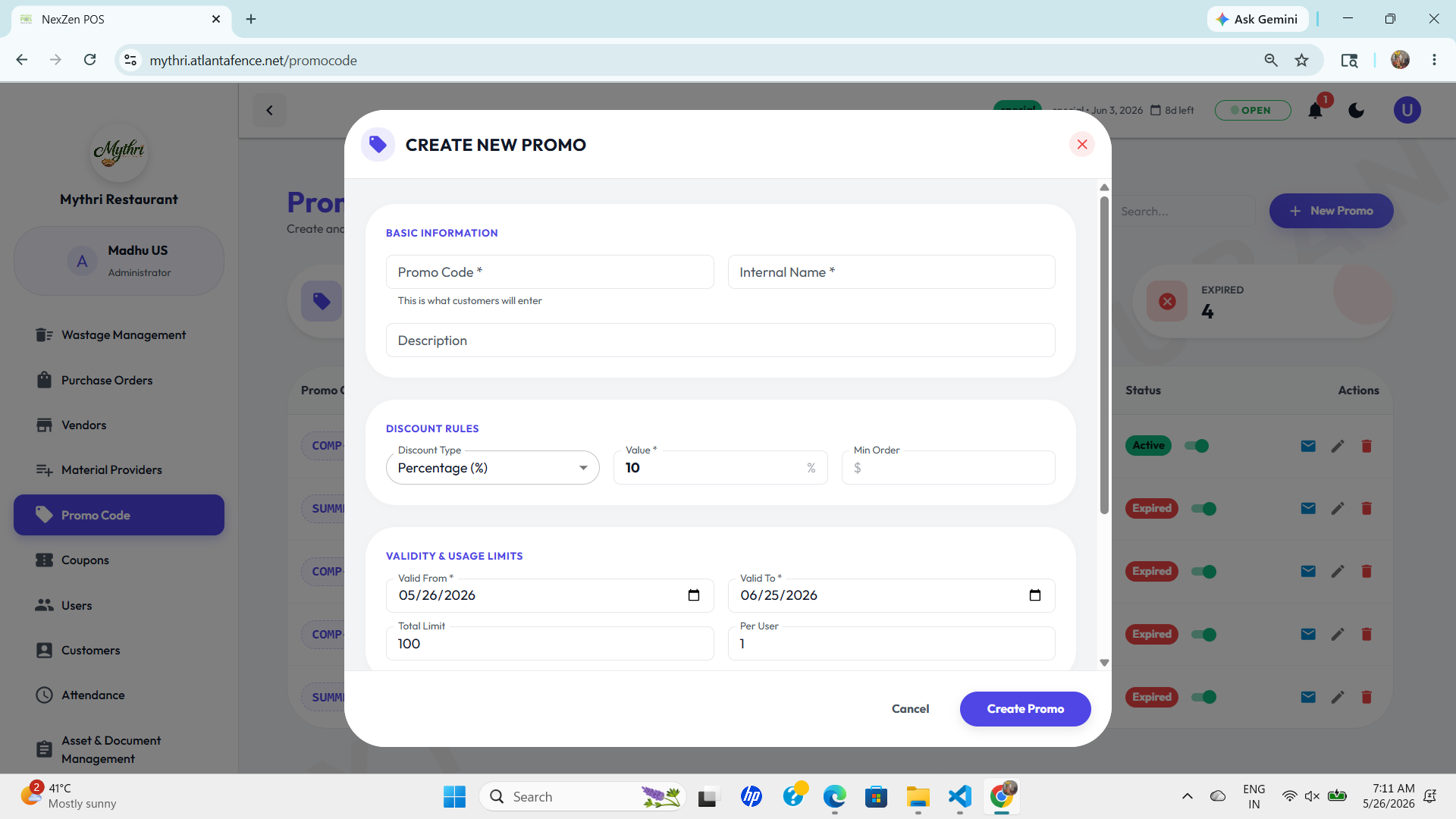
Click the "+ New Promo" button to open the promo creation form. This interface lets you set up discount codes with specific terms and validity periods.
- Promo Code:
- Code: Enter a unique alphanumeric code customers will use (e.g., "SUMMER20", "COMP-12345").
- Name: Display name for internal tracking (e.g., "Summer Festival Discount").
- Description: Optional details about the promotion purpose or usage notes.
- Discount Configuration:
- Discount Type: Choose between fixed amount (e.g., "$10 OFF") or percentage (e.g., "20% OFF").
- Discount Value: Enter the discount amount or percentage.
- Minimum Purchase: Optional minimum order value required to apply the code (e.g., "$50.00").
- Validity Period:
- Start Date & Time: When the promo becomes active.
- End Date & Time: When the promo expires.
- Usage Limits:
- Maximum Uses: Total number of times the code can be redeemed (leave blank for unlimited).
- Usage Per Customer: How many times a single customer can use the code.
✏️ Editing a Promo Code
Click the Edit icon (pencil) in the Actions column to modify an existing promotional code. You can update discount amounts, validity periods, and usage limits.
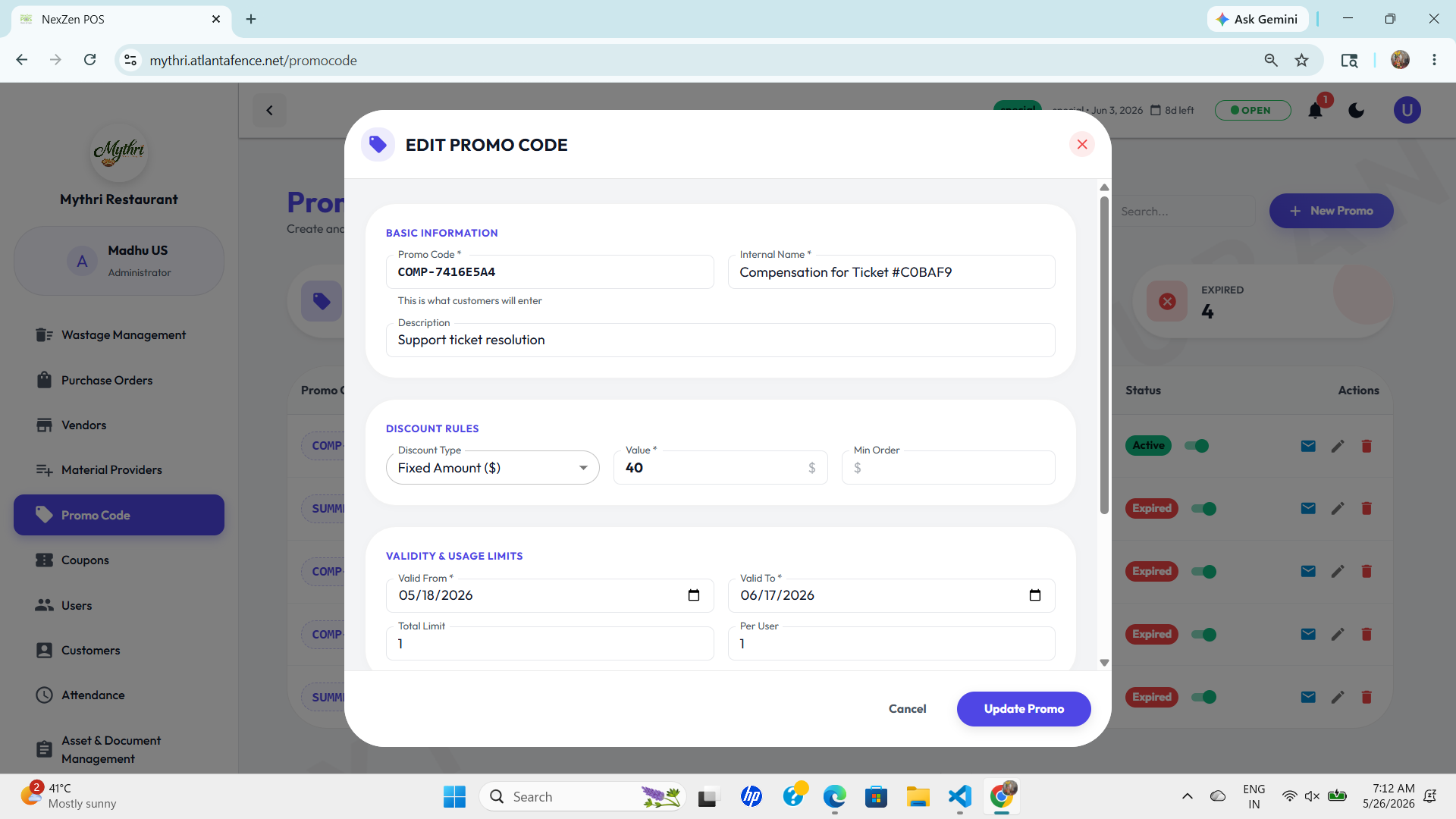
- Editable Fields: Update code details, discount value, minimum purchase requirement, and validity dates.
- Active/Expired Status: The status is automatically calculated based on the current date and validity period.
- Usage History: View current usage count to monitor how many times the code has been redeemed.
- Save Changes: Changes are applied immediately to the system.
🗑️ Deleting a Promo Code
Click the red Trash icon in the Actions column to remove a promotional code. A confirmation dialog will appear to prevent accidental deletions.
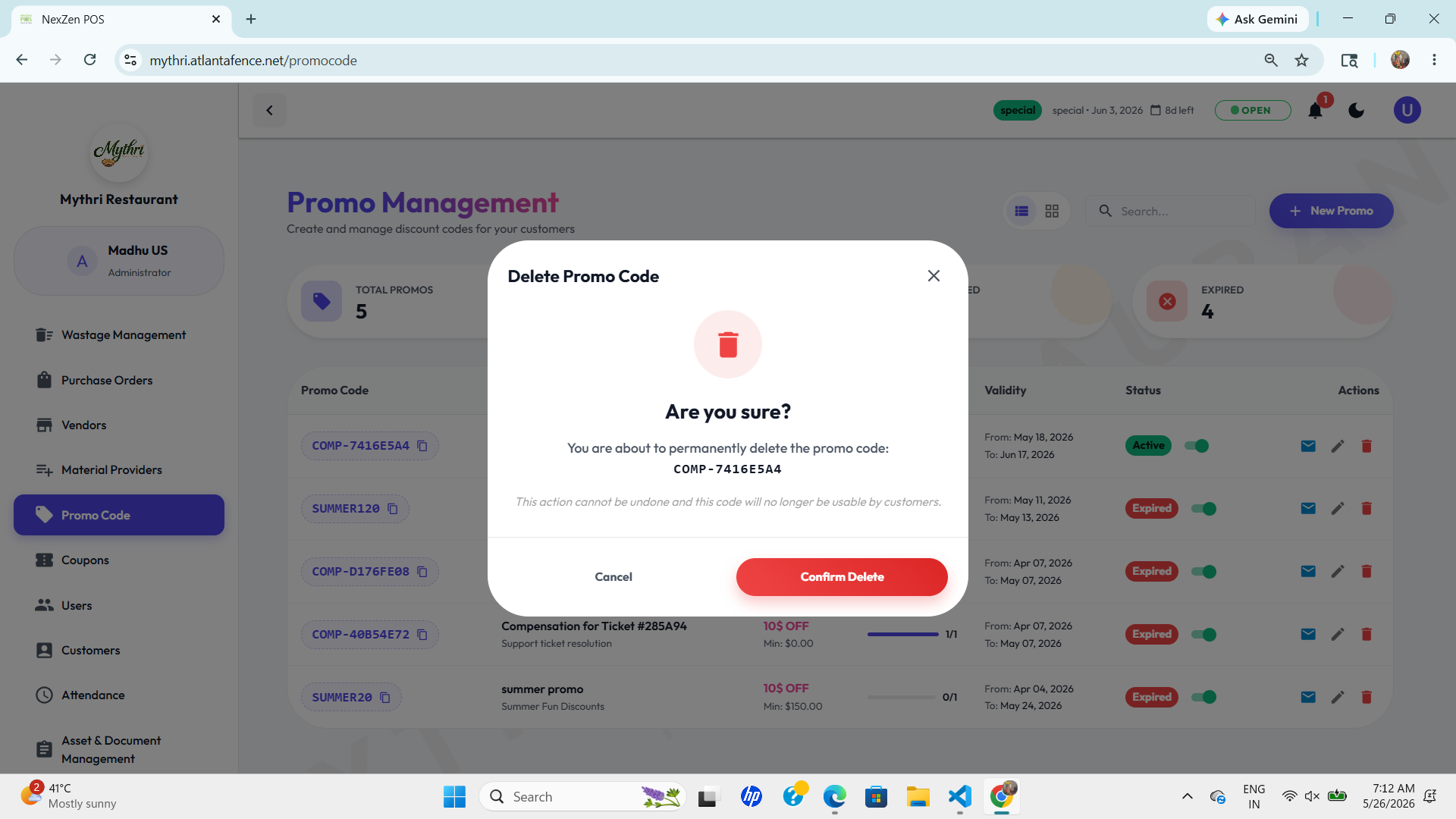
- Confirmation Required: You must confirm the deletion before the promo code is permanently removed.
- Irreversible Action: Once deleted, the promo code cannot be recovered.
- Impact: Customers cannot use deleted promo codes for new orders, but previous redemptions remain in the system for historical records.
📋 Promo Status Reference
- Active: The promo code is currently valid and available for customers to use. Current date falls within the validity period.
- Scheduled: The promo code has been created but hasn't started yet. It will become active on the start date.
- Expired: The promo code has passed its end date and is no longer available for new redemptions.
📊 Copy Promo Code
Use the Copy icon next to each promo code to quickly copy the code to your clipboard. This is useful for sharing codes with customers or internal staff.
💡 Tip: Create promo codes with memorable patterns (e.g., SUMMER20, HOLIDAY25) for better customer recall. Use descriptive names to help staff understand each promotion's purpose when browsing the list.