Point of Sale (POS)
The fast checkout interface for processing orders instantly.
🛒 Creating a New Order
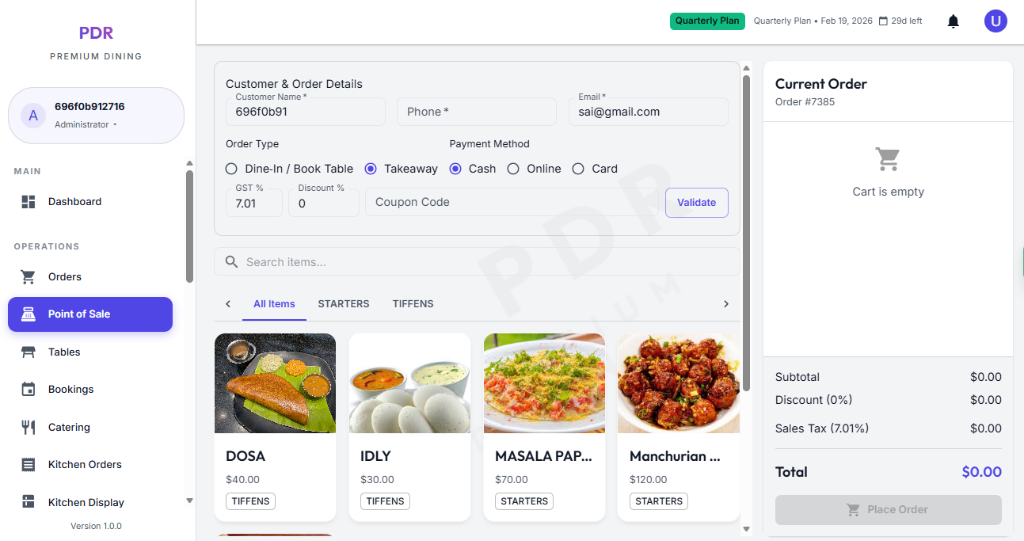
The POS screen is designed for speed. Follow the flow from top to bottom, left to right:
1. Customer & Order Details
Top-left panel. Enter the essential info to start:
- Customer: Enter Name and Phone Number (Required). Email is optional.
- Order Type: Select Dine-In / Book Table or Takeaway.
- Payment Method: Choose Cash, Zelle, Card, or Venmo upfront.
2. Menu Selection
Bottom-left panel. Visual grid of your menu items.
- Categories: Switch tabs (All Items, Starters, Tiffens) to filter the grid.
- Search: Type in the "Search items..." bar to find a specific dish quickly.
- Add to Cart: Simply click on a food card (e.g., "Dosa", "Idly") to add it to the active order.
3. Current Order (Cart)
Right-side panel. As you click items, they appear here.
- Cart View: Shows selected items with quantity and price.
- Totals: Automatically calculates Subtotal, Discount, Tax, and Final Total.
- Action: Click "Place Order" to confirm and send to the kitchen.
🍔 Item Variations & Customization
Tap a menu item to open the item details modal. The screen lets you choose preferences like spice level before adding the dish to the cart.
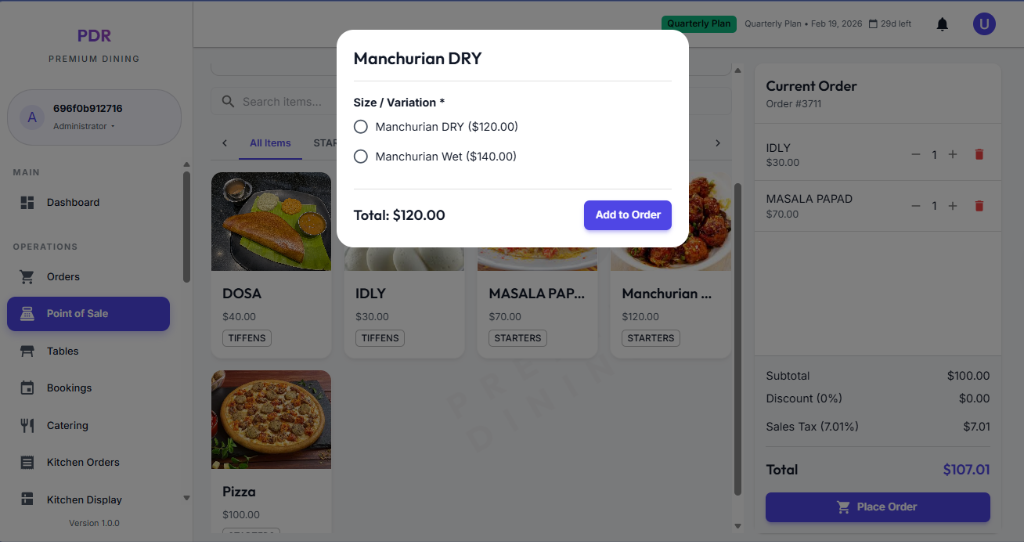
- Preview Item: See the selected dish name, image, and price up top.
- Spice Selection: Slide the spice control to set Mild, Medium, Hot, or Very Hot.
- Live Feedback: The chosen preference is shown clearly as the current selection before checkout.
- Add to Cart: Click "Add to Cart" to send the item and its spices directly into the current order.
🎟️ Applying Coupons
The cart panel lets you enter a coupon code directly and shows active coupons for quick checkout.
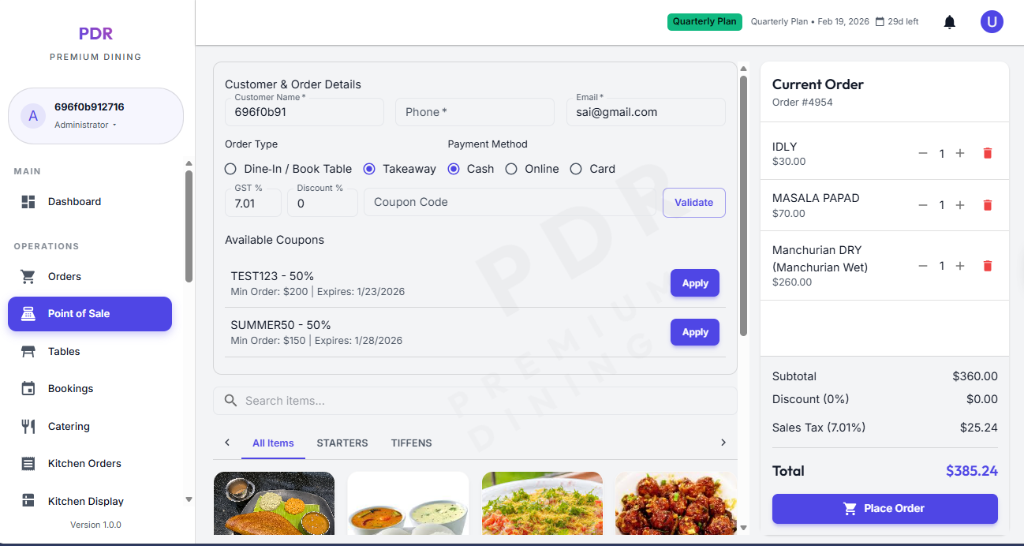
- Coupon Input: Type the code in the Coupon code field and click Apply to validate it instantly.
- Quick Tags: Use the prefixed tags like SUMMER50 or WINTER40 to apply popular offers fast.
- Cart Summary: The sidebar updates Subtotal, Tax, and Total after the coupon is applied.
Coupon Validation
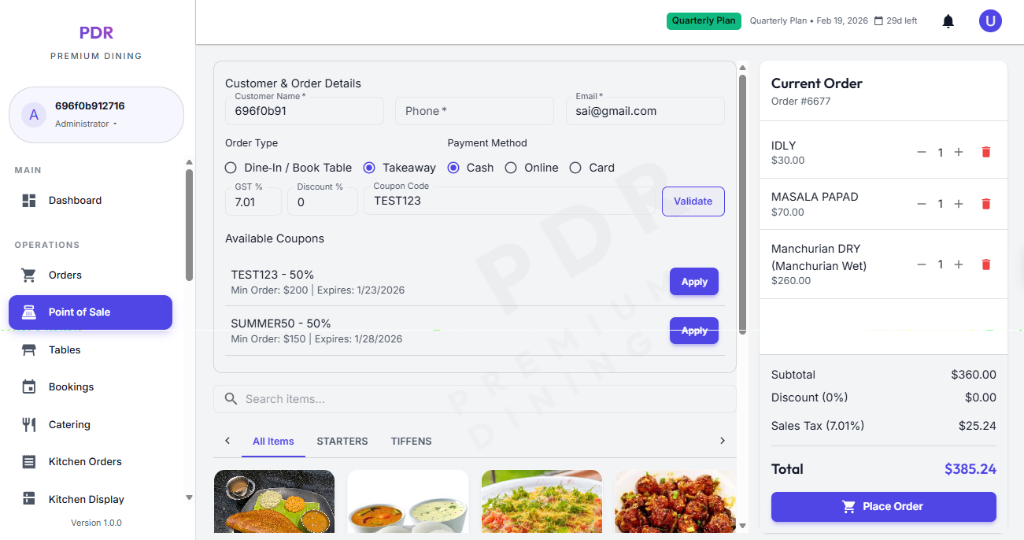
After you click Apply, the system validates the code instantly and displays whether the coupon is valid or not.
If a code is invalid, expired, or not applicable, a red error toast appears and the order remains unchanged.
Cart Update
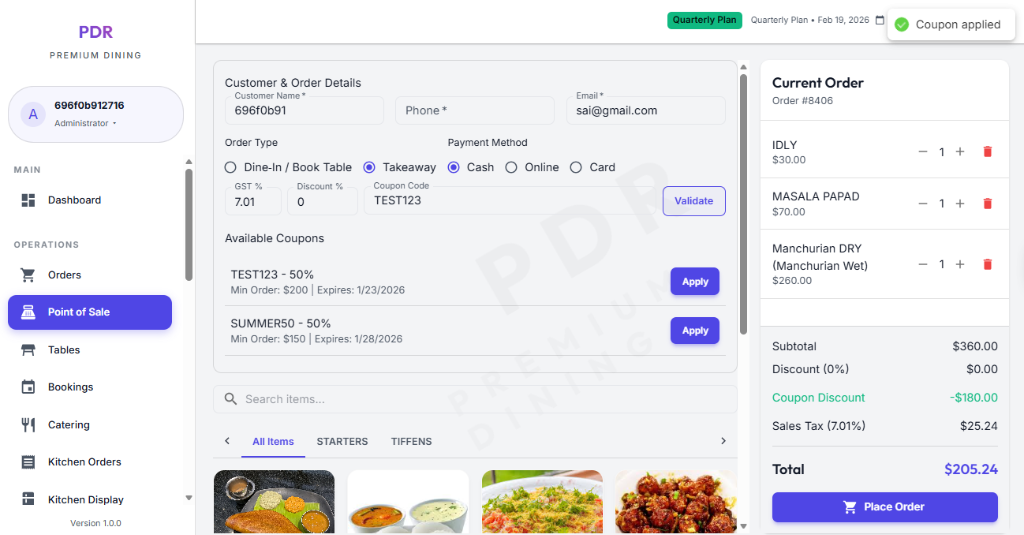
After applying a coupon, the order summary shows the discounted total and confirms the promotion was accepted.
⚠️ Error Handling & Validation
The system ensures data integrity before processing. If you attempt to place an order without essential details:
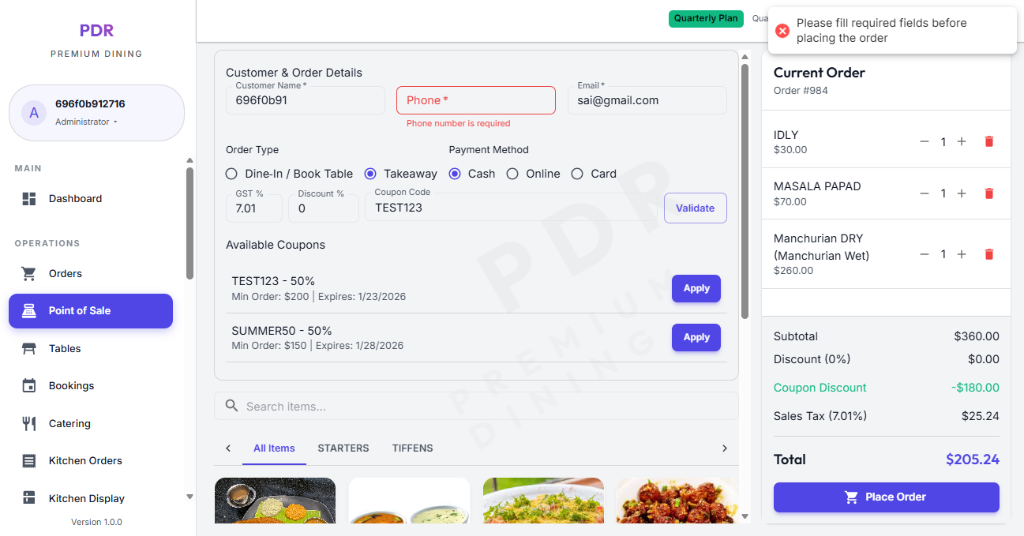
- Visual Cues: Missing required fields (like Phone Number) are highlighted with a red border and error text.
- Alerts: A red toast notification appears at the top right: "Please fill required fields before placing the order".
- Resolution: Correct the highlighted fields to proceed with checkout.