Loading...
User Management
Control access and permissions for your entire staff structure, ensuring security and operational efficiency.
🧑💼 Administrator Overview
The User Management page is designed for Administrators who need a complete view of the restaurant team. At the top, tabs allow quick access to All Staff, Management, Staff, Customers, and Inactive users, while a prominent + Add User button makes onboarding new team members fast.
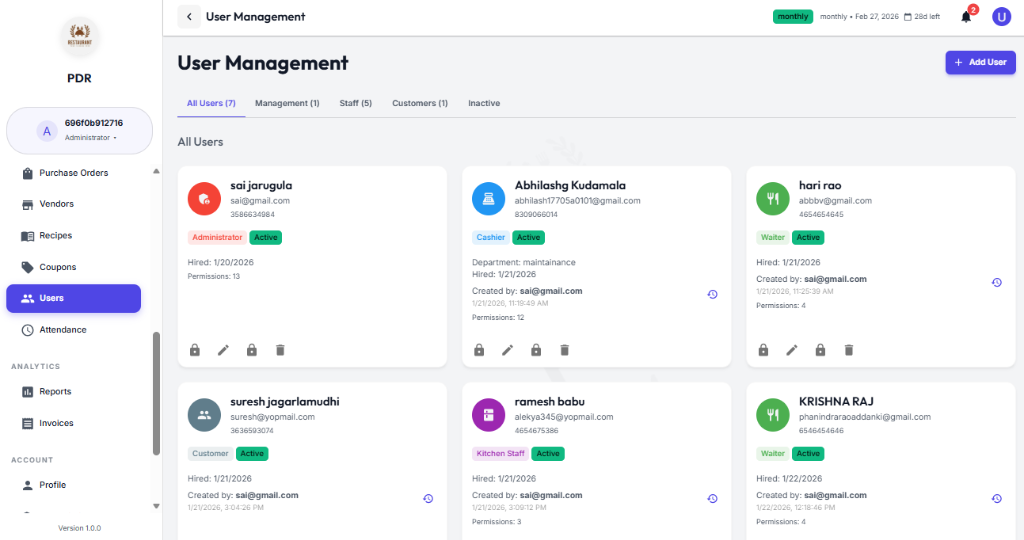
The overview uses cards to display each employee with a visible role badge, contact details, hire date, salary, and creator information. From here, Administrators can quickly:
- Filter staff: Switch between Management, Staff, Customers, and Inactive groups instantly.
- Add or update users: Use + Add User to create accounts, or edit permissions directly from the dashboard.
- Review key details: See role, status, salary, contact, and created-by information at a glance.
👥 User Roles & Permissions
The user table reflects the same role-based permissions structure shown in the overview. Each role is tailored to real restaurant workflows so staff see only what they need.
🛡️ Administrator
Full system access: Administrators manage users, permissions, reports, settings, and can access every section of the POS dashboard.
👔 Manager
Operational oversight: Managers handle staff, orders, inventory, and reporting. They may be restricted from core system configuration but can approve shifts and record salaries.
💰 Cashier
Payment processing: Cashiers manage the checkout flow, accept payments, issue bills, and handle POS transactions with a focus on speed and accuracy.
🍽️ Waiter
Table service: Waiters take customer orders, assign tables, and send requests to the kitchen while maintaining fast, responsive service.
🏃 Food Runner
Order delivery: Food Runners receive alerts for ready orders and ensure dishes are delivered promptly to the correct table.
🛵 Delivery
Logistics and delivery: Delivery drivers use the app to view assigned orders, access customer details, and update delivery status.
🛍️ Customer Interface Overview
Customer users land on a polished ordering page that starts with a clear top navigation and a bold restaurant hero banner. The interface is built to make browsing and ordering easy, with category tabs and card-based menu items front and center.
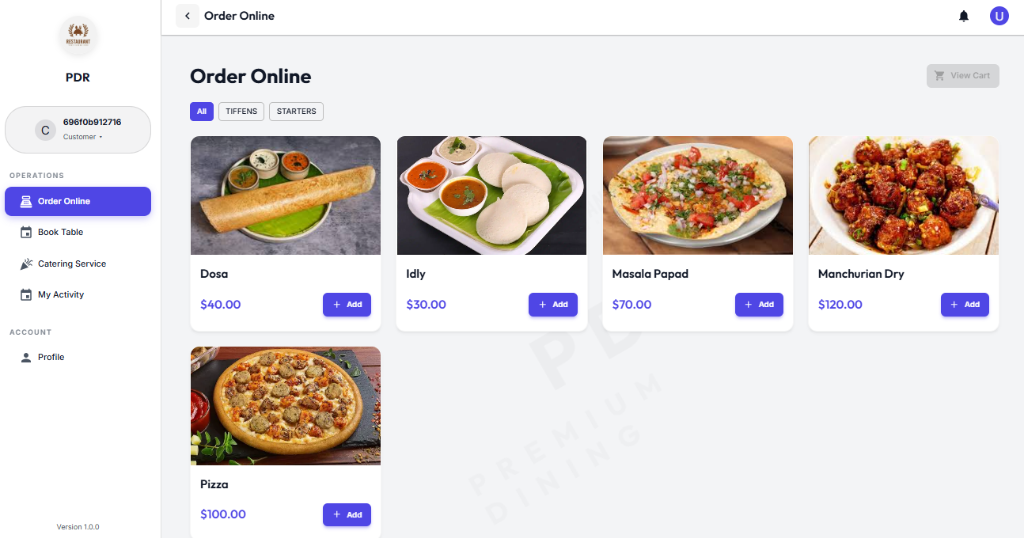
The customer order page includes:
- Top navigation: Quick access to Home, Order, Book Table, Catering, Gallery, About, and My Activity.
- Category tabs: Customers can filter the menu instantly by categories such as All, Curries, Appetizer, Biryani, Dessert, and Tandoori.
- Menu cards: Visual dish cards display item images, names, prices, and a prominent + Add button for fast ordering.
- Streamlined ordering: The design keeps the experience focused on food selection and adds to cart without extra friction.
⏰ Cashier Shift Management
Cashiers begin their shift from the dashboard by using the top-right action button. A clear CLOCK IN control appears when the shift is inactive, and it switches to an ON SHIFT indicator after successful login.
1. Clock In
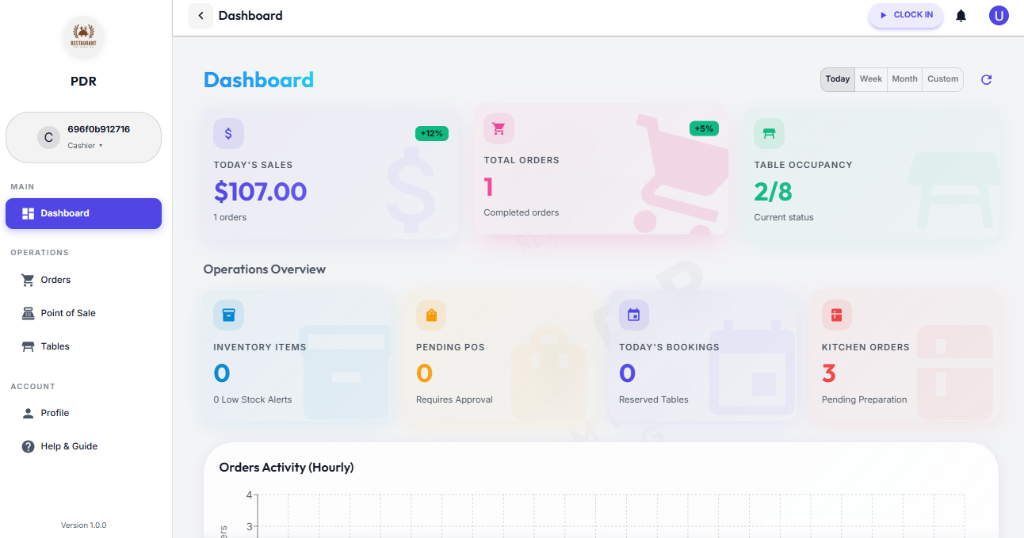
When the cashier is not yet active, the dashboard shows a prominent blue CLOCK IN button in the top right area.
2. On Shift
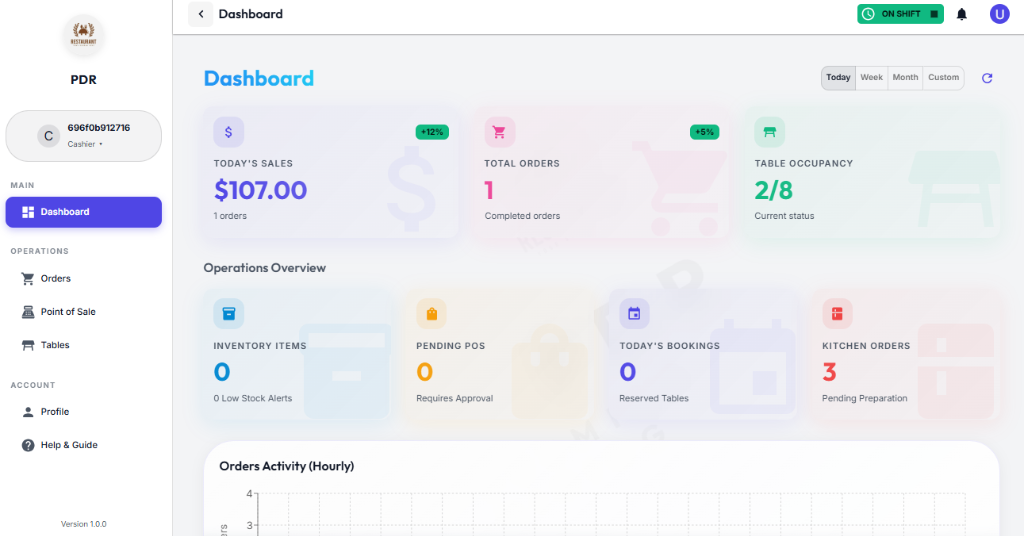
After clocking in, the button changes to a green ON SHIFT status, confirming the cashier has started their work period and can access POS operations.
⚠️ Location Permission Required:
The cashier must grant Location Access when prompted so the system can confirm they are on-site. Without permission, the CLOCK IN action will not complete and the shift cannot be activated.
🏁 Waiter Shift Management
Waiters follow a similar workflow to start their day. Activating the shift enables them to take orders and manage tables.
1. Clock In
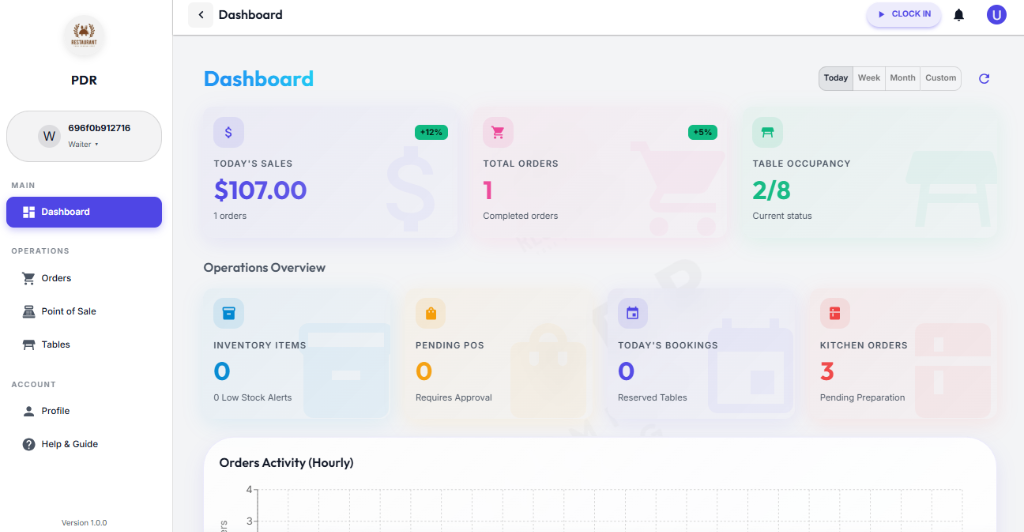
Tap the CLOCK IN button (top-right) to start your shift.
2. On Shift
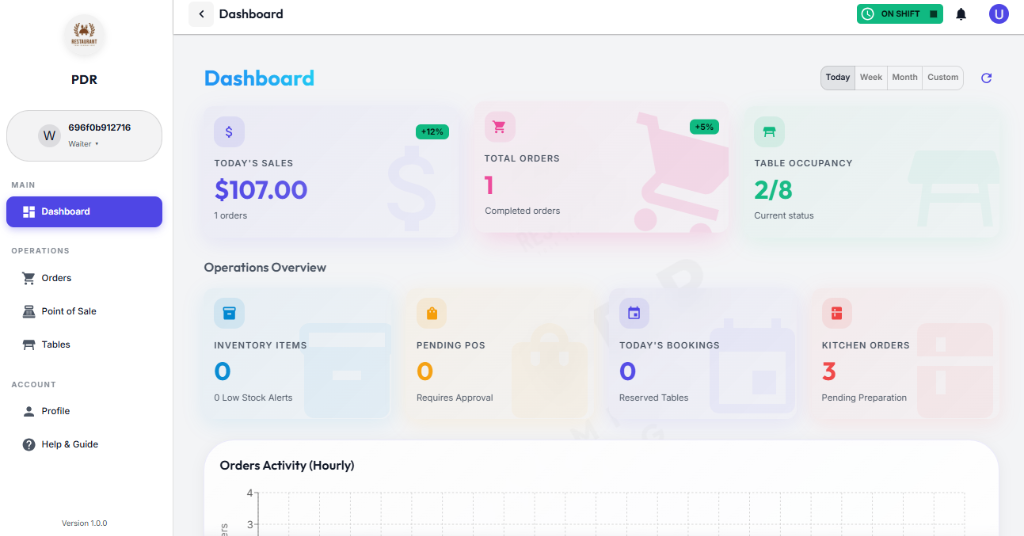
A green ON SHIFT badge shows you are active and can take orders.
📍 Location Verification:
Just like cashiers, Waiters must allow location access when prompted. The system validates that they are physically present at the venue before allowing the shift to start.
👩🍳 Kitchen Staff Shift Management
Kitchen staff start their shift from the dashboard using the top-right action button. Clocking in activates the kitchen view and allows cooks to begin processing incoming orders.
1. Clock In
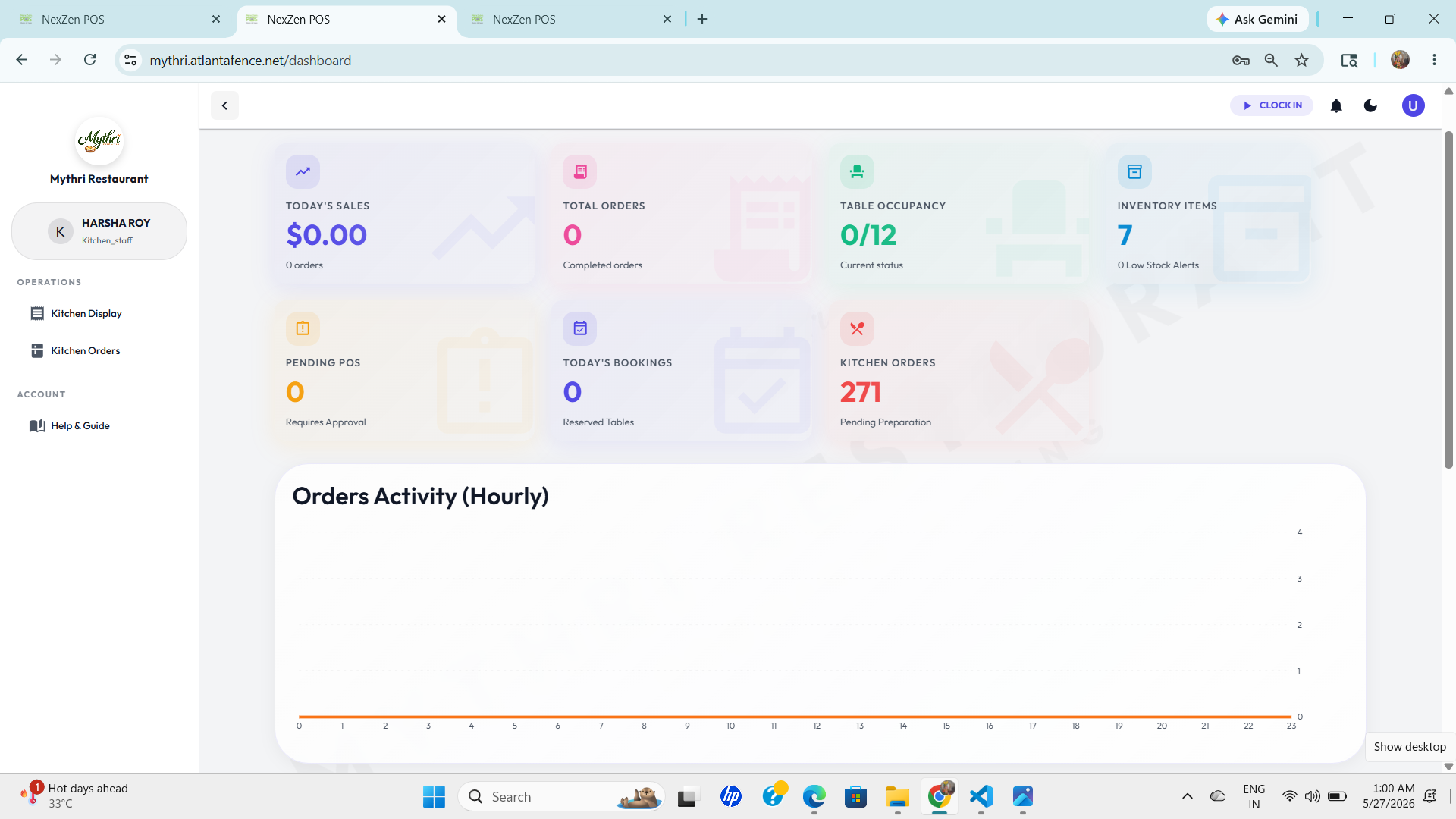
When the kitchen staff are not yet active, the dashboard displays a blue CLOCK IN button in the top-right corner.
2. On Shift
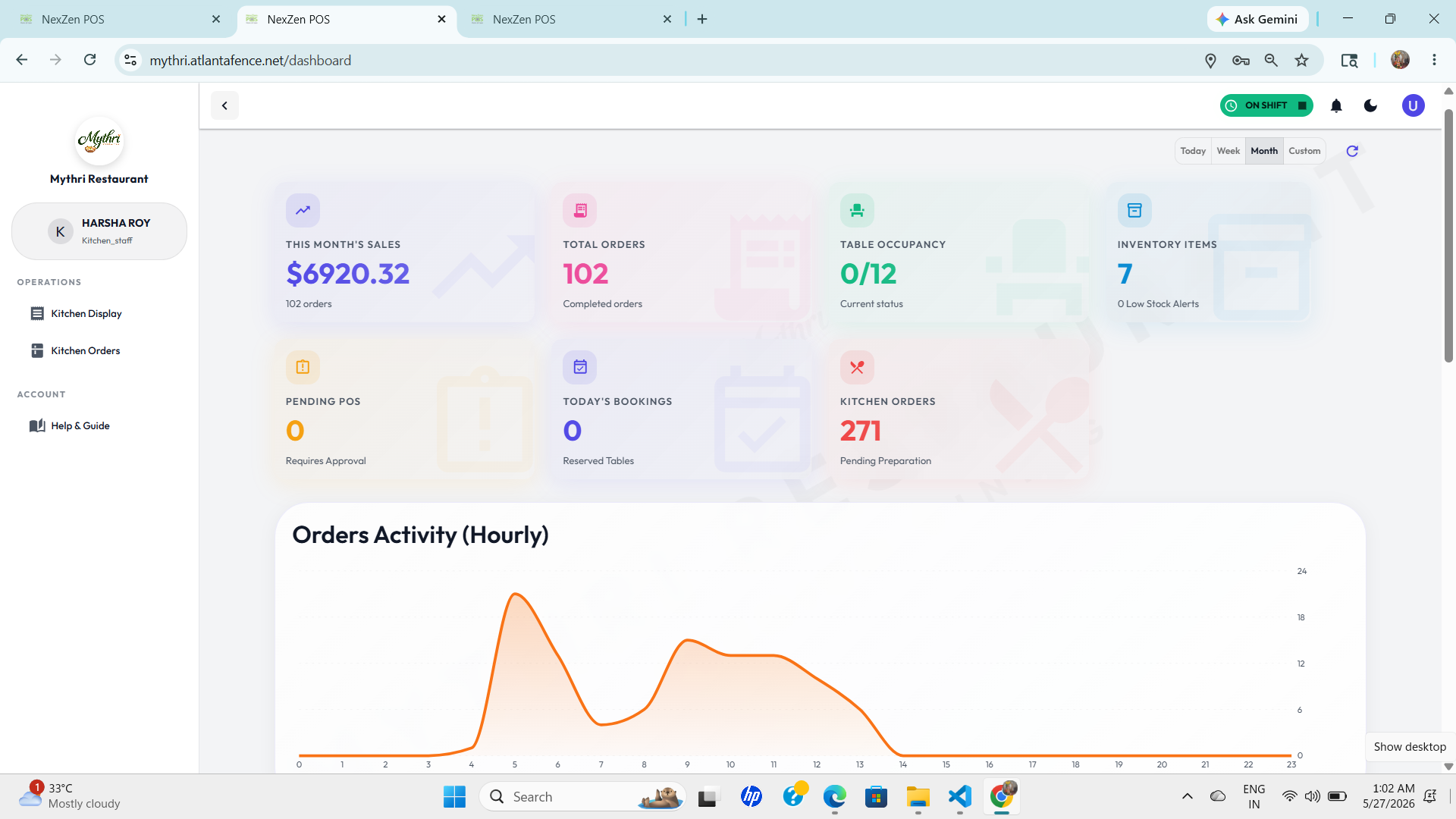
After clocking in, the button changes to a green ON SHIFT indicator, confirming the kitchen team is actively working and can handle order preparation.
📍 Location Verification:
The system may also verify Location Access so only on-site kitchen staff can activate the shift.
🏃 Food Runner Shift Management
Food Runners use the dashboard to activate their work status and receive ready-order alerts. The shift flow starts with a top-right CLOCK IN button and changes to an ON SHIFT badge once active.
1. Clock In
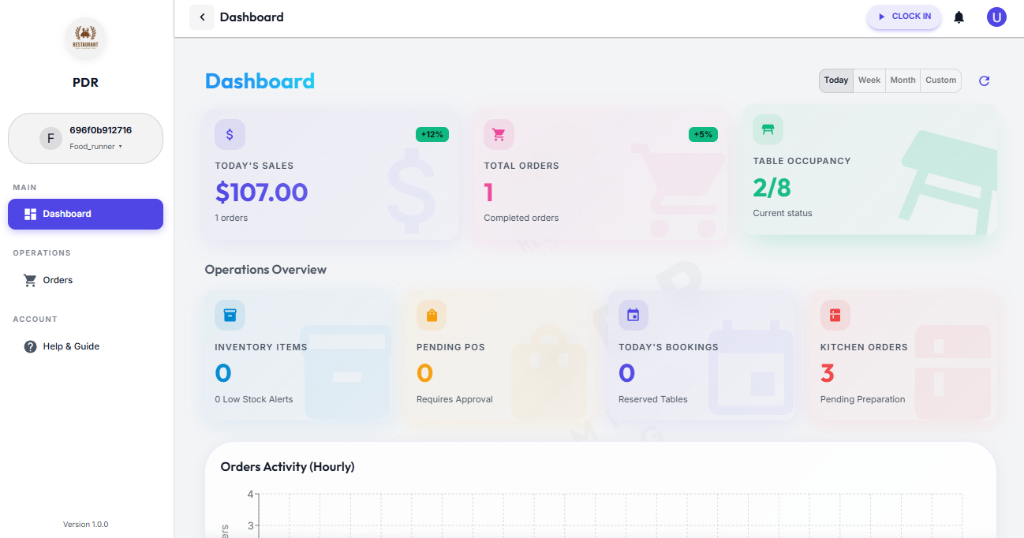
A blue CLOCK IN button appears in the top-right corner when the Food Runner is not yet active.
2. On Shift
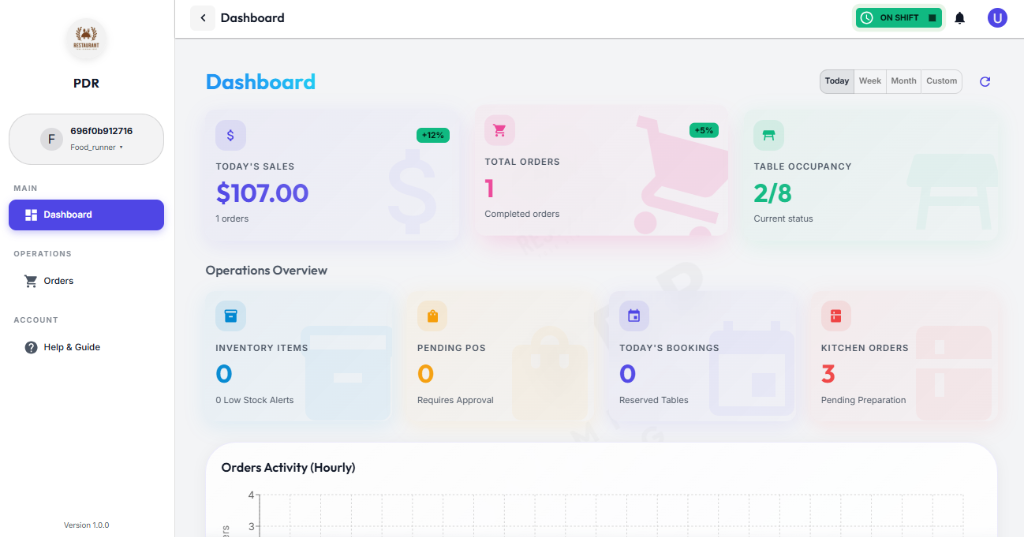
After clocking in, the button switches to a green ON SHIFT indicator, confirming the runner is ready to pick up and deliver orders.
📍 Location Verification:
Consistent with other roles, Food Runners must grant Location Access to verify their presence at the restaurant before starting their shift.
🛵 Delivery Staff Shift Management
Delivery drivers start their shift to receive delivery assignments and track order status updates.
1. Clock In
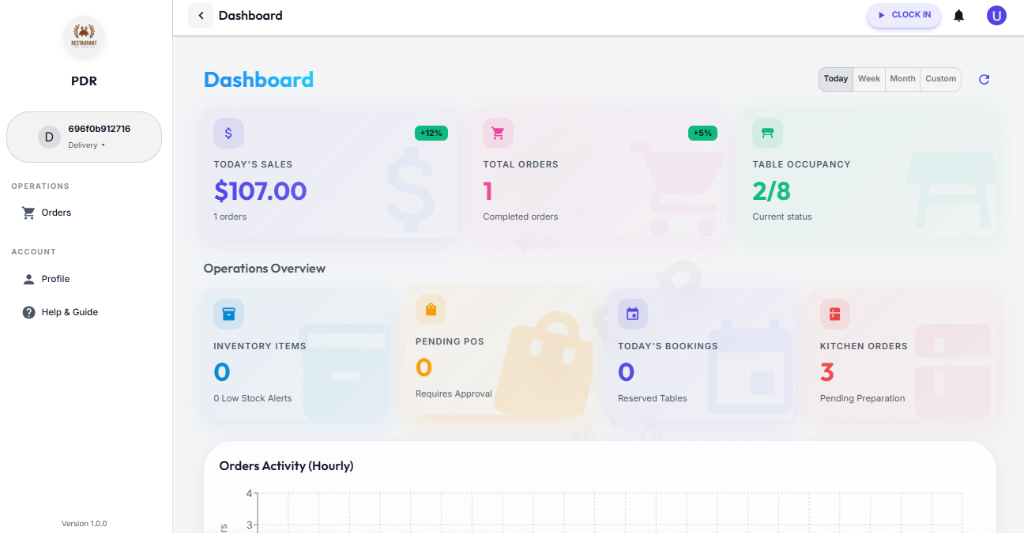
The CLOCK IN button initiates the driver's availability for the day.
2. On Shift
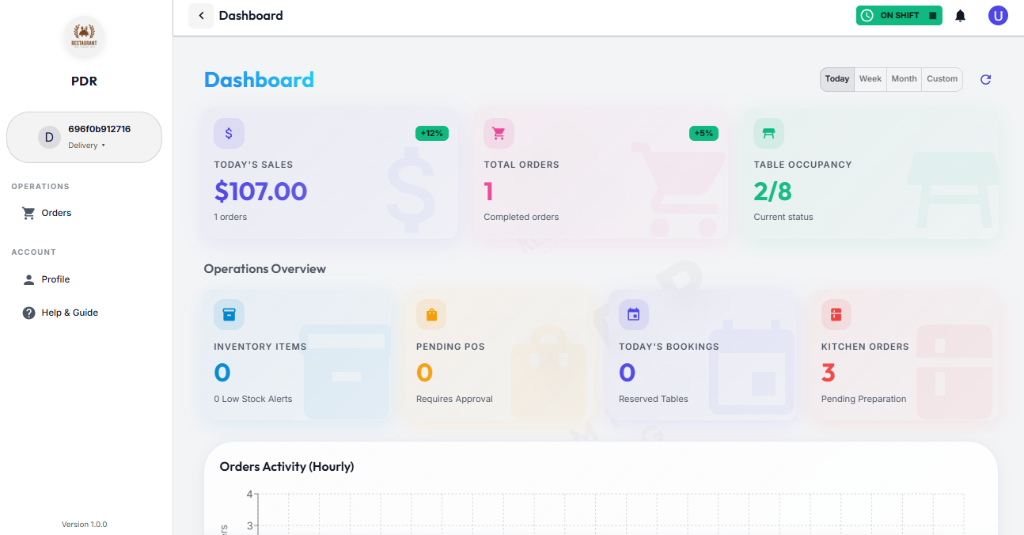
The green status confirms they are online and ready to accept delivery tasks.
📍 Location Verification:
Delivery staff must also allow Location Access to clock in, ensuring they are ready for dispatch from the correct location.
💡 Pro Tips
- Keep roles focused: Assign users only the permissions they need for their job. This reduces risk and keeps the dashboard clean for staff.
- Use categories wisely: Filter by Management, Staff, Customers, and Inactive to quickly find accounts and spot role mismatches.
- Audit inactive users: Regularly review and remove inactive accounts to keep the system secure and avoid clutter.
- Combine roles when needed: Some employees may need both Manager and Cashier access during peak hours, but only grant multi-role access when it is necessary.