Loading...
Settings
Manage restaurant profile, business hours, tax configuration, delivery settings, and regional preferences from a centralized dashboard.
⚙️ Restaurant Profile
Quickly manage your restaurant's public identity, contact details, branding, business hours, and regional settings used across the storefront and receipts.
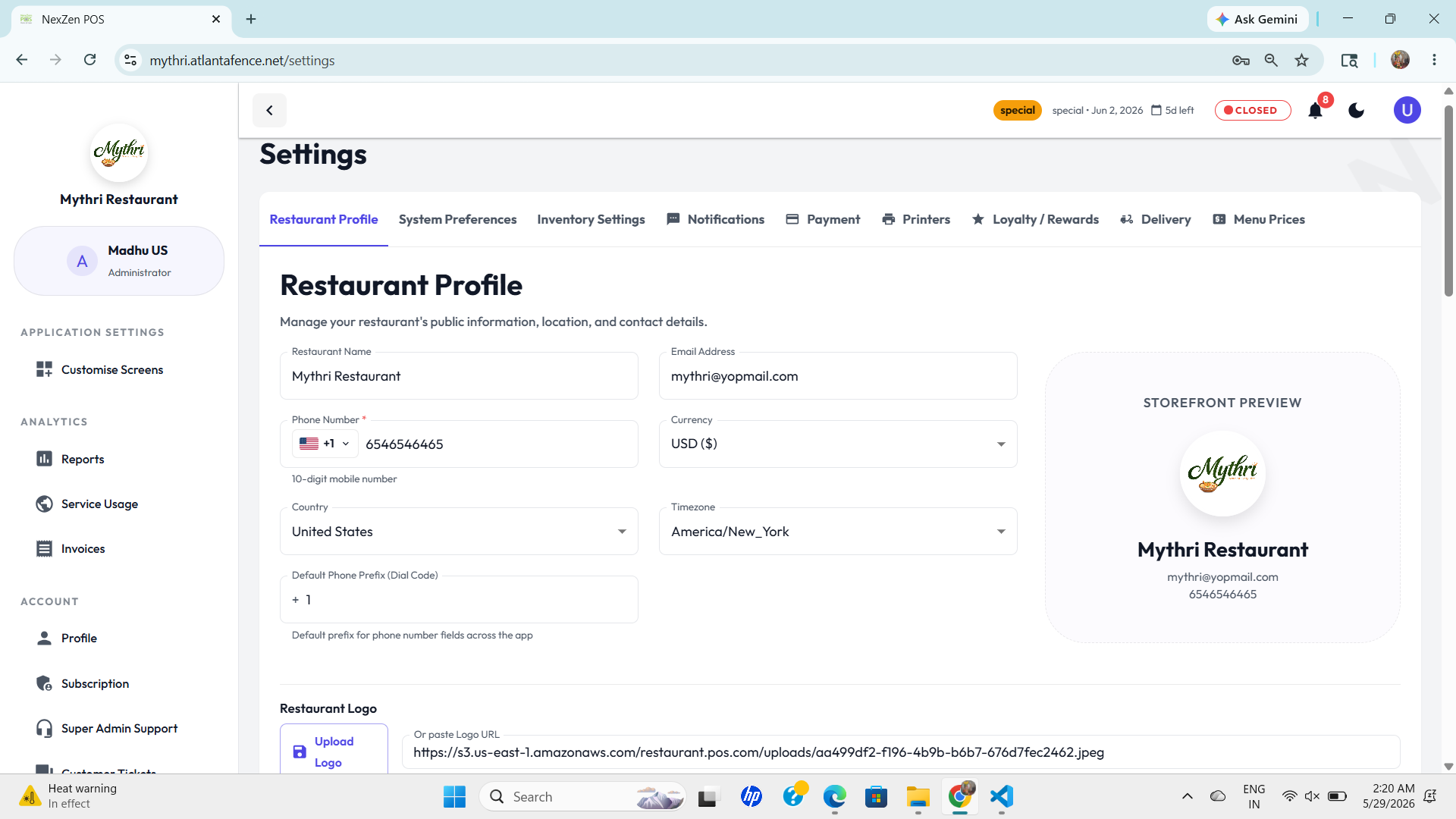
- Set weekly operating hours and toggle each day open or closed for storefront visibility.
- Manage branding, contact details, and regional tax settings from a single restaurant profile page.
Storefront & Branding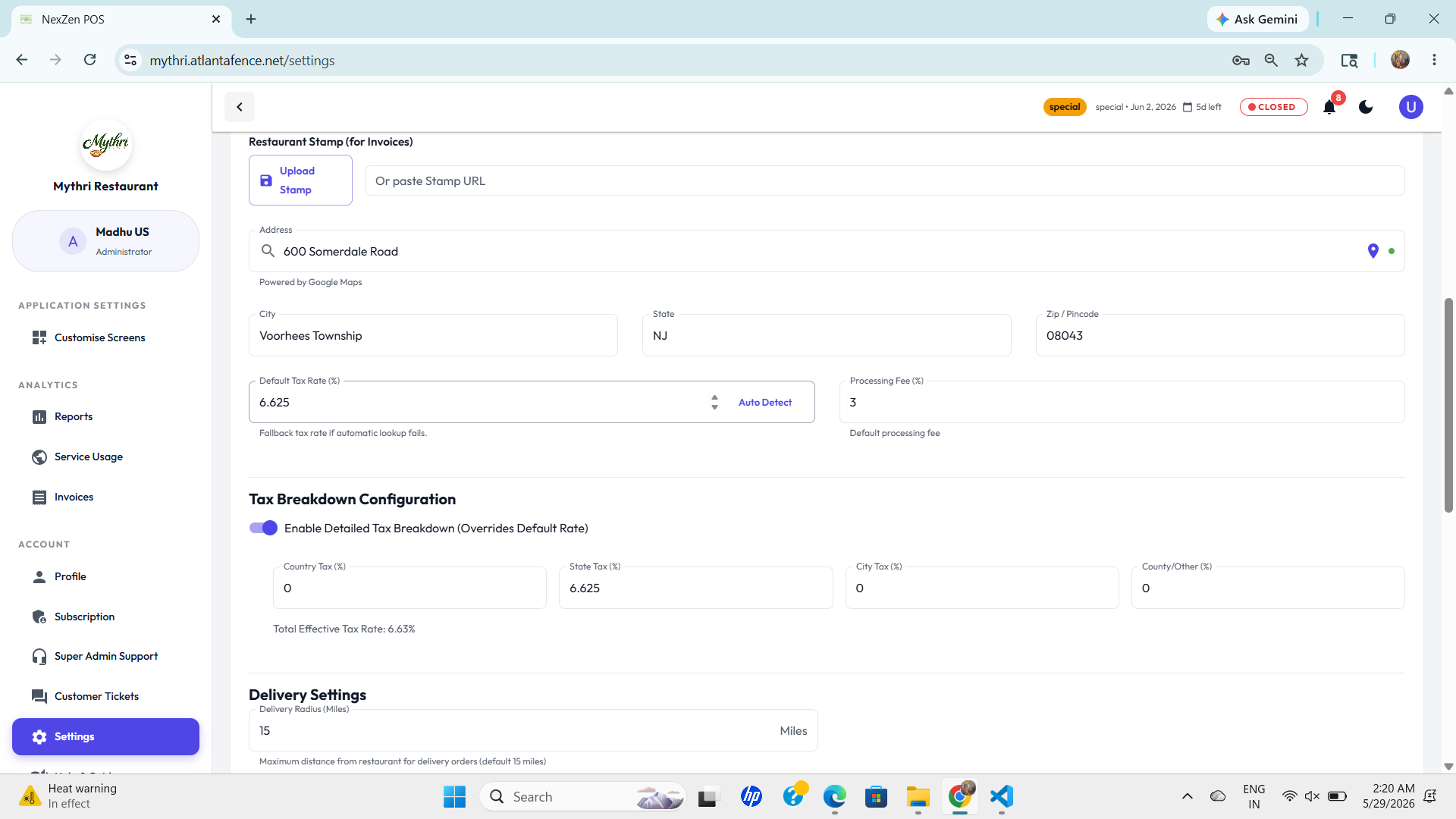
Preview how your Restaurant Logo, name, email and phone appear to customers on the storefront.
Location & Tax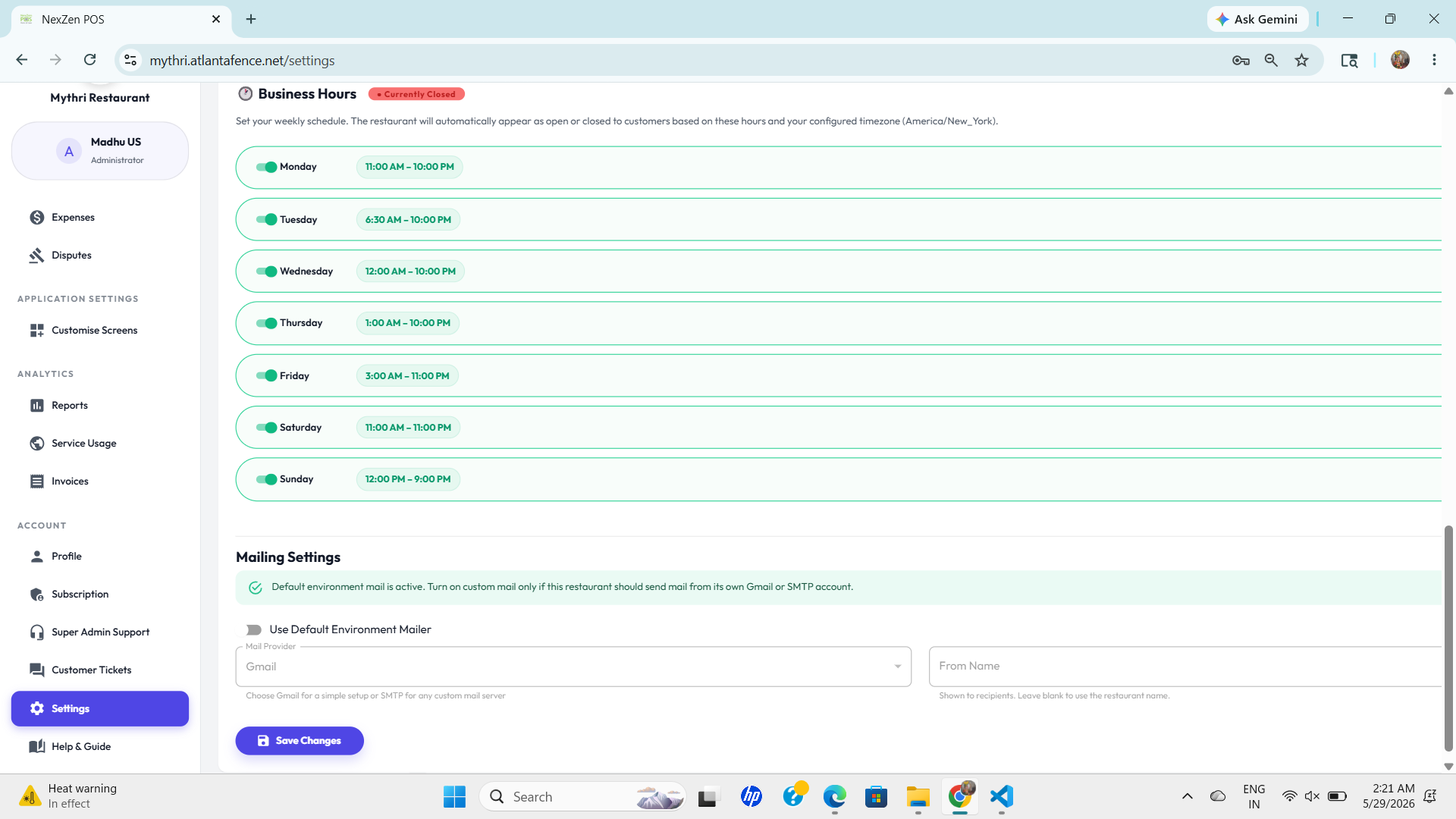
Set your address (Google Maps), default tax rate (auto-detect), processing fee, and detailed tax breakdown used on invoices.
📋 Basic Information
Core contact and currency fields used across the app and storefront:
- Restaurant Name: Your public business name.
- Email Address: Contact and notification email.
- Phone Number: Mobile number with country dial code.
- Currency: Default currency for prices and payments.
🎨 Branding logos
Images and stamps used on the storefront and printed documents:
- Restaurant Logo: Upload or paste a logo URL shown on storefront and receipts.
- Restaurant Stamp: Optional stamp/logo used on invoices.
- Storefront Preview: Live preview of how branding and contact details appear to customers.
📍 Location & Timezone
Location, tax and timezone settings that affect orders and invoices:
- Address: Google Maps auto-complete for street address.
- City / State / Zip: Used for tax lookup and delivery zones.
- Timezone: Local timezone for schedules and timestamps.
- Default Phone Prefix: Prefill country code for phone fields.
Tax Configuration
- Default Tax Rate: Auto-detected based on state/country rules.
- Processing Fee: Apply default fees on transactions.
- Tax Breakdown: Enable detailed tax by country, state, city, and other jurisdictions.
🛵 Delivery Settings
- Delivery Distance: Set maximum delivery radius (default 15 miles).
- Configure delivery charges and eligibility zones.
🕐 Business Hours
Configure your restaurant's operating schedule and visibility settings:
- Operating Hours: Set specific opening and closing times for each day.
- Day Status: Toggle each day on/off to indicate operating status.
- Timezone: Ensure accurate scheduling with your configured timezone.
📧 Mailing Settings
Configure email delivery for order confirmations, invoices, and communications:
- Use Default Environment Mailer: The system uses Gmail or SMTP for outgoing emails.
- Mail Provider: Choose Gmail or configure a custom SMTP server.
- From Name: The sender name displayed in customer emails.
⚙️ System Preferences
Manage app theme, notifications, auto-print behaviour, and external integrations like Google Maps API from a single global preferences panel.
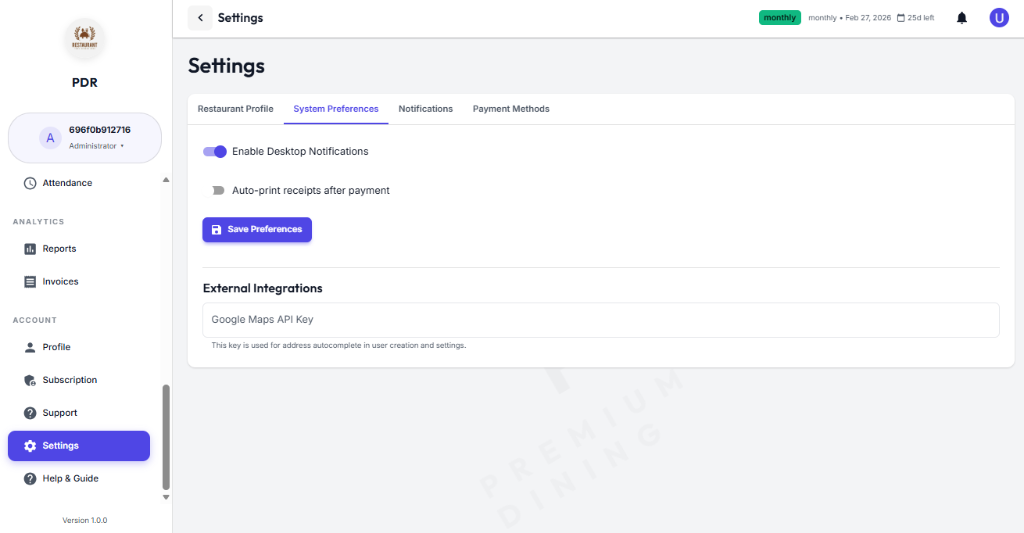
- Choose the application theme and control desktop notifications at a global level.
- Enable or disable automatic receipt printing after payment.
- Store your Google Maps API key for address autocomplete and location services.
📦 Inventory Settings
Customize the measurement units used in inventory management, add custom units, and save the units that should be available throughout the app.
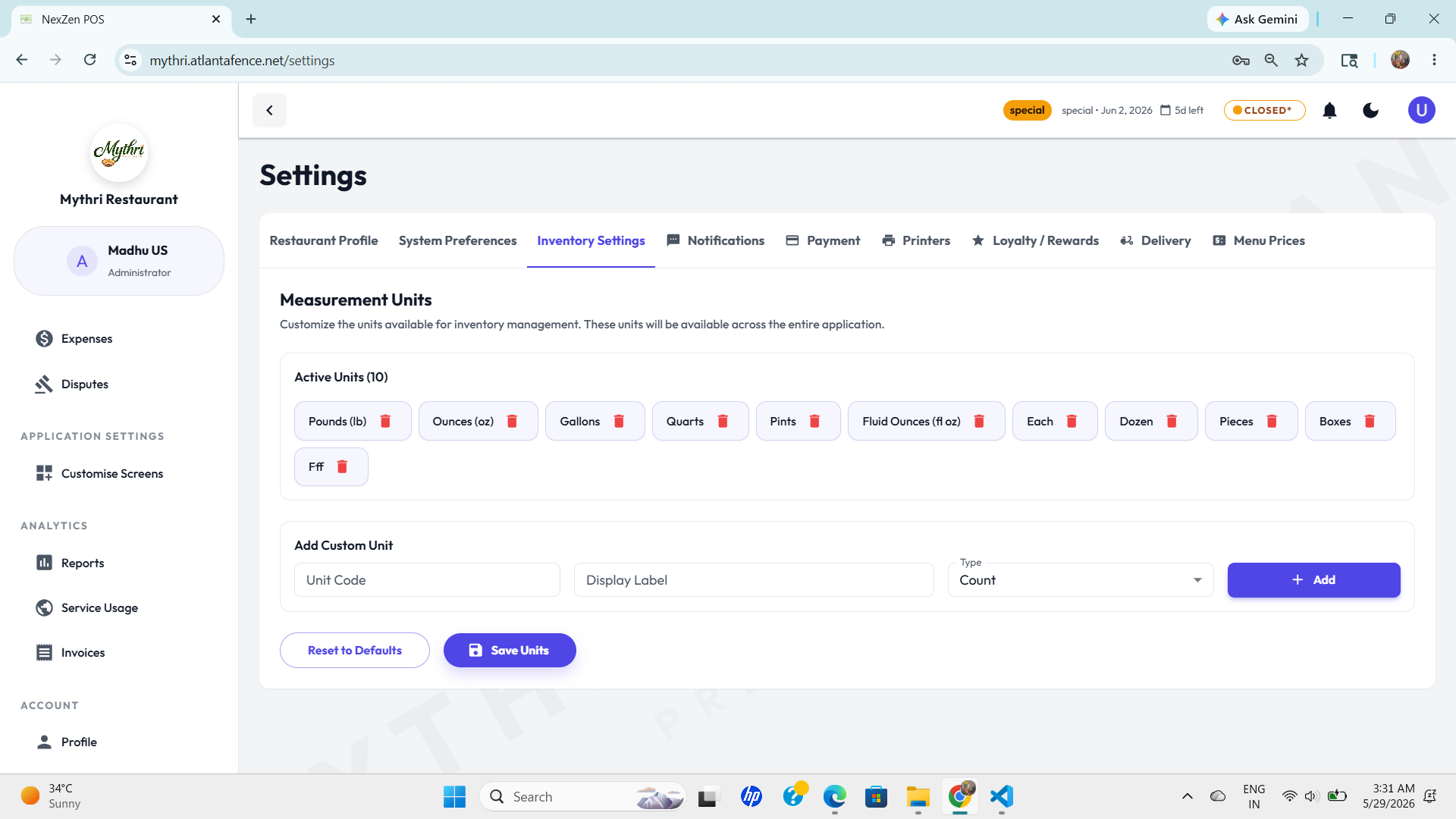
- View and manage active measurement units (default includes weight, volume, and count units).
- Add custom units by specifying a unit code, display label, and unit type (Count, Weight, Volume, etc.).
- Reset units to defaults or save your custom unit configuration.
🔔 Notifications
Configure SMS delivery, notification sounds, and user-specific alert overrides for orders, catering, and inventory events.
Twilio SMS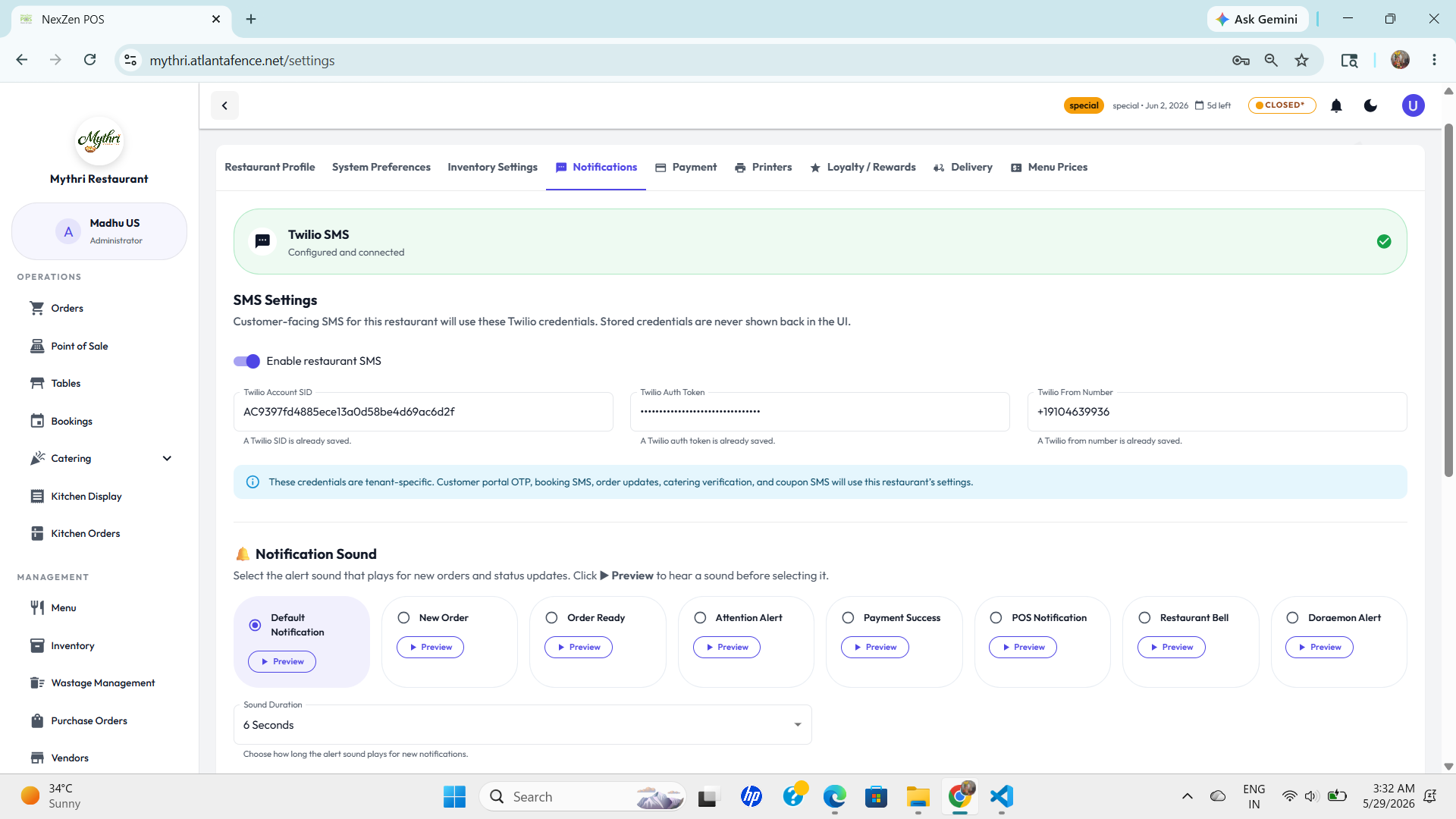
Save tenant-specific Twilio credentials for customer OTP, booking SMS, order updates, and coupon delivery.
Notification Sounds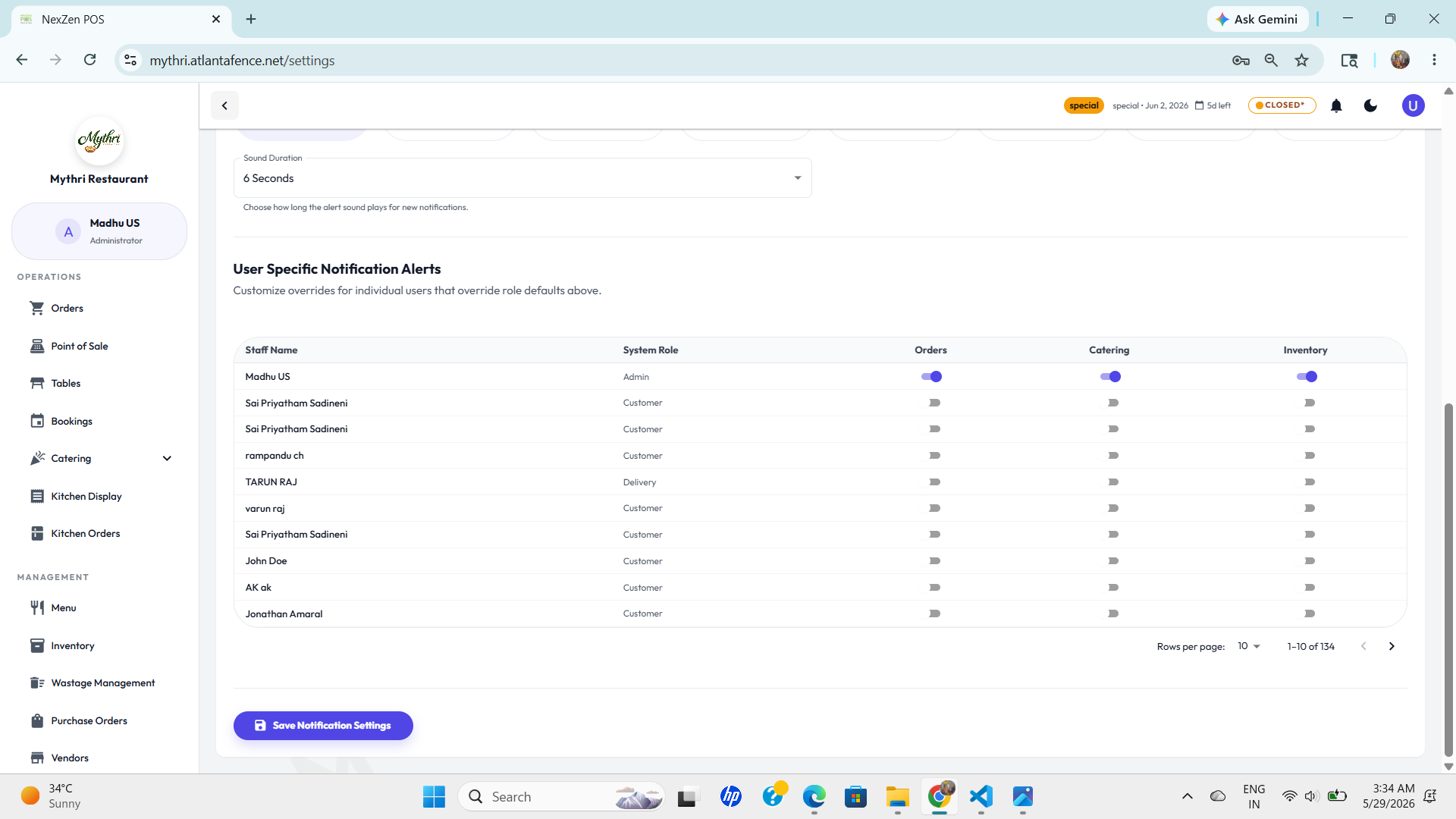
Select and preview alert sounds for new orders, ready notices, payment success, and other restaurant alerts.
- Connect Twilio SMS credentials for customer-fin acing SMS delivery.
- Choose alert sounds and preview them before saving your settings.
- Override notification preferences per user role, including orders, catering, and inventory alerts.
💳 Payment
Configure Point of Sale payment methods and set up Stripe for secure payment processing at your restaurant.
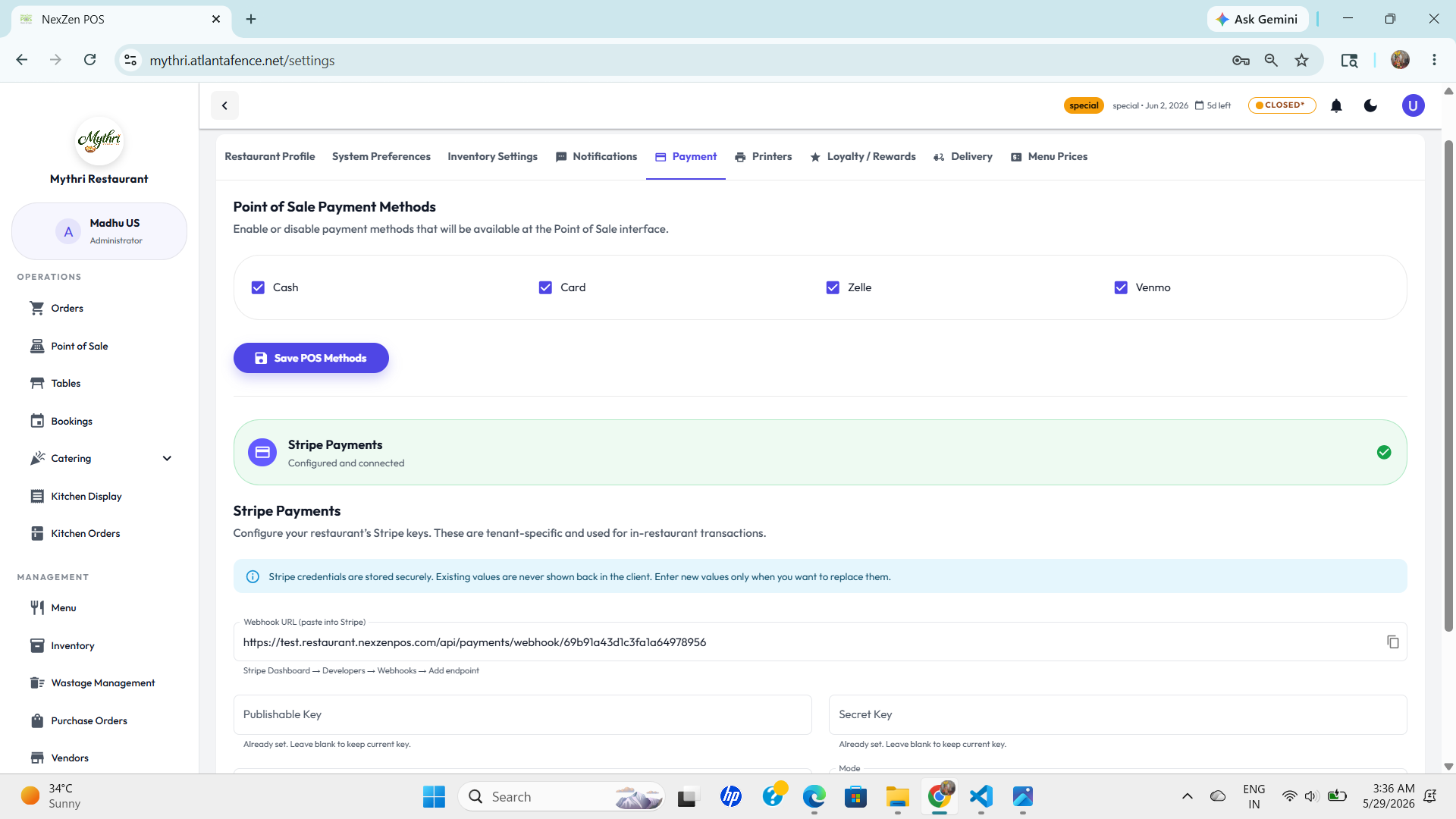
- Enable or disable payment methods (Cash, Card, Zelle, etc.) available at your Point of Sale.
- Configure tenant-specific Stripe credentials including publishable and secret keys.
- Set up Stripe webhook URL and signing secret for secure transaction processing.
🖨️ Printers
Configure automated billing and kitchen printing for this restaurant. Enable the 'Print Automation' switch to start auto-printing when an order is created.
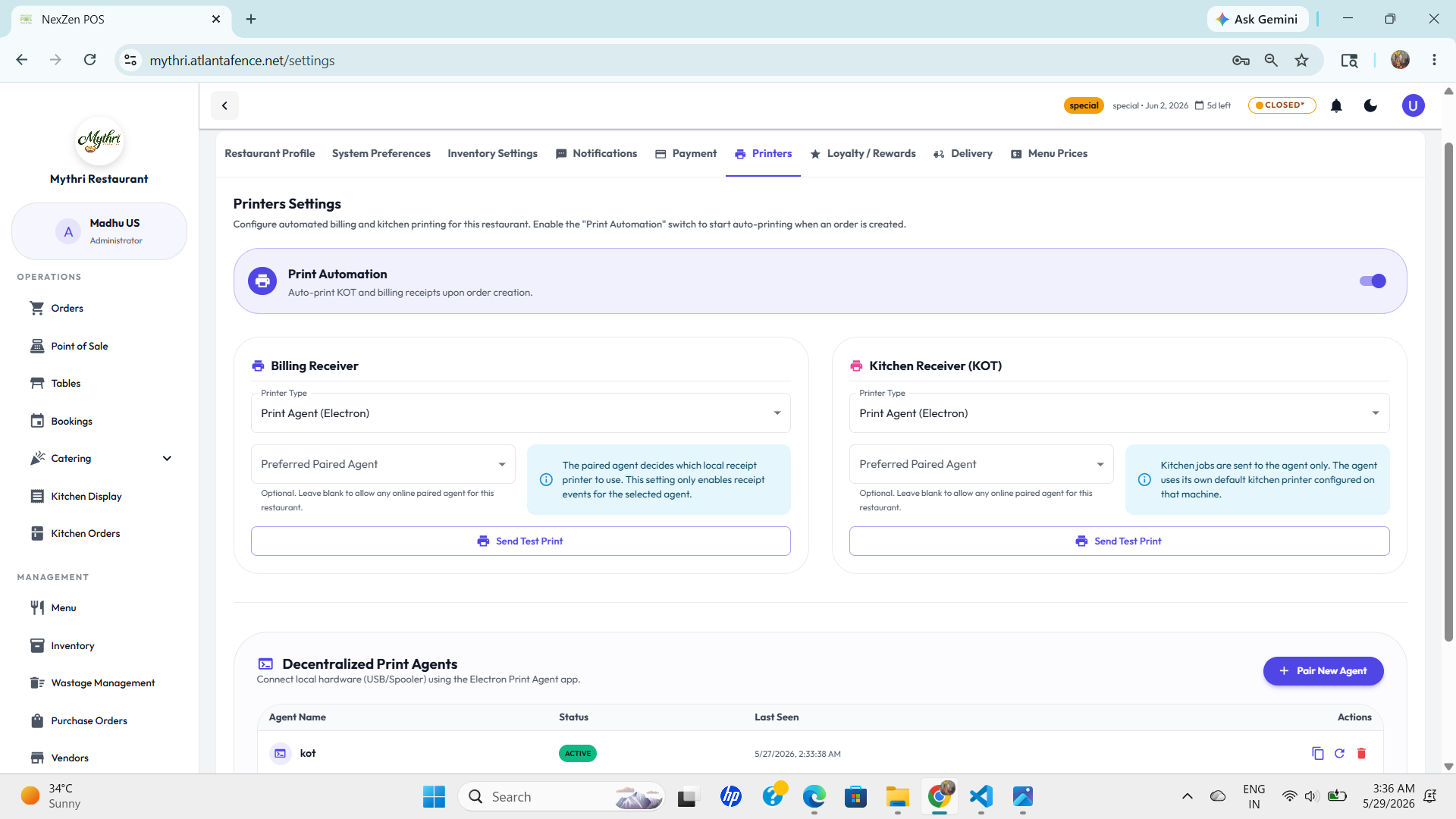
- Enable Print Automation to auto-print KOT (Kitchen Order Ticket) and billing receipts upon order creation.
- Configure separate billing and kitchen receipt printers by selecting printer type and preferred paired agent.
- View connected local print agents and their status for decentralized USB/Socket-based printing.
🎁 Loyalty/Rewards
Configure how customers earn and redeem loyalty points at your restaurant.
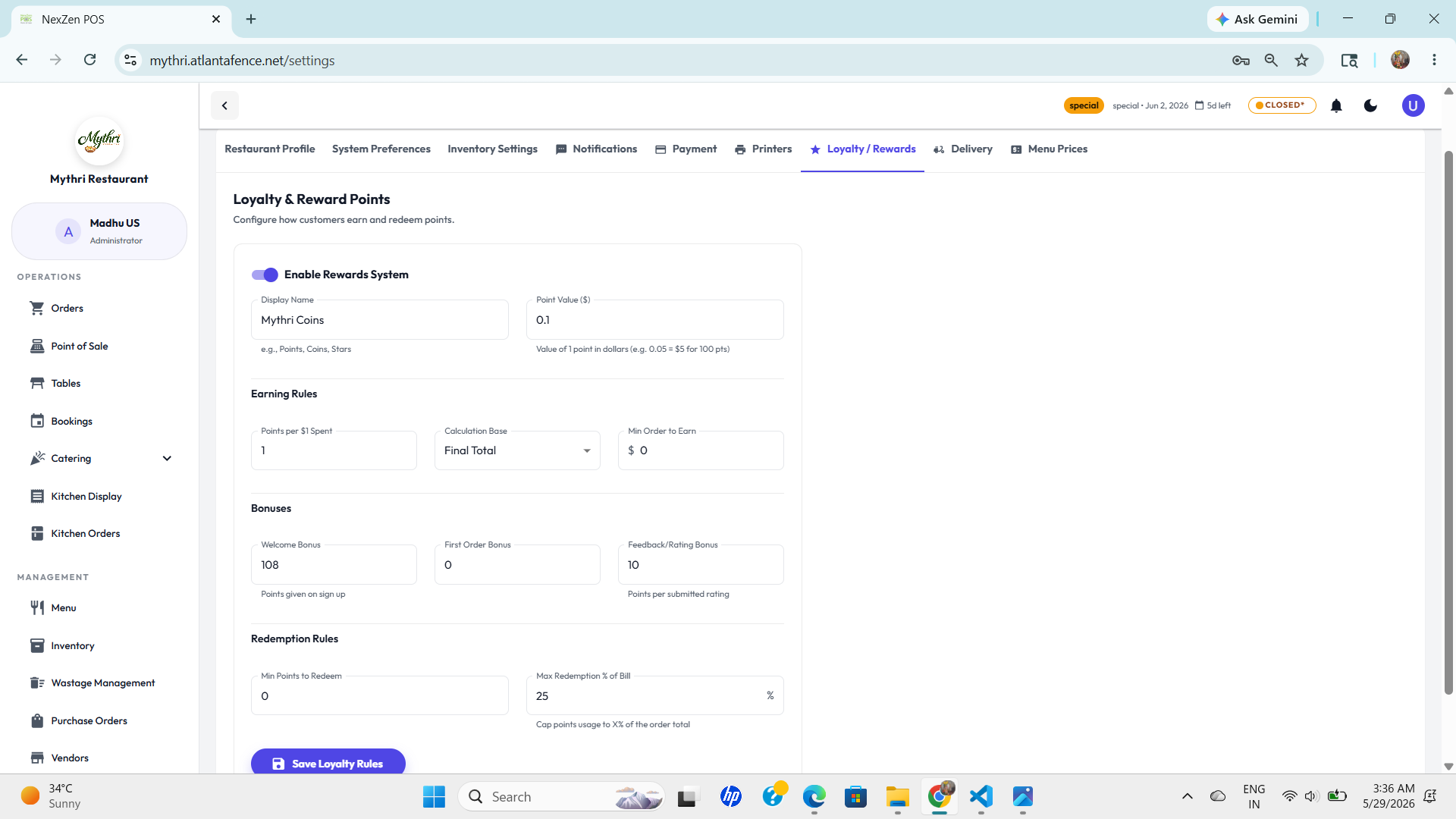
- Enable the rewards system and set a display name and point value for your loyalty currency.
- Define earning rules including points per dollar spent, calculation base, and minimum order threshold.
- Configure bonus points for welcome sign-ups, first orders, and customer feedback/ratings.
- Set redemption rules with minimum points required and maximum redemption percentage of bill.
🛵 Delivery
Configure third-party delivery integrations and enable your restaurant's built-in delivery system for automated order dispatch.
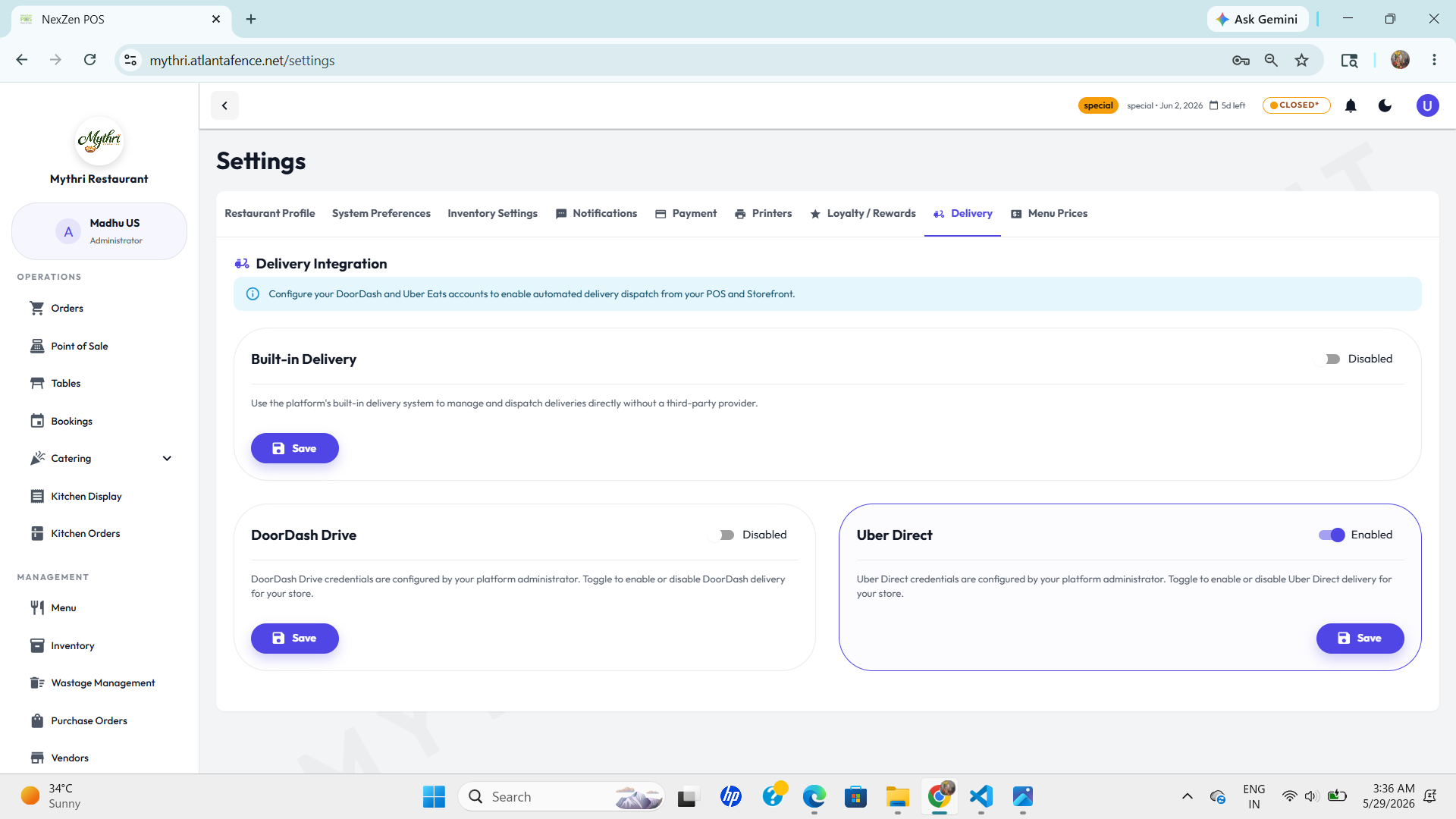
- Connect DoorDash and Uber Eats accounts to enable automated delivery dispatch from your POS and Storefront.
- Enable the built-in delivery system to manage and dispatch deliveries directly without third-party providers.
- Toggle DoorDash Drive and Uber Direct for restaurant-controlled delivery operations.
💰 Menu Prices
Adjust prices for all menu items or by category using bulk price adjustment with percentage-based changes.
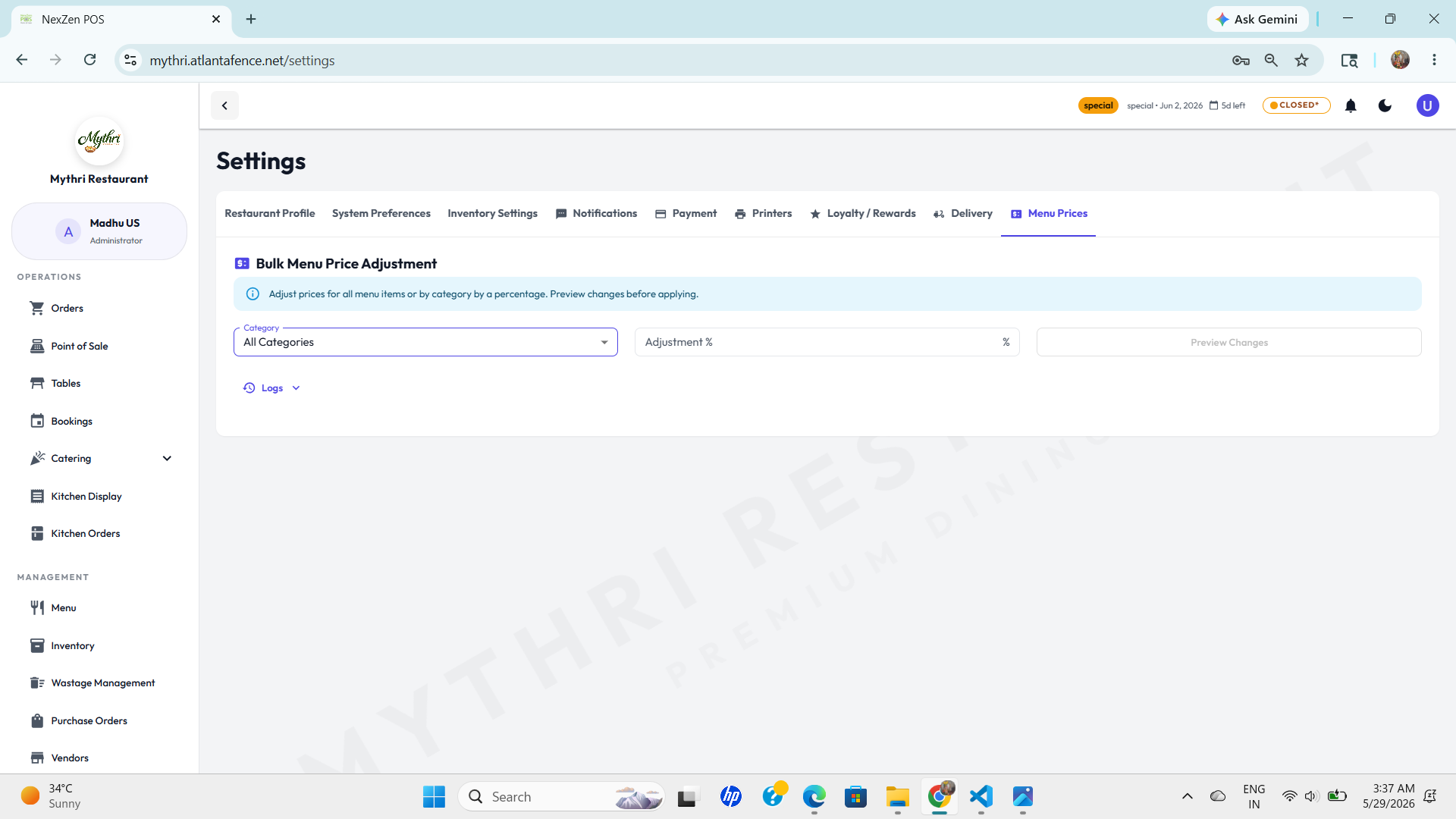
- Select a specific category or adjust all categories at once.
- Apply a percentage-based price adjustment to your menu items.
- Preview all price changes before applying them to your menu.
- View adjustment logs to track price change history.