Operational Dashboard
Your restaurant's command center for real-time performance tracking.
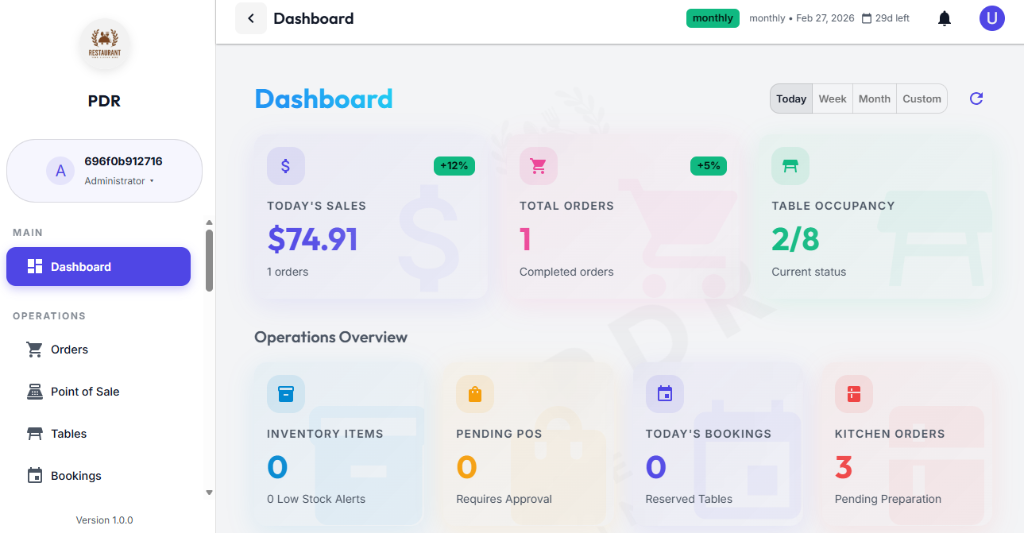
⏱️ Time Period & Controls
Choose the time range and refresh live data instantly from the dashboard header:
- Time Range: Pick Today, Week, Month, or a Custom range.
- Refresh: Click the circular refresh icon to reload dashboard values without reloading the page.
- Status Badge: The top bar shows your current plan and status, including any active offers or days remaining.
📊 Key Performance Indicators (KPIs)
The dashboard cards surface your most important daily performance metrics:
Current daily revenue and order count.
Completed orders for the selected period.
Occupied tables versus total seating capacity.
Total items tracked and low-stock alerts.
Orders waiting for approval or confirmation.
Reserved tables for the current day.
Active kitchen orders pending preparation.
⚡ Operations Overview
Use the dashboard cards to spot operational status and bottlenecks quickly:
- Today's Sales: View your current daily revenue and see how today compares with historical performance.
- Total Orders: Track the number of completed orders for the selected period at a glance.
- Table Occupancy: Monitor occupied tables versus total seating capacity in real time.
- Pending POS: Orders requiring approval before processing.
- Today's Bookings: Reserved tables that are expected today.
- Kitchen Orders: Orders currently in preparation or waiting to be cooked.
📈 Visual Analytics
Scrolling down reveals three powerful charts for deep operational insights:
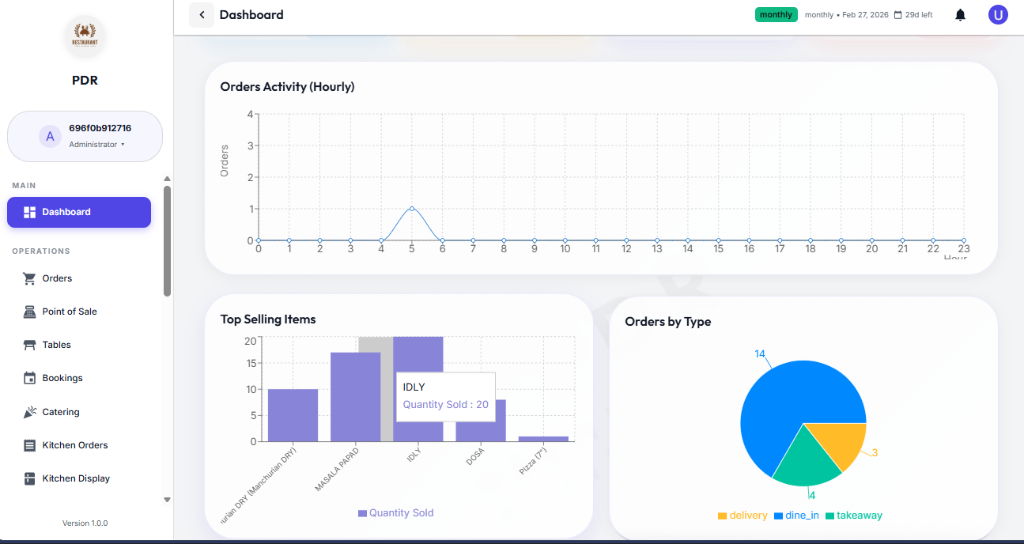
Orders Activity (Hourly)
Displays hourly order volume across the day, helping you identify peak service times.
Item-wise Sales
Shows which menu items are selling right now. The current chart highlights the top-performing item.
Order From
Breaks down orders by source, such as takeaway or dine-in, with percentage and count details.
🔔 Notification Center
Receive real-time alerts for new orders, status changes, and important admin messages via the Bell Icon in the top-right. Notifications include order type, order ID, customer name (when available), and elapsed time.
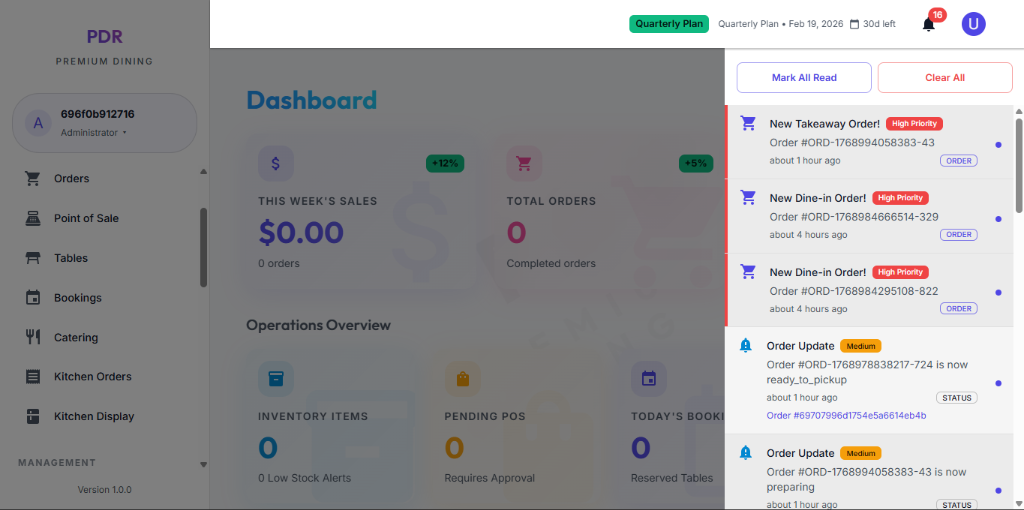
- New Orders (High Priority): Immediate alerts for incoming Takeaway, Delivery, or Dine-in requests with Order ID and time elapsed.
- Status Updates (Medium Priority): Kitchen progress notifications such as "Preparing", "Ready for Pickup", or "Delivered".
- Quick Actions:
- Mark All Read: Clears unread badges.
- Clear All: Removes all notifications from the list.
- Item Actions: From each notification you may perform quick tasks like Accept Order, Start Preparation, or Mark Ready.