Loading...
Catering Management & Commissions
Manage bulk orders, estimate resources, and track commission earnings for catering staff and partners.
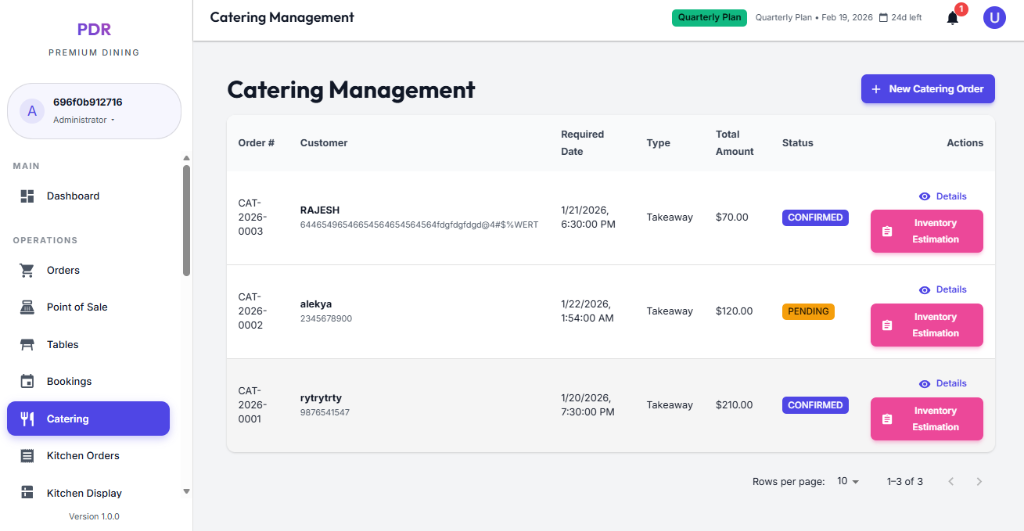
🍱 Catering Dashboard
The Catering module is designed for managing bulk orders and special events. It provides a clear overview of upcoming commitments.
Order Details
- Order #: Unique identifier (e.g., CAT-2026-0003).
- Customer: Client name and contact details.
- Required Date: Due date and time for the order.
- Type: Service type (e.g., Takeaway, Delivery).
Financials & Status
- Total Amount: The full value of the catering order.
- Status: Current state (e.g., PENDING or CONFIRMED, COMPLETED).
Key Actions
- + New Catering Order: (Top Right) Create a new bulk order request.
- 👁️ Details: View the full breakdown of items and special instructions.
👁️ Viewing Order Details
Click the blue Details icon in the Action column to open the full catering order modal with everything needed to review the booking.
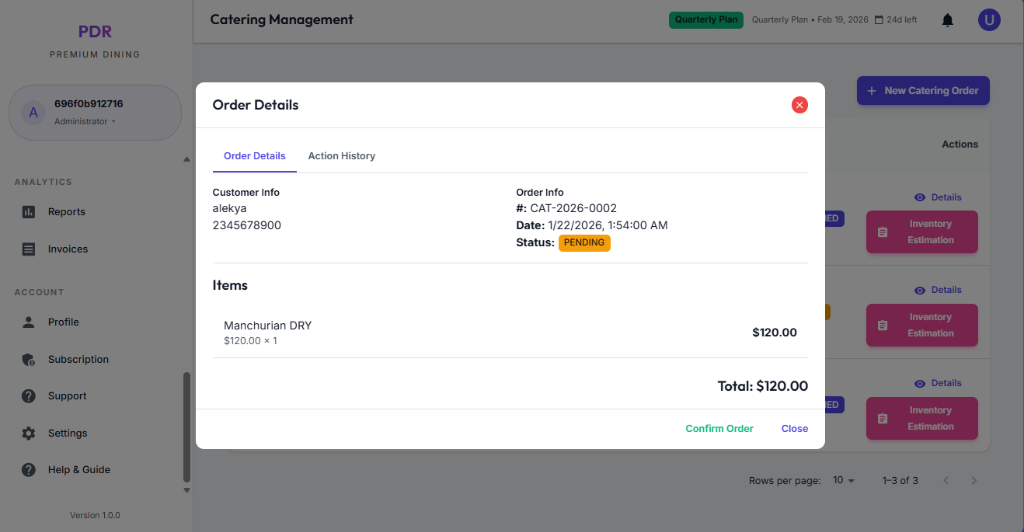
- Customer Info: Displays the customer name, phone, email, and occasion date in the left panel.
- Order Info: Shows order number, service type, occasion title, occasion holder, delivery date & time, and confirmed status.
- Guest Requirements: Reveals the guest count table with separate Veg and Non-Veg values for Adults and Kids.
- Items: Lists each dish with its quantity and price, plus a summary of subtotal, tax, total, advance paid, and balance due.
- Payment & Services: Includes recorded payment details, any additional services, the assigned processing person, and internal notes.
- Actions: Use Download Invoice, Email Receipt, or Edit Order, then close when finished.
🕒 Action History & Audit Trail
Open the Action History tab in the order modal to review the full event timeline for the booking.
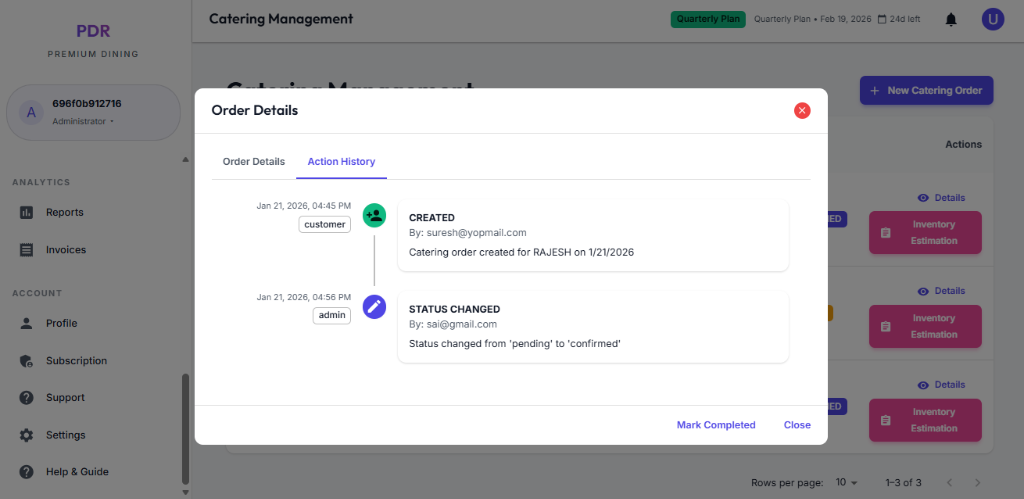
- Event Timeline: Shows each step in the order history with the date, time, and event type.
- Actor Details: Identifies who triggered each update, including system events, admins, and customers, with their email address.
- Action Types: Includes order creation, status updates, payment additions, and other important changes.
- Status Changes: Clearly logs transitions such as "pending" to "confirmed" so you can trace order progress.
- Payment Events: Records when a customer or admin adds payment, including the amount and payment method if available.
📋 Inventory Estimation
For every catering order, you will see a prominent pink button: Inventory Estimation.
Clicking this generates a report on the raw materials required to fulfill the order (e.g., "50kg Rice", "20kg Chicken"). This helps in procurement planning to ensure you have sufficient stock for the event.
➕ Creating a New Catering Order
Click the "+ New Catering Order" button to open the new multi-step catering wizard. Complete each stage and use the Details step to configure event logistics.
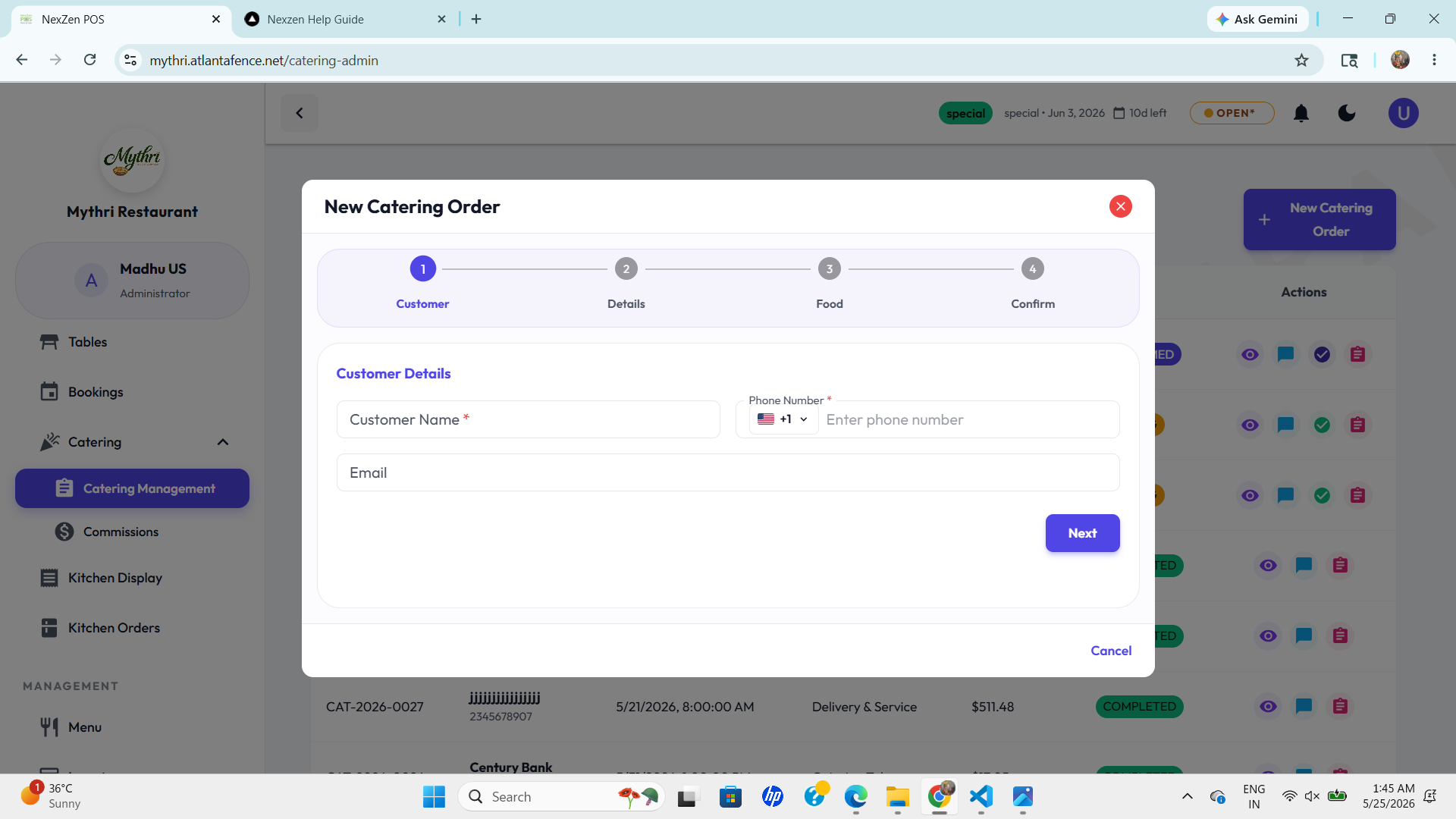
- Customer: Enter the customer's name, phone number, and email on the first step.
- Details: Enter Delivery Date & Time, Occasion Date, Occasion, Service Type, and guest counts for Adults and Kids split by Veg and Non-Veg.
- Food: Select catering items, quantities, and menu specifics for the booking.
- Confirm: Review the full order summary, then submit to create the catering request.
📄 Generating the Estimation Report
After clicking the pink Inventory Estimation button on an order, a comprehensive report appears:
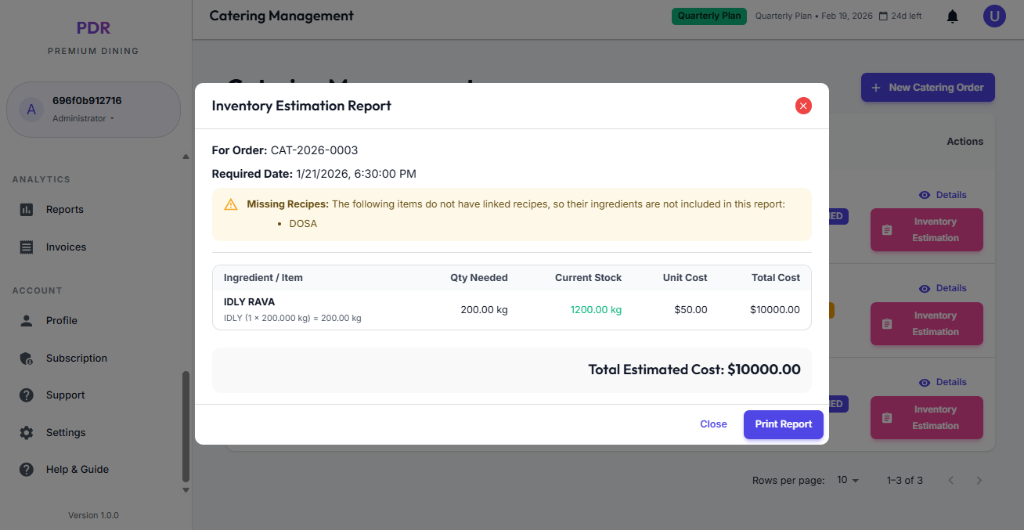
- Ingredient Analysis: The system calculates exactly what raw materials are needed (e.g., "Ingredient: IDLY RAVA", "Qty Needed: 200.00 kg").
- Stock Check: Compares usage with your Current Stock (displayed in Green if sufficient).
- Cost Projection: Provides a financial breakdown including Unit Cost and Total Cost for the required materials.
- Missing Info Alert: ⚠️ Warning: If any ordered item (e.g., "DOSA") lacks a linked recipe, it will be listed so you can update your data.
💼 Catering Commissions
The system tracks commission allocation for catering orders, so catering staff and partners earn automatically from each booking.
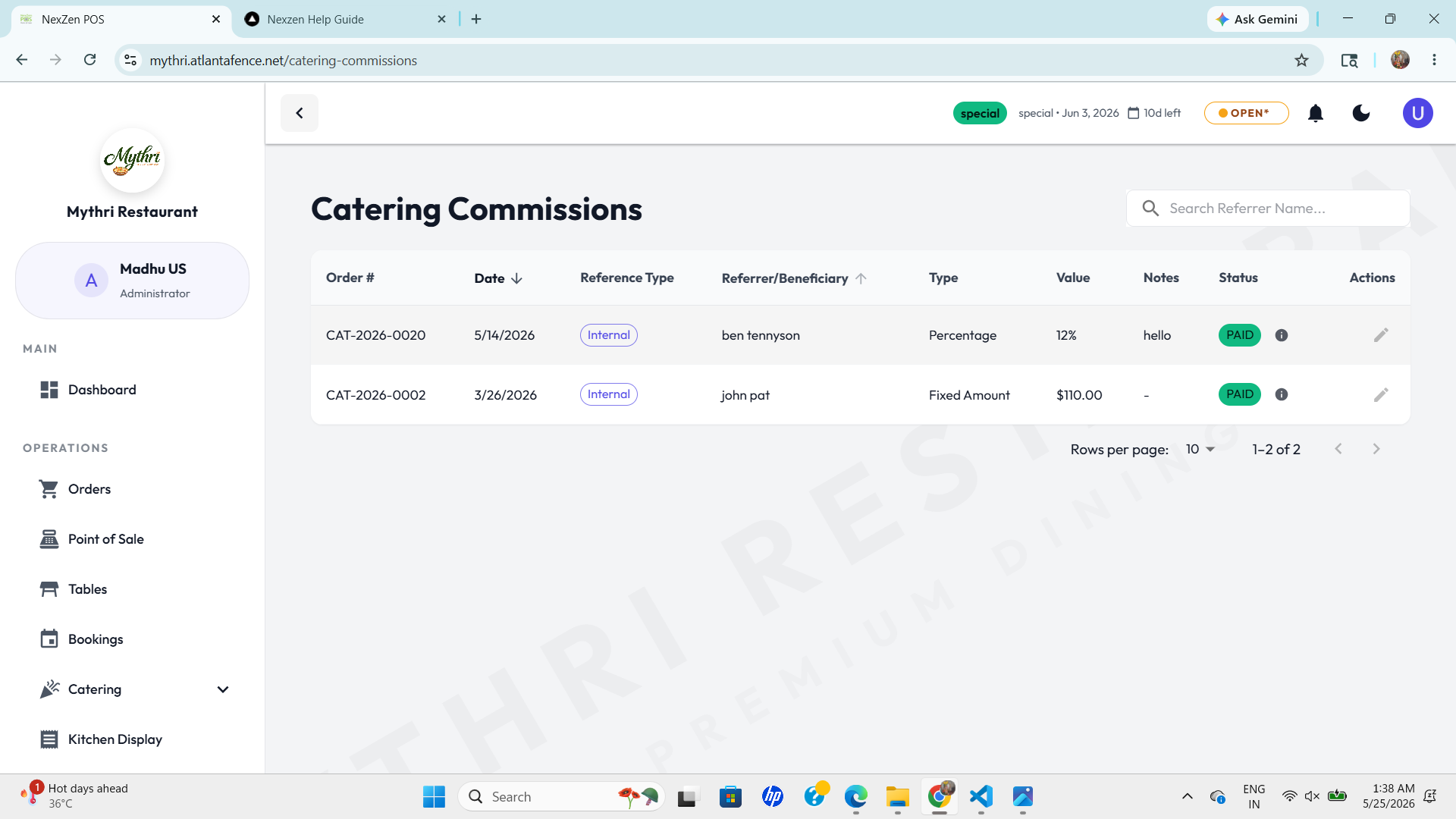
- Commission Rate: View the percentage applied to each order based on the assigned salesperson or partner.
- Earned Amount: Shows the commission total for the completed catering order.
- Status: Tracks whether the commission is CALCULATED, PENDING, or PAID.
- Commission Breakdown: Drill into the order to see how sales are split between operational cost and commission payout.