Inventory Management
Track raw materials, monitor stock levels, and automate reordering.
📦 Inventory Dashboard
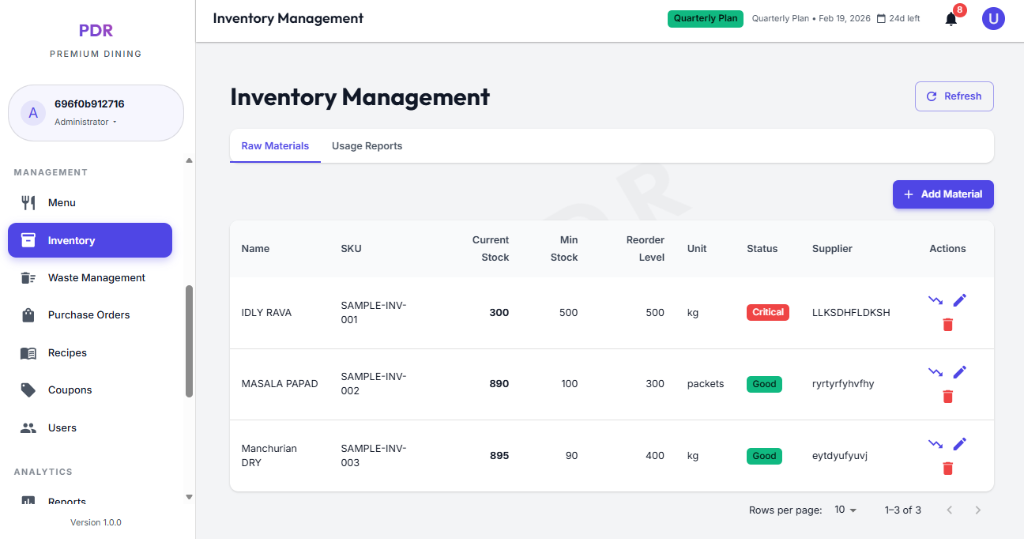
The Inventory module gives you a bird's-eye view of your stock health. Key features include:
Stock Monitoring
- Real-time Data: View Current Stock vs. Min Stock levels for every item (e.g., IDLY RAVA).
- Units: Standardized measurement units (e.g., "kg", "packets") ensure accuracy.
- Refresh: Use the "Refresh" button (top right) to fetch the latest stock counts immediately.
Alert System
- Status Badges:
- Critical: Stock is below the minimum level; reorder immediately.
- Good: Stock levels are healthy.
Management Actions
- + Add Material: Register new ingredients into the system.
- Trend Graph (📉): View usage history over time.
- Edit/Delete: Modify supplier details or remove unused items.
➕ Adding Raw Materials
Click the purple "+ Add Material" button to add a new inventory item. Keep the form simple and complete:
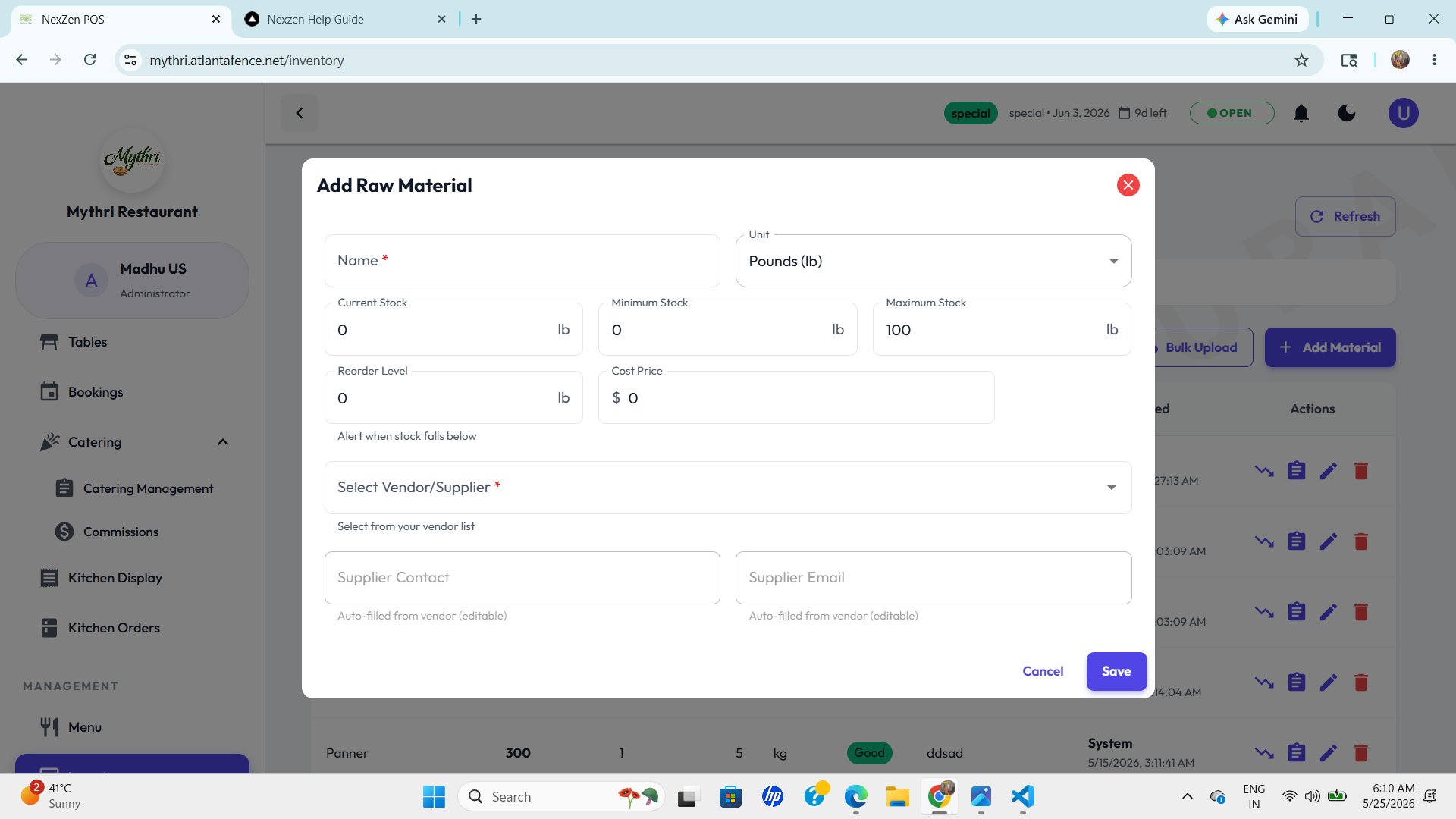
- Name & Unit: Enter the material name and choose the unit (e.g., lb, kg, packet).
- Stock Levels: Set Current Stock, Minimum Stock, Maximum Stock, and Reorder Level.
- Cost & Supplier: Add the cost price, then select a vendor/supplier to auto-fill the contact and email fields.
- Save: Click Save to register the material and keep your inventory up to date.
📉 Recording Material Usage
Clicking the Trend Graph icon opens the usage form. This is used to manually deduct stock when ingredients are used for preparation:
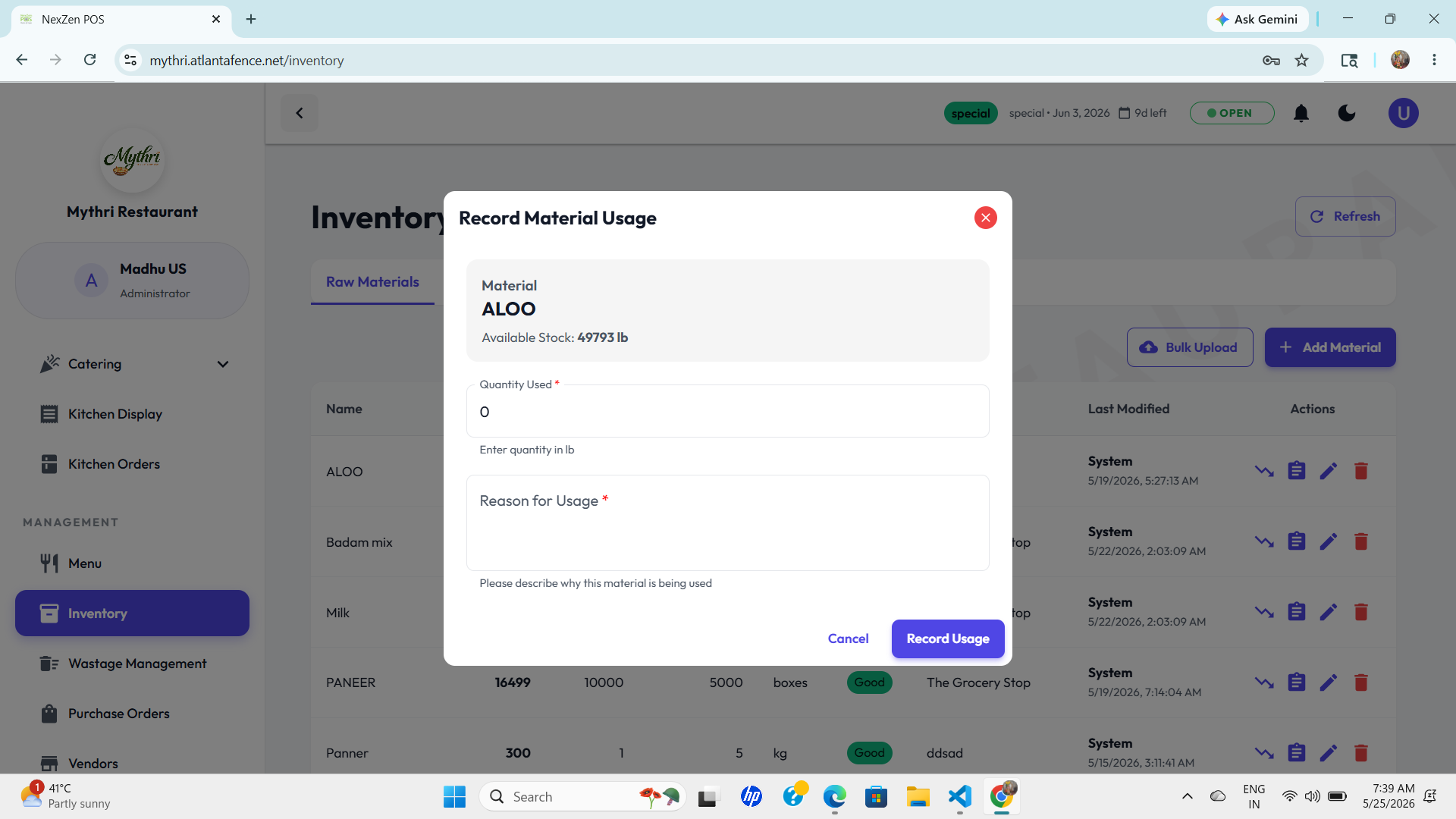
- Material Info: Displays the selected item (e.g., ALOO) and its current Available Stock to prevent over-drafting.
- Quantity Used: Enter the amount to deduct (e.g., "5.5"). The unit (kg) is automatically displayed below.
- Reason: Optional field to note why the stock was used (e.g., "Dinner Service Prep", "Wastage").
- Record Usage: Click the purple button to update the inventory immediately.
✏️ Editing Raw Materials
Click the Pencil Icon to edit an item. Use the form to update stock, pricing, and supplier details:
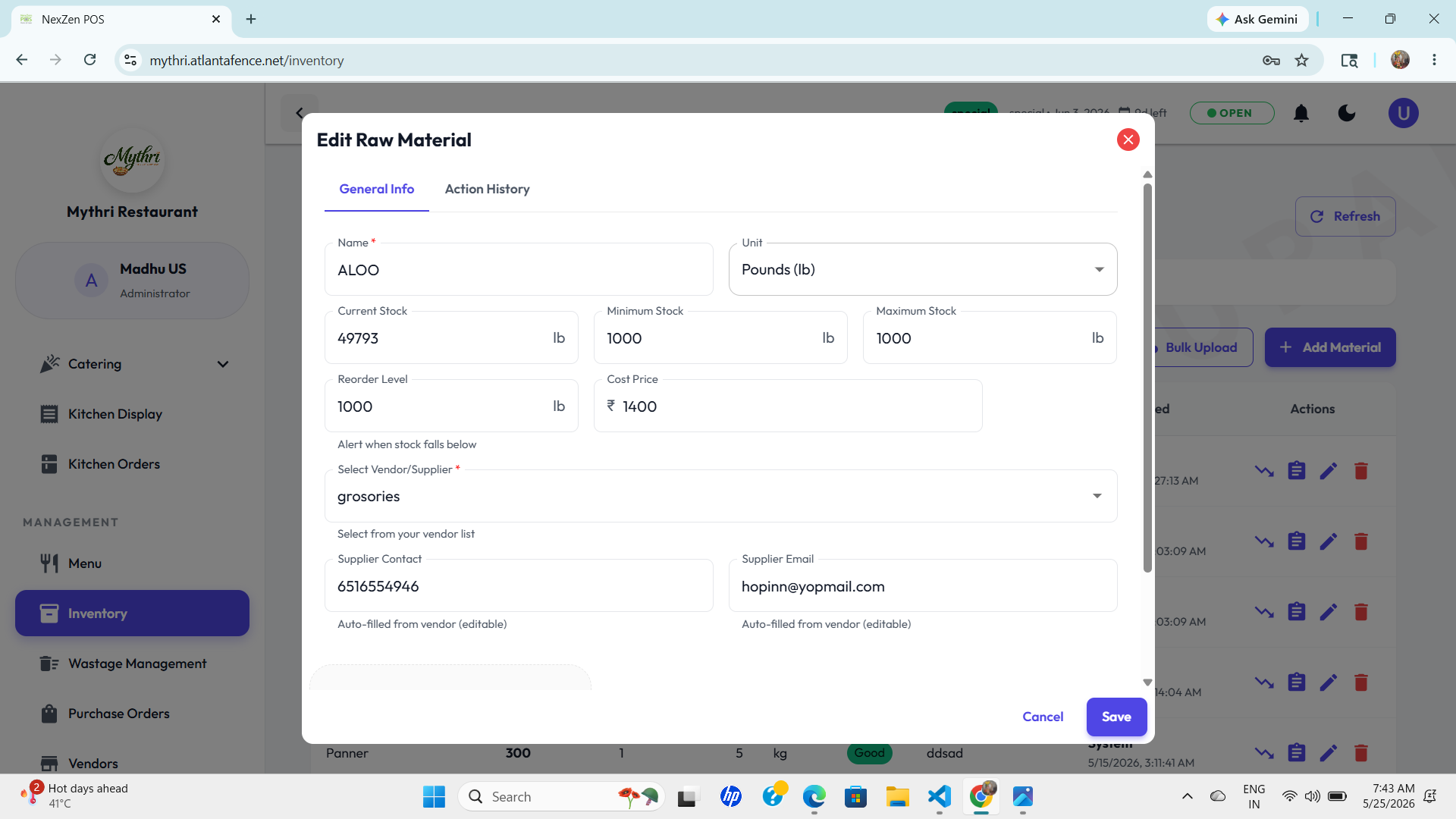
- Name & Unit: Change the material name or unit of measure if needed.
- Stock Values: Update Current Stock, Minimum Stock, Maximum Stock, and Reorder Level.
- Cost Price: Keep the cost accurate so inventory value remains correct.
- Supplier Info: Update the vendor, contact, and email to keep sourcing details current.
🗑️ Deleting Raw Materials
To permanently remove an ingredient from your inventory, click the red Trash Icon. A confirmation modal ensures you don't delete items by mistake:
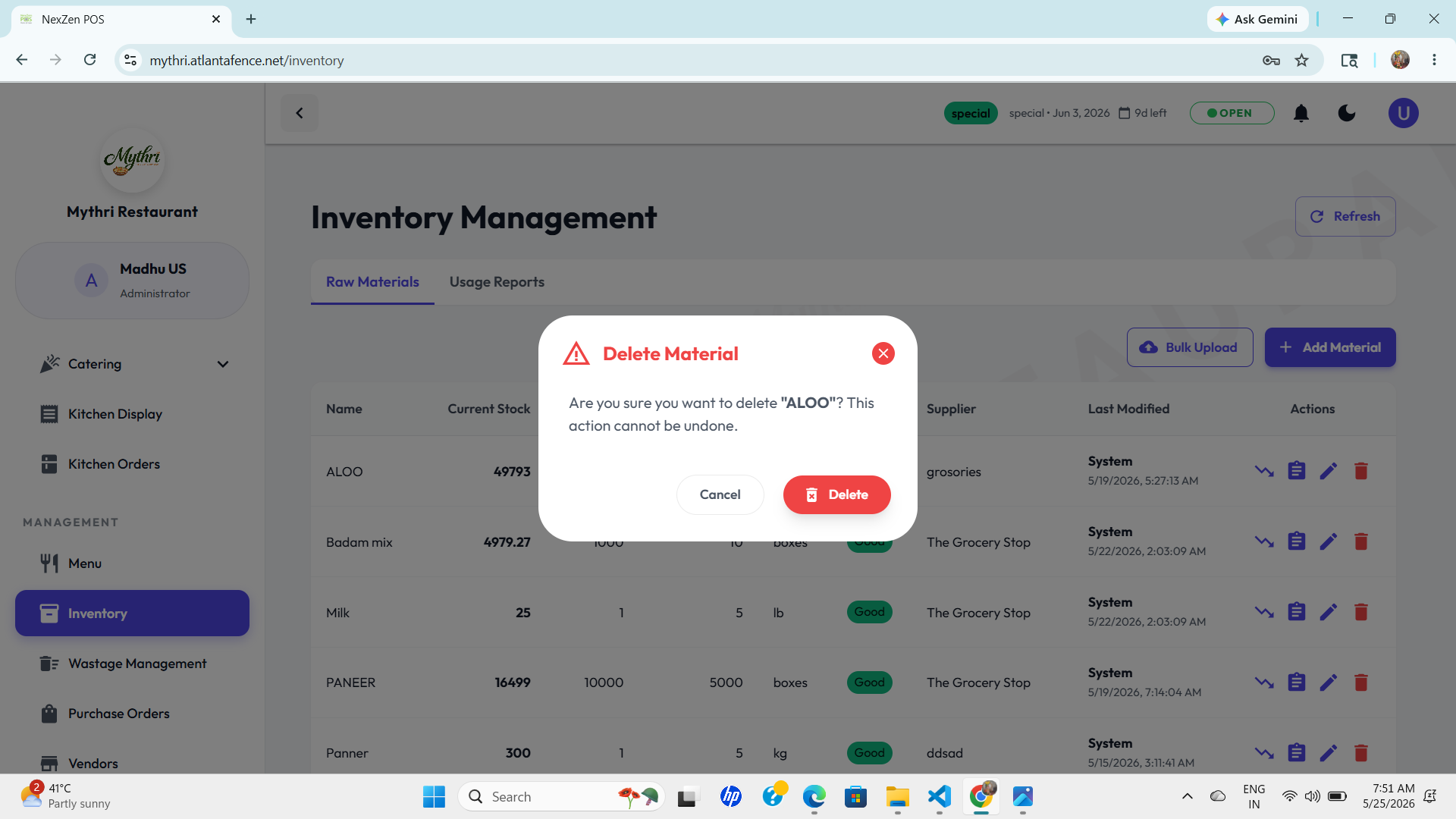
- Verification: The system asks "Are you sure you want to delete [Item Name]?" to confirm your intent.
- Irreversible: Once confirmed, this action cannot be undone, and the item's history will be removed.
- Safe Exit: Click Cancel to close the modal and keep the item.
📊 Usage & Transaction Reports
Use the Usage Reports tab to view material usage and cost details for the selected date range:
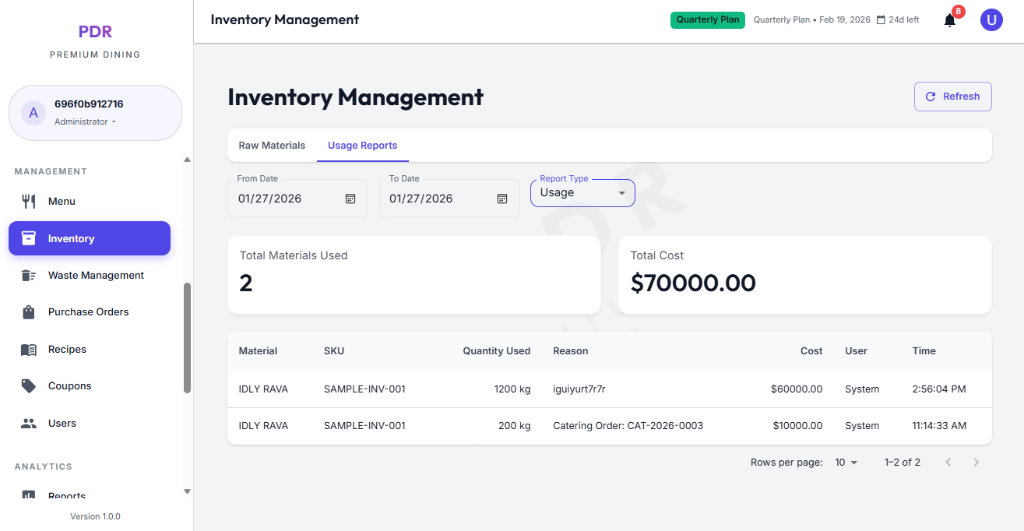
- Date Filters: Choose the From and To dates to narrow the report to a specific period.
- Report Type: Pick Usage, Wastage, or All Transactions.
- Key Metrics: See Total Materials Used and Total Cost at a glance.
- Transaction Table: Review each entry with the material, quantity, reason, cost, user, and time.